NKP login with Microsoft Entra ID: from app registration to group-based access
Tested onNKP 2.19Kubernetes 1.36.2Microsoft Entra ID FreeLab date On a different version, check the compatibility matrix and the release notes before applying.
Summary: the lab’s NKP 2.19 now accepts sign-in with Microsoft Entra ID accounts, and Entra’s sign-in policies, such as MFA, now apply to the dashboard and to
kubectlas well. From saving the Identity Provider to the first Entra login took 12 minutes. Access is granted to groups, never to individuals: three Entra groups became three NKP profiles, tested with real users. Ana administers the whole platform, Bruno operates only his workspace’s cluster and Carla works only in the project namespace. A fourth account, with no group, authenticates and sees nothing. Everything worked with Entra ID on the free license. The post shows the configuration on both sides, the right roles for each profile and the best practices that got each one ready.
The result in one table
| User (Entra group) | NKP roles | In the dashboard | In kubectl (services cluster) |
|---|---|---|---|
Ana (nkp-plataforma-admins) | Global: Cluster Admin Role + dkp-kommander-admin | Everything: 4 workspaces, 2 clusters, Administration | can-i '*' '*' = yes; sees all 6 nodes |
Bruno (nkp-servicos-operadores) | Workspace: custom role “Cluster Operator (full)” + Kommander Workspace Admin | Only the services workspace and his cluster | create deployments in all namespaces = yes |
Carla (nkp-servicos-devs) | Global: dkp-kommander-view · Workspace: Kommander Workspace View · Project: App Deployer + Kommander Project Edit | Only the services workspace and her project | yes in the project namespace, no in default, nodes forbidden |
| Eva (no group) | None | Authenticates in Entra and gets “Not Authorized” | — |
| NKP local admin | Local password | Full dashboard the whole time | Certificate kubeconfig |
The local admin and the certificate kubeconfigs kept working throughout the configuration. That’s the emergency (break-glass) access in case the Entra login becomes unavailable.
How identity works in NKP
NKP uses Dex, an OpenID Connect provider that runs only once, on the management cluster. Workload clusters don’t have their own Dex: each one gets a kube-oidc-proxy (for kubectl) and a traefik-forward-auth (for the web UIs), which trust the central Dex.
%3c/tspan%3e%3c/text%3e%3c/g%3e%3cg%3e%3crect x='514' y='379' fill='%23eaeaea' stroke='%23666' width='150' height='65' name='E' rx='3' ry='3' class='actor actor-bottom'/%3e%3ctext x='589' y='411.5' dominant-baseline='central' alignment-baseline='central' class='actor actor-box' style='text-anchor: middle%3b font-size: 16px%3b font-weight: 400%3b font-family: arial%2c sans-serif%3b'%3e%3ctspan x='589' dy='0'%3eMicrosoft Entra ID%3c/tspan%3e%3c/text%3e%3c/g%3e%3cg%3e%3crect x='206.5' y='379' fill='%23eaeaea' stroke='%23666' width='157' height='65' name='D' rx='3' ry='3' class='actor actor-bottom'/%3e%3ctext x='285' y='411.5' dominant-baseline='central' alignment-baseline='central' class='actor actor-box' style='text-anchor: middle%3b font-size: 16px%3b font-weight: 400%3b font-family: arial%2c sans-serif%3b'%3e%3ctspan x='285' dy='0'%3eDex (management)%3c/tspan%3e%3c/text%3e%3c/g%3e%3cg%3e%3crect x='0' y='379' fill='%23eaeaea' stroke='%23666' width='150' height='65' name='U' rx='3' ry='3' class='actor actor-bottom'/%3e%3ctext x='75' y='411.5' dominant-baseline='central' alignment-baseline='central' class='actor actor-box' style='text-anchor: middle%3b font-size: 16px%3b font-weight: 400%3b font-family: arial%2c sans-serif%3b'%3e%3ctspan x='75' dy='0'%3eUser%3c/tspan%3e%3c/text%3e%3c/g%3e%3cg%3e%3cline id='actor3' x1='829' y1='65' x2='829' y2='379' class='actor-line 200' stroke-width='0.5px' stroke='%23999' name='K' data-et='life-line' data-id='K'/%3e%3cg id='root-3' data-et='participant' data-type='participant' data-id='K'%3e%3crect x='714' y='0' fill='%23eaeaea' stroke='%23666' width='230' height='65' name='K' rx='3' ry='3' class='actor actor-top'/%3e%3ctext x='829' y='32.5' dominant-baseline='central' alignment-baseline='central' class='actor actor-box' style='text-anchor: middle%3b font-size: 16px%3b font-weight: 400%3b font-family: arial%2c sans-serif%3b'%3e%3ctspan x='829' dy='0'%3eNKP (dashboard and kubectl)%3c/tspan%3e%3c/text%3e%3c/g%3e%3c/g%3e%3cg%3e%3cline id='actor2' x1='589' y1='65' x2='589' y2='379' class='actor-line 200' stroke-width='0.5px' stroke='%23999' name='E' data-et='life-line' data-id='E'/%3e%3cg id='root-2' data-et='participant' data-type='participant' data-id='E'%3e%3crect x='514' y='0' fill='%23eaeaea' stroke='%23666' width='150' height='65' name='E' rx='3' ry='3' class='actor actor-top'/%3e%3ctext x='589' y='32.5' dominant-baseline='central' alignment-baseline='central' class='actor actor-box' style='text-anchor: middle%3b font-size: 16px%3b font-weight: 400%3b font-family: arial%2c sans-serif%3b'%3e%3ctspan x='589' dy='0'%3eMicrosoft Entra ID%3c/tspan%3e%3c/text%3e%3c/g%3e%3c/g%3e%3cg%3e%3cline id='actor1' x1='285' y1='65' x2='285' y2='379' class='actor-line 200' stroke-width='0.5px' stroke='%23999' name='D' data-et='life-line' data-id='D'/%3e%3cg id='root-1' data-et='participant' data-type='participant' data-id='D'%3e%3crect x='206.5' y='0' fill='%23eaeaea' stroke='%23666' width='157' height='65' name='D' rx='3' ry='3' class='actor actor-top'/%3e%3ctext x='285' y='32.5' dominant-baseline='central' alignment-baseline='central' class='actor actor-box' style='text-anchor: middle%3b font-size: 16px%3b font-weight: 400%3b font-family: arial%2c sans-serif%3b'%3e%3ctspan x='285' dy='0'%3eDex (management)%3c/tspan%3e%3c/text%3e%3c/g%3e%3c/g%3e%3cg%3e%3cline id='actor0' x1='75' y1='65' x2='75' y2='379' class='actor-line 200' stroke-width='0.5px' stroke='%23999' name='U' data-et='life-line' data-id='U'/%3e%3cg id='root-0' data-et='participant' data-type='participant' data-id='U'%3e%3crect x='0' y='0' fill='%23eaeaea' stroke='%23666' width='150' height='65' name='U' rx='3' ry='3' class='actor actor-top'/%3e%3ctext x='75' y='32.5' dominant-baseline='central' alignment-baseline='central' class='actor actor-box' style='text-anchor: middle%3b font-size: 16px%3b font-weight: 400%3b font-family: arial%2c sans-serif%3b'%3e%3ctspan x='75' dy='0'%3eUser%3c/tspan%3e%3c/text%3e%3c/g%3e%3c/g%3e%3cstyle%3e%23mermaid-0%7bfont-family:arial%2csans-serif%3bfont-size:16px%3bfill:black%3b%7d%40keyframes edge-animation-frame%7bfrom%7bstroke-dashoffset:0%3b%7d%7d%40keyframes dash%7bto%7bstroke-dashoffset:0%3b%7d%7d%23mermaid-0 .edge-animation-slow%7bstroke-dasharray:9%2c5!important%3bstroke-dashoffset:900%3banimation:dash 50s linear infinite%3bstroke-linecap:round%3b%7d%23mermaid-0 .edge-animation-fast%7bstroke-dasharray:9%2c5!important%3bstroke-dashoffset:900%3banimation:dash 20s linear infinite%3bstroke-linecap:round%3b%7d%23mermaid-0 .error-icon%7bfill:%23552222%3b%7d%23mermaid-0 .error-text%7bfill:%23552222%3bstroke:%23552222%3b%7d%23mermaid-0 .edge-thickness-normal%7bstroke-width:1px%3b%7d%23mermaid-0 .edge-thickness-thick%7bstroke-width:3.5px%3b%7d%23mermaid-0 .edge-pattern-solid%7bstroke-dasharray:0%3b%7d%23mermaid-0 .edge-thickness-invisible%7bstroke-width:0%3bfill:none%3b%7d%23mermaid-0 .edge-pattern-dashed%7bstroke-dasharray:3%3b%7d%23mermaid-0 .edge-pattern-dotted%7bstroke-dasharray:2%3b%7d%23mermaid-0 .marker%7bfill:%23666%3bstroke:%23666%3b%7d%23mermaid-0 .marker.cross%7bstroke:%23666%3b%7d%23mermaid-0 svg%7bfont-family:arial%2csans-serif%3bfont-size:16px%3b%7d%23mermaid-0 p%7bmargin:0%3b%7d%23mermaid-0 .actor%7bstroke:hsl(0%2c 0%25%2c 83%25)%3bfill:%23eee%3bstroke-width:1%3b%7d%23mermaid-0 rect.actor.outer-path%5bdata-look='neo'%5d%7bfilter:drop-shadow( 1px 2px 2px rgba(185%2c185%2c185%2c1))%3b%7d%23mermaid-0 rect.note%5bdata-look='neo'%5d%7bstroke:%23999%3bfill:%23666%3bfilter:drop-shadow( 1px 2px 2px rgba(185%2c185%2c185%2c1))%3b%7d%23mermaid-0 text.actor%26gt%3btspan%7bfill:%23333%3bstroke:none%3b%7d%23mermaid-0 .actor-line%7bstroke:hsl(0%2c 0%25%2c 83%25)%3b%7d%23mermaid-0 .innerArc%7bstroke-width:1.5%3bstroke-dasharray:none%3b%7d%23mermaid-0 .messageLine0%7bstroke-width:1.5%3bstroke-dasharray:none%3bstroke:%23333%3b%7d%23mermaid-0 .messageLine1%7bstroke-width:1.5%3bstroke-dasharray:2%2c2%3bstroke:%23333%3b%7d%23mermaid-0 %5bid%24='-arrowhead'%5d path%7bfill:%23333%3bstroke:%23333%3b%7d%23mermaid-0 .sequenceNumber%7bfill:white%3b%7d%23mermaid-0 %5bid%24='-sequencenumber'%5d%7bfill:%23333%3b%7d%23mermaid-0 %5bid%24='-crosshead'%5d path%7bfill:%23333%3bstroke:%23333%3b%7d%23mermaid-0 .messageText%7bfill:%23333%3bstroke:none%3b%7d%23mermaid-0 .labelBox%7bstroke:hsl(0%2c 0%25%2c 83%25)%3bfill:%23eee%3bfilter:none%3b%7d%23mermaid-0 .labelText%2c%23mermaid-0 .labelText%26gt%3btspan%7bfill:%23333%3bstroke:none%3b%7d%23mermaid-0 .loopText%2c%23mermaid-0 .loopText%26gt%3btspan%7bfill:%23333%3bstroke:none%3b%7d%23mermaid-0 .sectionTitle%2c%23mermaid-0 .sectionTitle%26gt%3btspan%7bfill:%23333%3bstroke:none%3b%7d%23mermaid-0 .loopLine%7bstroke-width:2px%3bstroke-dasharray:2%2c2%3bstroke:hsl(0%2c 0%25%2c 83%25)%3bfill:hsl(0%2c 0%25%2c 83%25)%3b%7d%23mermaid-0 .note%7bstroke:%23999%3bfill:%23666%3b%7d%23mermaid-0 .noteText%2c%23mermaid-0 .noteText%26gt%3btspan%7bfill:white%3bstroke:none%3bfont-weight:normal%3b%7d%23mermaid-0 .activation0%7bfill:%23f4f4f4%3bstroke:%23666%3b%7d%23mermaid-0 .activation1%7bfill:%23f4f4f4%3bstroke:%23666%3b%7d%23mermaid-0 .activation2%7bfill:%23f4f4f4%3bstroke:%23666%3b%7d%23mermaid-0 .actorPopupMenu%7bposition:absolute%3b%7d%23mermaid-0 .actorPopupMenuPanel%7bposition:absolute%3bfill:%23eee%3bbox-shadow:0px 8px 16px 0px rgba(0%2c0%2c0%2c0.2)%3bfilter:drop-shadow(3px 5px 2px rgb(0 0 0 / 0.4))%3b%7d%23mermaid-0 .actor-man circle%2c%23mermaid-0 line%7bfill:%23eee%3bstroke-width:2px%3b%7d%23mermaid-0 g rect.rect%7bfilter:drop-shadow( 1px 2px 2px rgba(185%2c185%2c185%2c1))%3bstroke:%23999%3b%7d%23mermaid-0 .node .neo-node%7bstroke:%23999%3b%7d%23mermaid-0 %5bdata-look='neo'%5d.node rect%2c%23mermaid-0 %5bdata-look='neo'%5d.cluster rect%2c%23mermaid-0 %5bdata-look='neo'%5d.node polygon%7bstroke:url(%23mermaid-0-gradient)%3bfilter:drop-shadow( 1px 2px 2px rgba(185%2c185%2c185%2c1))%3b%7d%23mermaid-0 %5bdata-look='neo'%5d.swimlane.cluster rect%7bfilter:none%3b%7d%23mermaid-0 %5bdata-look='neo'%5d.node path%7bstroke:url(%23mermaid-0-gradient)%3bstroke-width:1px%3b%7d%23mermaid-0 %5bdata-look='neo'%5d.node .outer-path%7bfilter:drop-shadow( 1px 2px 2px rgba(185%2c185%2c185%2c1))%3b%7d%23mermaid-0 %5bdata-look='neo'%5d.node .neo-line path%7bstroke:%23999%3bfilter:none%3b%7d%23mermaid-0 %5bdata-look='neo'%5d.node circle%7bstroke:url(%23mermaid-0-gradient)%3bfilter:drop-shadow( 1px 2px 2px rgba(185%2c185%2c185%2c1))%3b%7d%23mermaid-0 %5bdata-look='neo'%5d.node circle .state-start%7bfill:black%3b%7d%23mermaid-0 %5bdata-look='neo'%5d.icon-shape .icon%7bfill:url(%23mermaid-0-gradient)%3bfilter:drop-shadow( 1px 2px 2px rgba(185%2c185%2c185%2c1))%3b%7d%23mermaid-0 %5bdata-look='neo'%5d.icon-shape .icon-neo path%7bstroke:url(%23mermaid-0-gradient)%3bfilter:drop-shadow( 1px 2px 2px rgba(185%2c185%2c185%2c1))%3b%7d%23mermaid-0 :root%7b--mermaid-font-family:arial%2csans-serif%3b%7d%3c/style%3e%3cg/%3e%3cdefs%3e%3csymbol id='mermaid-0-computer' width='24' height='24'%3e%3cpath transform='scale(.5)' d='M2 2v13h20v-13h-20zm18 11h-16v-9h16v9zm-10.228 6l.466-1h3.524l.467 1h-4.457zm14.228 3h-24l2-6h2.104l-1.33 4h18.45l-1.297-4h2.073l2 6zm-5-10h-14v-7h14v7z'/%3e%3c/symbol%3e%3c/defs%3e%3cdefs%3e%3csymbol id='mermaid-0-database' fill-rule='evenodd' clip-rule='evenodd'%3e%3cpath transform='scale(.5)' d='M12.258.001l.256.004.255.005.253.008.251.01.249.012.247.015.246.016.242.019.241.02.239.023.236.024.233.027.231.028.229.031.225.032.223.034.22.036.217.038.214.04.211.041.208.043.205.045.201.046.198.048.194.05.191.051.187.053.183.054.18.056.175.057.172.059.168.06.163.061.16.063.155.064.15.066.074.033.073.033.071.034.07.034.069.035.068.035.067.035.066.035.064.036.064.036.062.036.06.036.06.037.058.037.058.037.055.038.055.038.053.038.052.038.051.039.05.039.048.039.047.039.045.04.044.04.043.04.041.04.04.041.039.041.037.041.036.041.034.041.033.042.032.042.03.042.029.042.027.042.026.043.024.043.023.043.021.043.02.043.018.044.017.043.015.044.013.044.012.044.011.045.009.044.007.045.006.045.004.045.002.045.001.045v17l-.001.045-.002.045-.004.045-.006.045-.007.045-.009.044-.011.045-.012.044-.013.044-.015.044-.017.043-.018.044-.02.043-.021.043-.023.043-.024.043-.026.043-.027.042-.029.042-.03.042-.032.042-.033.042-.034.041-.036.041-.037.041-.039.041-.04.041-.041.04-.043.04-.044.04-.045.04-.047.039-.048.039-.05.039-.051.039-.052.038-.053.038-.055.038-.055.038-.058.037-.058.037-.06.037-.06.036-.062.036-.064.036-.064.036-.066.035-.067.035-.068.035-.069.035-.07.034-.071.034-.073.033-.074.033-.15.066-.155.064-.16.063-.163.061-.168.06-.172.059-.175.057-.18.056-.183.054-.187.053-.191.051-.194.05-.198.048-.201.046-.205.045-.208.043-.211.041-.214.04-.217.038-.22.036-.223.034-.225.032-.229.031-.231.028-.233.027-.236.024-.239.023-.241.02-.242.019-.246.016-.247.015-.249.012-.251.01-.253.008-.255.005-.256.004-.258.001-.258-.001-.256-.004-.255-.005-.253-.008-.251-.01-.249-.012-.247-.015-.245-.016-.243-.019-.241-.02-.238-.023-.236-.024-.234-.027-.231-.028-.228-.031-.226-.032-.223-.034-.22-.036-.217-.038-.214-.04-.211-.041-.208-.043-.204-.045-.201-.046-.198-.048-.195-.05-.19-.051-.187-.053-.184-.054-.179-.056-.176-.057-.172-.059-.167-.06-.164-.061-.159-.063-.155-.064-.151-.066-.074-.033-.072-.033-.072-.034-.07-.034-.069-.035-.068-.035-.067-.035-.066-.035-.064-.036-.063-.036-.062-.036-.061-.036-.06-.037-.058-.037-.057-.037-.056-.038-.055-.038-.053-.038-.052-.038-.051-.039-.049-.039-.049-.039-.046-.039-.046-.04-.044-.04-.043-.04-.041-.04-.04-.041-.039-.041-.037-.041-.036-.041-.034-.041-.033-.042-.032-.042-.03-.042-.029-.042-.027-.042-.026-.043-.024-.043-.023-.043-.021-.043-.02-.043-.018-.044-.017-.043-.015-.044-.013-.044-.012-.044-.011-.045-.009-.044-.007-.045-.006-.045-.004-.045-.002-.045-.001-.045v-17l.001-.045.002-.045.004-.045.006-.045.007-.045.009-.044.011-.045.012-.044.013-.044.015-.044.017-.043.018-.044.02-.043.021-.043.023-.043.024-.043.026-.043.027-.042.029-.042.03-.042.032-.042.033-.042.034-.041.036-.041.037-.041.039-.041.04-.041.041-.04.043-.04.044-.04.046-.04.046-.039.049-.039.049-.039.051-.039.052-.038.053-.038.055-.038.056-.038.057-.037.058-.037.06-.037.061-.036.062-.036.063-.036.064-.036.066-.035.067-.035.068-.035.069-.035.07-.034.072-.034.072-.033.074-.033.151-.066.155-.064.159-.063.164-.061.167-.06.172-.059.176-.057.179-.056.184-.054.187-.053.19-.051.195-.05.198-.048.201-.046.204-.045.208-.043.211-.041.214-.04.217-.038.22-.036.223-.034.226-.032.228-.031.231-.028.234-.027.236-.024.238-.023.241-.02.243-.019.245-.016.247-.015.249-.012.251-.01.253-.008.255-.005.256-.004.258-.001.258.001zm-9.258 20.499v.01l.001.021.003.021.004.022.005.021.006.022.007.022.009.023.01.022.011.023.012.023.013.023.015.023.016.024.017.023.018.024.019.024.021.024.022.025.023.024.024.025.052.049.056.05.061.051.066.051.07.051.075.051.079.052.084.052.088.052.092.052.097.052.102.051.105.052.11.052.114.051.119.051.123.051.127.05.131.05.135.05.139.048.144.049.147.047.152.047.155.047.16.045.163.045.167.043.171.043.176.041.178.041.183.039.187.039.19.037.194.035.197.035.202.033.204.031.209.03.212.029.216.027.219.025.222.024.226.021.23.02.233.018.236.016.24.015.243.012.246.01.249.008.253.005.256.004.259.001.26-.001.257-.004.254-.005.25-.008.247-.011.244-.012.241-.014.237-.016.233-.018.231-.021.226-.021.224-.024.22-.026.216-.027.212-.028.21-.031.205-.031.202-.034.198-.034.194-.036.191-.037.187-.039.183-.04.179-.04.175-.042.172-.043.168-.044.163-.045.16-.046.155-.046.152-.047.148-.048.143-.049.139-.049.136-.05.131-.05.126-.05.123-.051.118-.052.114-.051.11-.052.106-.052.101-.052.096-.052.092-.052.088-.053.083-.051.079-.052.074-.052.07-.051.065-.051.06-.051.056-.05.051-.05.023-.024.023-.025.021-.024.02-.024.019-.024.018-.024.017-.024.015-.023.014-.024.013-.023.012-.023.01-.023.01-.022.008-.022.006-.022.006-.022.004-.022.004-.021.001-.021.001-.021v-4.127l-.077.055-.08.053-.083.054-.085.053-.087.052-.09.052-.093.051-.095.05-.097.05-.1.049-.102.049-.105.048-.106.047-.109.047-.111.046-.114.045-.115.045-.118.044-.12.043-.122.042-.124.042-.126.041-.128.04-.13.04-.132.038-.134.038-.135.037-.138.037-.139.035-.142.035-.143.034-.144.033-.147.032-.148.031-.15.03-.151.03-.153.029-.154.027-.156.027-.158.026-.159.025-.161.024-.162.023-.163.022-.165.021-.166.02-.167.019-.169.018-.169.017-.171.016-.173.015-.173.014-.175.013-.175.012-.177.011-.178.01-.179.008-.179.008-.181.006-.182.005-.182.004-.184.003-.184.002h-.37l-.184-.002-.184-.003-.182-.004-.182-.005-.181-.006-.179-.008-.179-.008-.178-.01-.176-.011-.176-.012-.175-.013-.173-.014-.172-.015-.171-.016-.17-.017-.169-.018-.167-.019-.166-.02-.165-.021-.163-.022-.162-.023-.161-.024-.159-.025-.157-.026-.156-.027-.155-.027-.153-.029-.151-.03-.15-.03-.148-.031-.146-.032-.145-.033-.143-.034-.141-.035-.14-.035-.137-.037-.136-.037-.134-.038-.132-.038-.13-.04-.128-.04-.126-.041-.124-.042-.122-.042-.12-.044-.117-.043-.116-.045-.113-.045-.112-.046-.109-.047-.106-.047-.105-.048-.102-.049-.1-.049-.097-.05-.095-.05-.093-.052-.09-.051-.087-.052-.085-.053-.083-.054-.08-.054-.077-.054v4.127zm0-5.654v.011l.001.021.003.021.004.021.005.022.006.022.007.022.009.022.01.022.011.023.012.023.013.023.015.024.016.023.017.024.018.024.019.024.021.024.022.024.023.025.024.024.052.05.056.05.061.05.066.051.07.051.075.052.079.051.084.052.088.052.092.052.097.052.102.052.105.052.11.051.114.051.119.052.123.05.127.051.131.05.135.049.139.049.144.048.147.048.152.047.155.046.16.045.163.045.167.044.171.042.176.042.178.04.183.04.187.038.19.037.194.036.197.034.202.033.204.032.209.03.212.028.216.027.219.025.222.024.226.022.23.02.233.018.236.016.24.014.243.012.246.01.249.008.253.006.256.003.259.001.26-.001.257-.003.254-.006.25-.008.247-.01.244-.012.241-.015.237-.016.233-.018.231-.02.226-.022.224-.024.22-.025.216-.027.212-.029.21-.03.205-.032.202-.033.198-.035.194-.036.191-.037.187-.039.183-.039.179-.041.175-.042.172-.043.168-.044.163-.045.16-.045.155-.047.152-.047.148-.048.143-.048.139-.05.136-.049.131-.05.126-.051.123-.051.118-.051.114-.052.11-.052.106-.052.101-.052.096-.052.092-.052.088-.052.083-.052.079-.052.074-.051.07-.052.065-.051.06-.05.056-.051.051-.049.023-.025.023-.024.021-.025.02-.024.019-.024.018-.024.017-.024.015-.023.014-.023.013-.024.012-.022.01-.023.01-.023.008-.022.006-.022.006-.022.004-.021.004-.022.001-.021.001-.021v-4.139l-.077.054-.08.054-.083.054-.085.052-.087.053-.09.051-.093.051-.095.051-.097.05-.1.049-.102.049-.105.048-.106.047-.109.047-.111.046-.114.045-.115.044-.118.044-.12.044-.122.042-.124.042-.126.041-.128.04-.13.039-.132.039-.134.038-.135.037-.138.036-.139.036-.142.035-.143.033-.144.033-.147.033-.148.031-.15.03-.151.03-.153.028-.154.028-.156.027-.158.026-.159.025-.161.024-.162.023-.163.022-.165.021-.166.02-.167.019-.169.018-.169.017-.171.016-.173.015-.173.014-.175.013-.175.012-.177.011-.178.009-.179.009-.179.007-.181.007-.182.005-.182.004-.184.003-.184.002h-.37l-.184-.002-.184-.003-.182-.004-.182-.005-.181-.007-.179-.007-.179-.009-.178-.009-.176-.011-.176-.012-.175-.013-.173-.014-.172-.015-.171-.016-.17-.017-.169-.018-.167-.019-.166-.02-.165-.021-.163-.022-.162-.023-.161-.024-.159-.025-.157-.026-.156-.027-.155-.028-.153-.028-.151-.03-.15-.03-.148-.031-.146-.033-.145-.033-.143-.033-.141-.035-.14-.036-.137-.036-.136-.037-.134-.038-.132-.039-.13-.039-.128-.04-.126-.041-.124-.042-.122-.043-.12-.043-.117-.044-.116-.044-.113-.046-.112-.046-.109-.046-.106-.047-.105-.048-.102-.049-.1-.049-.097-.05-.095-.051-.093-.051-.09-.051-.087-.053-.085-.052-.083-.054-.08-.054-.077-.054v4.139zm0-5.666v.011l.001.02.003.022.004.021.005.022.006.021.007.022.009.023.01.022.011.023.012.023.013.023.015.023.016.024.017.024.018.023.019.024.021.025.022.024.023.024.024.025.052.05.056.05.061.05.066.051.07.051.075.052.079.051.084.052.088.052.092.052.097.052.102.052.105.051.11.052.114.051.119.051.123.051.127.05.131.05.135.05.139.049.144.048.147.048.152.047.155.046.16.045.163.045.167.043.171.043.176.042.178.04.183.04.187.038.19.037.194.036.197.034.202.033.204.032.209.03.212.028.216.027.219.025.222.024.226.021.23.02.233.018.236.017.24.014.243.012.246.01.249.008.253.006.256.003.259.001.26-.001.257-.003.254-.006.25-.008.247-.01.244-.013.241-.014.237-.016.233-.018.231-.02.226-.022.224-.024.22-.025.216-.027.212-.029.21-.03.205-.032.202-.033.198-.035.194-.036.191-.037.187-.039.183-.039.179-.041.175-.042.172-.043.168-.044.163-.045.16-.045.155-.047.152-.047.148-.048.143-.049.139-.049.136-.049.131-.051.126-.05.123-.051.118-.052.114-.051.11-.052.106-.052.101-.052.096-.052.092-.052.088-.052.083-.052.079-.052.074-.052.07-.051.065-.051.06-.051.056-.05.051-.049.023-.025.023-.025.021-.024.02-.024.019-.024.018-.024.017-.024.015-.023.014-.024.013-.023.012-.023.01-.022.01-.023.008-.022.006-.022.006-.022.004-.022.004-.021.001-.021.001-.021v-4.153l-.077.054-.08.054-.083.053-.085.053-.087.053-.09.051-.093.051-.095.051-.097.05-.1.049-.102.048-.105.048-.106.048-.109.046-.111.046-.114.046-.115.044-.118.044-.12.043-.122.043-.124.042-.126.041-.128.04-.13.039-.132.039-.134.038-.135.037-.138.036-.139.036-.142.034-.143.034-.144.033-.147.032-.148.032-.15.03-.151.03-.153.028-.154.028-.156.027-.158.026-.159.024-.161.024-.162.023-.163.023-.165.021-.166.02-.167.019-.169.018-.169.017-.171.016-.173.015-.173.014-.175.013-.175.012-.177.01-.178.01-.179.009-.179.007-.181.006-.182.006-.182.004-.184.003-.184.001-.185.001-.185-.001-.184-.001-.184-.003-.182-.004-.182-.006-.181-.006-.179-.007-.179-.009-.178-.01-.176-.01-.176-.012-.175-.013-.173-.014-.172-.015-.171-.016-.17-.017-.169-.018-.167-.019-.166-.02-.165-.021-.163-.023-.162-.023-.161-.024-.159-.024-.157-.026-.156-.027-.155-.028-.153-.028-.151-.03-.15-.03-.148-.032-.146-.032-.145-.033-.143-.034-.141-.034-.14-.036-.137-.036-.136-.037-.134-.038-.132-.039-.13-.039-.128-.041-.126-.041-.124-.041-.122-.043-.12-.043-.117-.044-.116-.044-.113-.046-.112-.046-.109-.046-.106-.048-.105-.048-.102-.048-.1-.05-.097-.049-.095-.051-.093-.051-.09-.052-.087-.052-.085-.053-.083-.053-.08-.054-.077-.054v4.153zm8.74-8.179l-.257.004-.254.005-.25.008-.247.011-.244.012-.241.014-.237.016-.233.018-.231.021-.226.022-.224.023-.22.026-.216.027-.212.028-.21.031-.205.032-.202.033-.198.034-.194.036-.191.038-.187.038-.183.04-.179.041-.175.042-.172.043-.168.043-.163.045-.16.046-.155.046-.152.048-.148.048-.143.048-.139.049-.136.05-.131.05-.126.051-.123.051-.118.051-.114.052-.11.052-.106.052-.101.052-.096.052-.092.052-.088.052-.083.052-.079.052-.074.051-.07.052-.065.051-.06.05-.056.05-.051.05-.023.025-.023.024-.021.024-.02.025-.019.024-.018.024-.017.023-.015.024-.014.023-.013.023-.012.023-.01.023-.01.022-.008.022-.006.023-.006.021-.004.022-.004.021-.001.021-.001.021.001.021.001.021.004.021.004.022.006.021.006.023.008.022.01.022.01.023.012.023.013.023.014.023.015.024.017.023.018.024.019.024.02.025.021.024.023.024.023.025.051.05.056.05.06.05.065.051.07.052.074.051.079.052.083.052.088.052.092.052.096.052.101.052.106.052.11.052.114.052.118.051.123.051.126.051.131.05.136.05.139.049.143.048.148.048.152.048.155.046.16.046.163.045.168.043.172.043.175.042.179.041.183.04.187.038.191.038.194.036.198.034.202.033.205.032.21.031.212.028.216.027.22.026.224.023.226.022.231.021.233.018.237.016.241.014.244.012.247.011.25.008.254.005.257.004.26.001.26-.001.257-.004.254-.005.25-.008.247-.011.244-.012.241-.014.237-.016.233-.018.231-.021.226-.022.224-.023.22-.026.216-.027.212-.028.21-.031.205-.032.202-.033.198-.034.194-.036.191-.038.187-.038.183-.04.179-.041.175-.042.172-.043.168-.043.163-.045.16-.046.155-.046.152-.048.148-.048.143-.048.139-.049.136-.05.131-.05.126-.051.123-.051.118-.051.114-.052.11-.052.106-.052.101-.052.096-.052.092-.052.088-.052.083-.052.079-.052.074-.051.07-.052.065-.051.06-.05.056-.05.051-.05.023-.025.023-.024.021-.024.02-.025.019-.024.018-.024.017-.023.015-.024.014-.023.013-.023.012-.023.01-.023.01-.022.008-.022.006-.023.006-.021.004-.022.004-.021.001-.021.001-.021-.001-.021-.001-.021-.004-.021-.004-.022-.006-.021-.006-.023-.008-.022-.01-.022-.01-.023-.012-.023-.013-.023-.014-.023-.015-.024-.017-.023-.018-.024-.019-.024-.02-.025-.021-.024-.023-.024-.023-.025-.051-.05-.056-.05-.06-.05-.065-.051-.07-.052-.074-.051-.079-.052-.083-.052-.088-.052-.092-.052-.096-.052-.101-.052-.106-.052-.11-.052-.114-.052-.118-.051-.123-.051-.126-.051-.131-.05-.136-.05-.139-.049-.143-.048-.148-.048-.152-.048-.155-.046-.16-.046-.163-.045-.168-.043-.172-.043-.175-.042-.179-.041-.183-.04-.187-.038-.191-.038-.194-.036-.198-.034-.202-.033-.205-.032-.21-.031-.212-.028-.216-.027-.22-.026-.224-.023-.226-.022-.231-.021-.233-.018-.237-.016-.241-.014-.244-.012-.247-.011-.25-.008-.254-.005-.257-.004-.26-.001-.26.001z'/%3e%3c/symbol%3e%3c/defs%3e%3cdefs%3e%3csymbol id='mermaid-0-clock' width='24' height='24'%3e%3cpath transform='scale(.5)' d='M12 2c5.514 0 10 4.486 10 10s-4.486 10-10 10-10-4.486-10-10 4.486-10 10-10zm0-2c-6.627 0-12 5.373-12 12s5.373 12 12 12 12-5.373 12-12-5.373-12-12-12zm5.848 12.459c.202.038.202.333.001.372-1.907.361-6.045 1.111-6.547 1.111-.719 0-1.301-.582-1.301-1.301 0-.512.77-5.447 1.125-7.445.034-.192.312-.181.343.014l.985 6.238 5.394 1.011z'/%3e%3c/symbol%3e%3c/defs%3e%3cdefs%3e%3cmarker id='mermaid-0-arrowhead' refX='7.9' refY='5' markerUnits='userSpaceOnUse' markerWidth='12' markerHeight='12' orient='auto-start-reverse'%3e%3cpath d='M -1 0 L 10 5 L 0 10 z'/%3e%3c/marker%3e%3c/defs%3e%3cdefs%3e%3cmarker id='mermaid-0-crosshead' markerWidth='15' markerHeight='8' orient='auto' refX='4' refY='4.5'%3e%3cpath fill='none' stroke='black' stroke-width='1pt' d='M 1%2c2 L 6%2c7 M 6%2c2 L 1%2c7' style='stroke-dasharray: 0%2c 0%3b'/%3e%3c/marker%3e%3c/defs%3e%3cdefs%3e%3cmarker id='mermaid-0-filled-head' refX='15.5' refY='7' markerWidth='20' markerHeight='28' orient='auto'%3e%3cpath d='M 18%2c7 L9%2c13 L14%2c7 L9%2c1 Z'/%3e%3c/marker%3e%3c/defs%3e%3cdefs%3e%3cmarker id='mermaid-0-sequencenumber' refX='15' refY='15' markerWidth='60' markerHeight='40' orient='auto'%3e%3ccircle cx='15' cy='15' r='6'/%3e%3c/marker%3e%3c/defs%3e%3cdefs%3e%3cmarker id='mermaid-0-solidTopArrowHead' refX='7.9' refY='7.25' markerUnits='userSpaceOnUse' markerWidth='12' markerHeight='12' orient='auto-start-reverse'%3e%3cpath d='M 0 0 L 10 8 L 0 8 z'/%3e%3c/marker%3e%3c/defs%3e%3cdefs%3e%3cmarker id='mermaid-0-solidBottomArrowHead' refX='7.9' refY='0.75' markerUnits='userSpaceOnUse' markerWidth='12' markerHeight='12' orient='auto-start-reverse'%3e%3cpath d='M 0 0 L 10 0 L 0 8 z'/%3e%3c/marker%3e%3c/defs%3e%3cdefs%3e%3cmarker id='mermaid-0-stickTopArrowHead' refX='7.5' refY='7' markerUnits='userSpaceOnUse' markerWidth='12' markerHeight='12' orient='auto-start-reverse'%3e%3cpath d='M 0 0 L 7 7' stroke='black' stroke-width='1.5' fill='none'/%3e%3c/marker%3e%3c/defs%3e%3cdefs%3e%3cmarker id='mermaid-0-stickBottomArrowHead' refX='7.5' refY='0' markerUnits='userSpaceOnUse' markerWidth='12' markerHeight='12' orient='auto-start-reverse'%3e%3cpath d='M 0 7 L 7 0' stroke='black' stroke-width='1.5' fill='none'/%3e%3c/marker%3e%3c/defs%3e%3ctext x='179' y='80' text-anchor='middle' dominant-baseline='middle' alignment-baseline='middle' class='messageText' dy='1em' style='font-family: arial%2c sans-serif%3b font-size: 16px%3b font-weight: 400%3b'%3eLog in with Entra ID%3c/text%3e%3cline x1='76' y1='109' x2='281' y2='109' class='messageLine0' data-et='message' data-id='i0' data-from='U' data-to='D' stroke-width='2' stroke='none' marker-end='url(%23mermaid-0-arrowhead)' style='fill: none%3b'/%3e%3ctext x='436' y='124' text-anchor='middle' dominant-baseline='middle' alignment-baseline='middle' class='messageText' dy='1em' style='font-family: arial%2c sans-serif%3b font-size: 16px%3b font-weight: 400%3b'%3eredirects to sign-in%3c/text%3e%3cline x1='286' y1='153' x2='585' y2='153' class='messageLine0' data-et='message' data-id='i1' data-from='D' data-to='E' stroke-width='2' stroke='none' marker-end='url(%23mermaid-0-arrowhead)' style='fill: none%3b'/%3e%3ctext x='334' y='168' text-anchor='middle' dominant-baseline='middle' alignment-baseline='middle' class='messageText' dy='1em' style='font-family: arial%2c sans-serif%3b font-size: 16px%3b font-weight: 400%3b'%3epassword %2b MFA%3c/text%3e%3cline x1='588' y1='197' x2='79' y2='197' class='messageLine0' data-et='message' data-id='i2' data-from='E' data-to='U' stroke-width='2' stroke='none' marker-end='url(%23mermaid-0-arrowhead)' style='fill: none%3b'/%3e%3ctext x='439' y='212' text-anchor='middle' dominant-baseline='middle' alignment-baseline='middle' class='messageText' dy='1em' style='font-family: arial%2c sans-serif%3b font-size: 16px%3b font-weight: 400%3b'%3etoken with the groups (Object ID)%3c/text%3e%3cline x1='588' y1='241' x2='289' y2='241' class='messageLine0' data-et='message' data-id='i3' data-from='E' data-to='D' stroke-width='2' stroke='none' marker-end='url(%23mermaid-0-arrowhead)' style='fill: none%3b'/%3e%3ctext x='556' y='256' text-anchor='middle' dominant-baseline='middle' alignment-baseline='middle' class='messageText' dy='1em' style='font-family: arial%2c sans-serif%3b font-size: 16px%3b font-weight: 400%3b'%3eNKP token or 24 h kubeconfig%3c/text%3e%3cline x1='286' y1='285' x2='825' y2='285' class='messageLine0' data-et='message' data-id='i4' data-from='D' data-to='K' stroke-width='2' stroke='none' marker-end='url(%23mermaid-0-arrowhead)' style='fill: none%3b'/%3e%3ctext x='830' y='300' text-anchor='middle' dominant-baseline='middle' alignment-baseline='middle' class='messageText' dy='1em' style='font-family: arial%2c sans-serif%3b font-size: 16px%3b font-weight: 400%3b'%3eKubernetes RBAC%2c by group%3c/text%3e%3cpath d='M 830%2c329 C 890%2c319 890%2c359 830%2c349' class='messageLine0' data-et='message' data-id='i5' data-from='K' data-to='K' stroke-width='2' stroke='none' marker-end='url(%23mermaid-0-arrowhead)' style='fill: none%3b'/%3e%3c/svg%3e)
Three practical consequences:
- Entra handles authentication (password, MFA, account lockout). NKP handles authorization (what each group can do).
- The API servers don’t change. I checked in the lab: none of them has
--oidc-*flags. OIDC comes in through kube-oidc-proxy, so there’s no control plane restart. - In NKP, permissions are granted to groups. The bindings screen itself says so: “Both groups and roles must be defined before setting up cluster role bindings”. The order is always: Entra group → NKP group → role → binding.
NKP editions
Login through Dex (RBAC and single sign-on) is in every edition: Starter, Pro and Ultimate. Workspaces and projects, used in Bruno’s and Carla’s scenarios, are part of NKP Ultimate, the lab’s license. On Pro and Starter, you get the same result with native Kubernetes RBAC, applying the bindings cluster by cluster.
What to prepare first
| Item | Why | How I checked it in the lab |
|---|---|---|
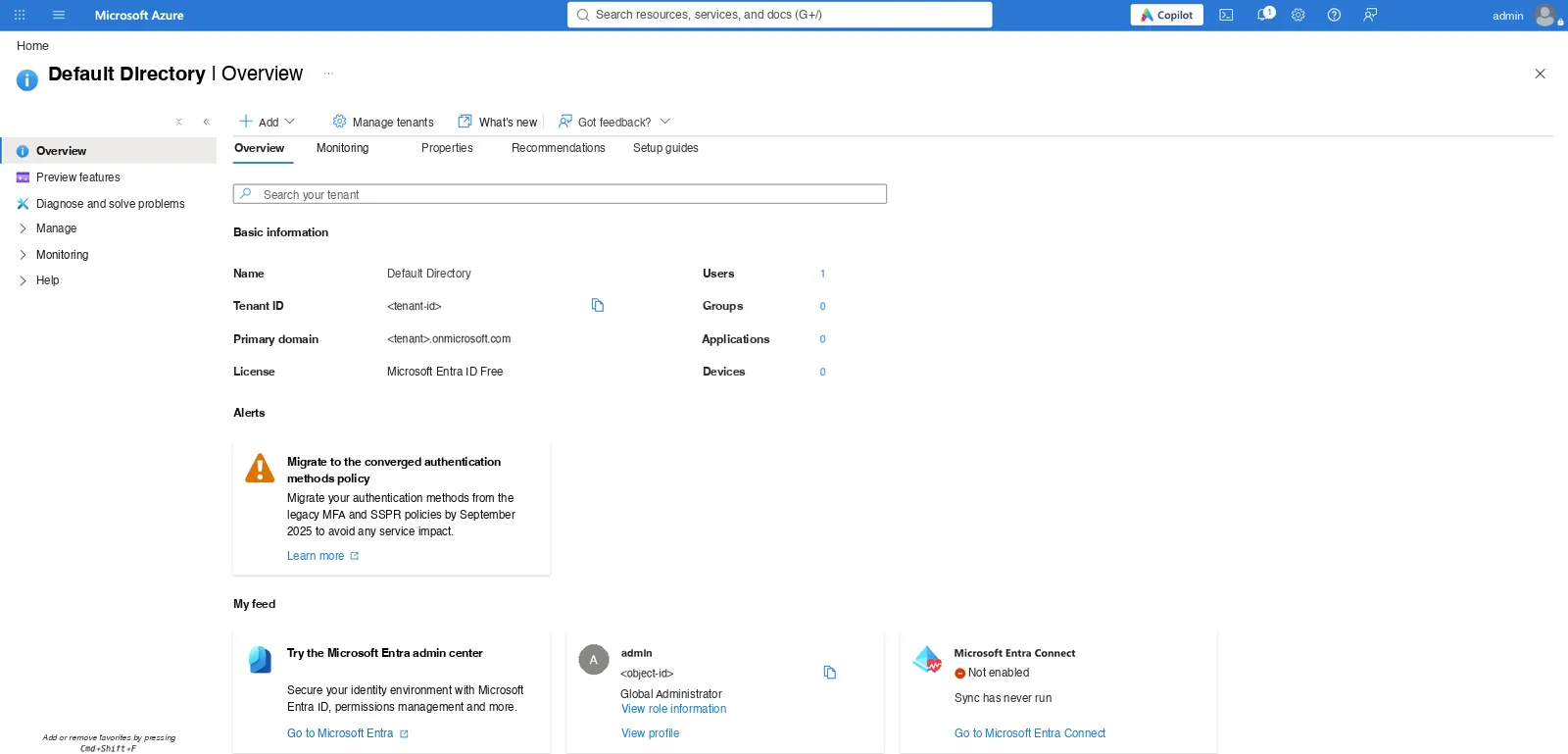
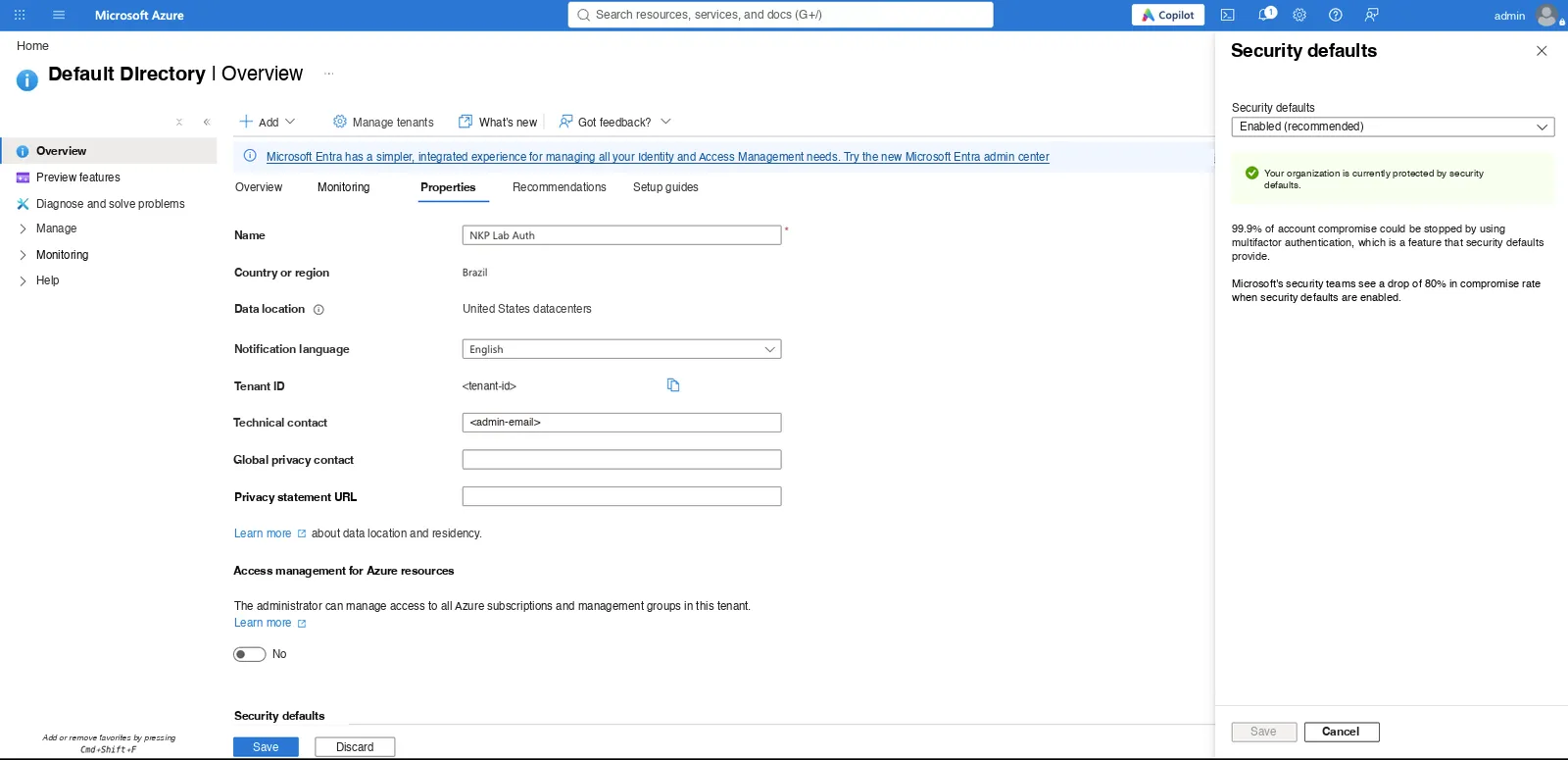
| An Entra ID tenant | NKP talks to one tenant | Entra ID Free: app registration, groups and Security Defaults (MFA) are included |
| Verified domain (optional) | Sign-ins with the company domain | lab.leimar.dev verified with a TXT record |
| Users with the Email attribute filled in | NKP uses the email as the username; without it, the login doesn’t complete | Each user’s profile → Contact information → Email |
| Security groups in Entra | The token carries the groups | 4 groups, one per profile |
Outbound access from management to login.microsoftonline.com and graph.microsoft.com (443) | It’s the Dex pod that calls Microsoft, not the browser | Test pod in the kommander namespace: 20 out of 20 HTTP 200 responses |
| Emergency access | If the Entra login fails, you’re not locked out | NKP local admin + certificate kubeconfig on both clusters |
| Synchronized clock (NTP) | Tokens have a lifetime; a wrong clock gets the token rejected | Bastion and API servers within the same second |
Do this first: test outbound access from the management cluster
A temporary pod in the kommander namespace running curl against https://login.microsoftonline.com/<tenant-id>/v2.0/.well-known/openid-configuration tells you in seconds whether the network is right. Do it before opening the NKP form: a DNS or proxy block shows up here, not in the middle of the first login.
1. The app in Entra ID
NKP needs an app registration in Entra, which becomes Dex’s OIDC “client”.
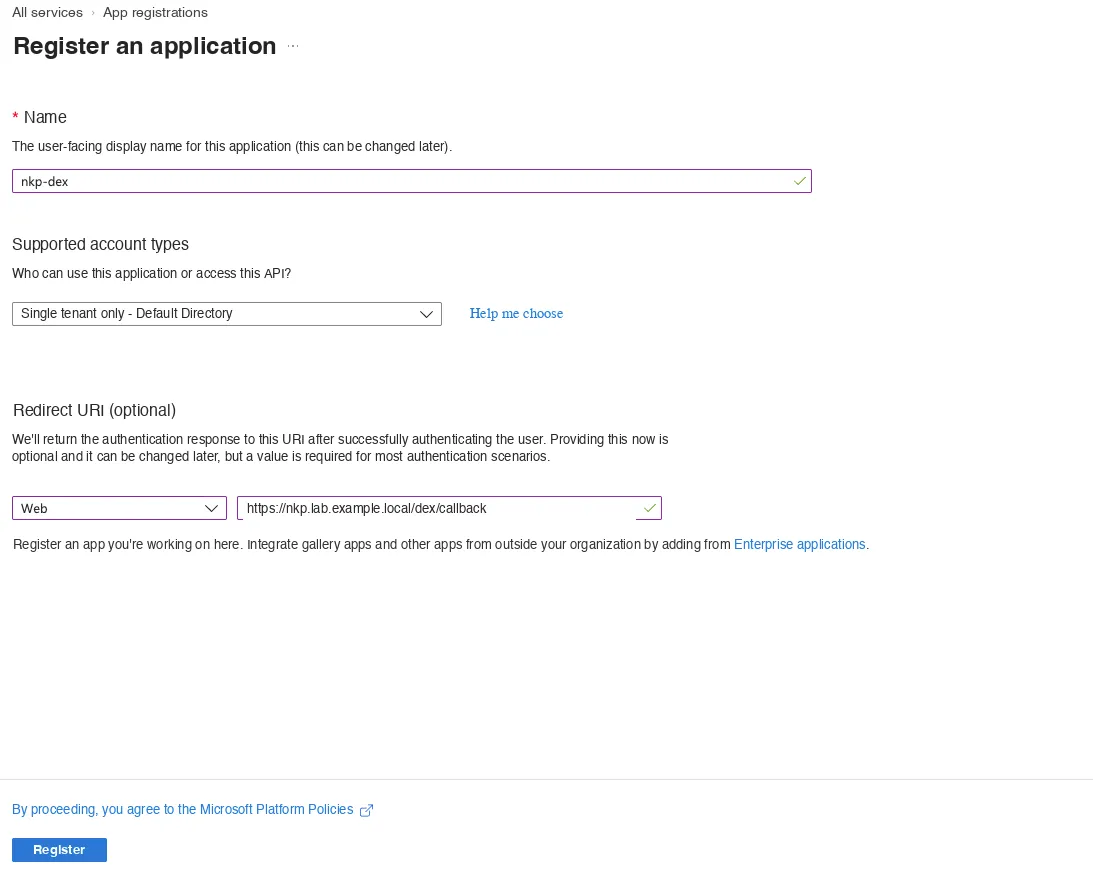
- App registrations → New registration: name
nkp-dex, Accounts in this organizational directory only. - Redirect URI (Web):
https://<nkp-address>/dex/callback. In the lab,https://nkp.lab.example.local/dex/callback. The browser resolves the internal name; Entra only requireshttps.
- Token configuration:
- Add groups claim → Security groups, Group ID format in the ID token;
- Add optional claim (ID token) →
emailandupn.

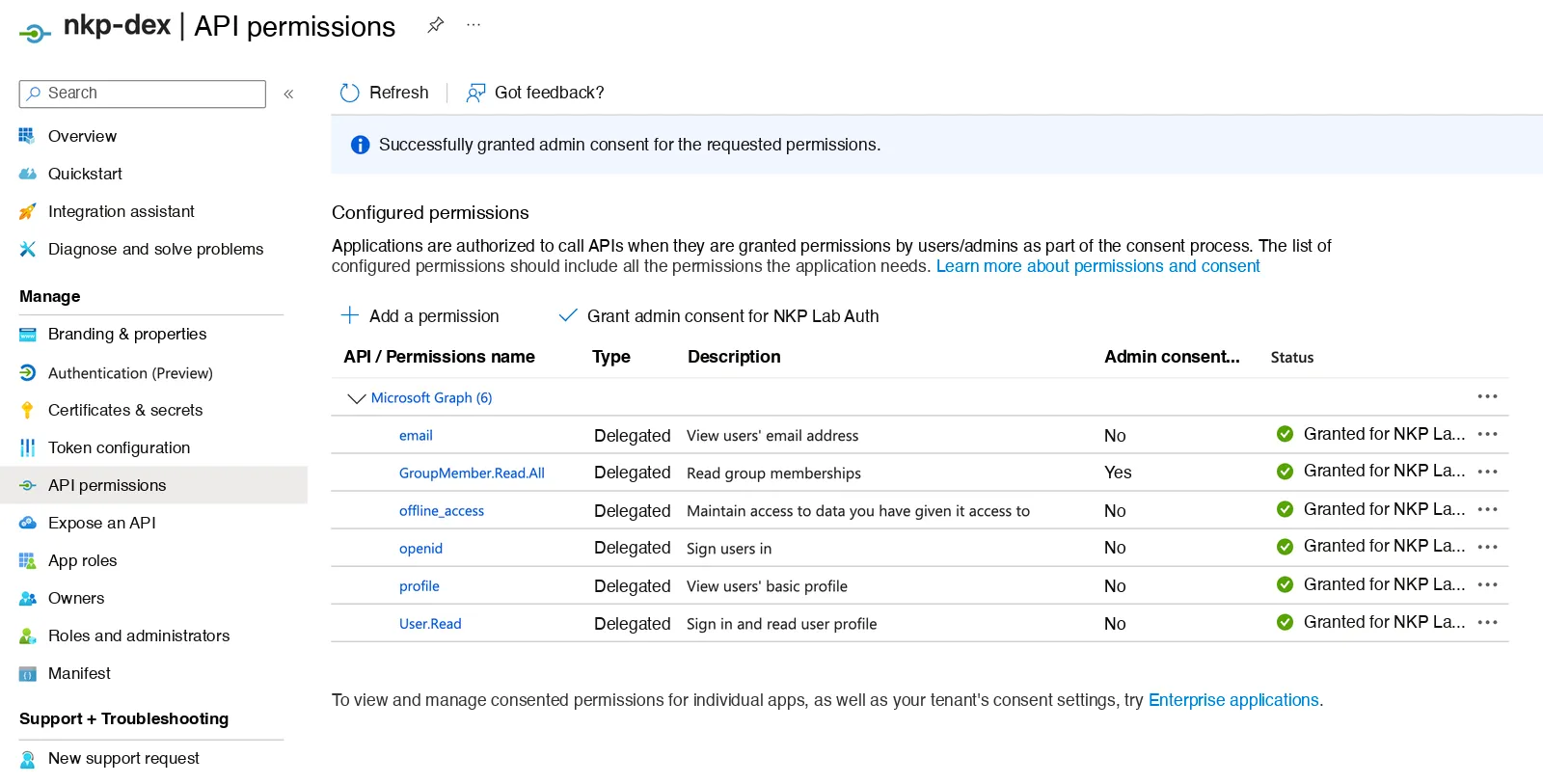
- API permissions → Microsoft Graph, delegated permissions:
openid,profile,email,offline_access,User.ReadandGroupMember.Read.All. Then Grant admin consent.
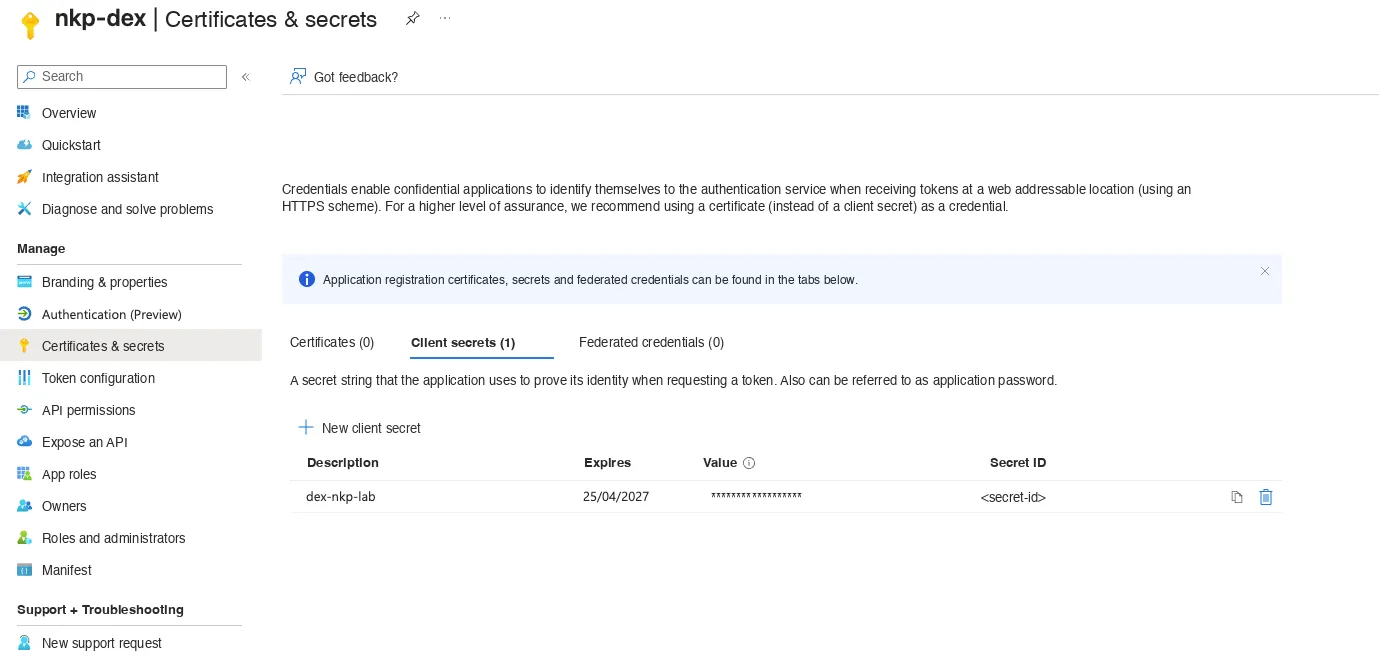
- Certificates & secrets → New client secret. Write down the expiration date and set a reminder 30 days before it.
Best practice: grant admin consent
Without admin consent, every user sees, on their first login, a Microsoft screen asking permission for “basic profile” and “continuous access”. With consent granted on behalf of the organization, that screen goes away for everyone.
Best practice: copy the secret’s “Value”, not the “Secret ID”
The Certificates & secrets screen shows two similar columns. NKP needs the Value, which is shown only once, right after you create the secret. Store it straight in the password vault. If the login comes back with AADSTS7000215 invalid client secret, this is almost always the cause.
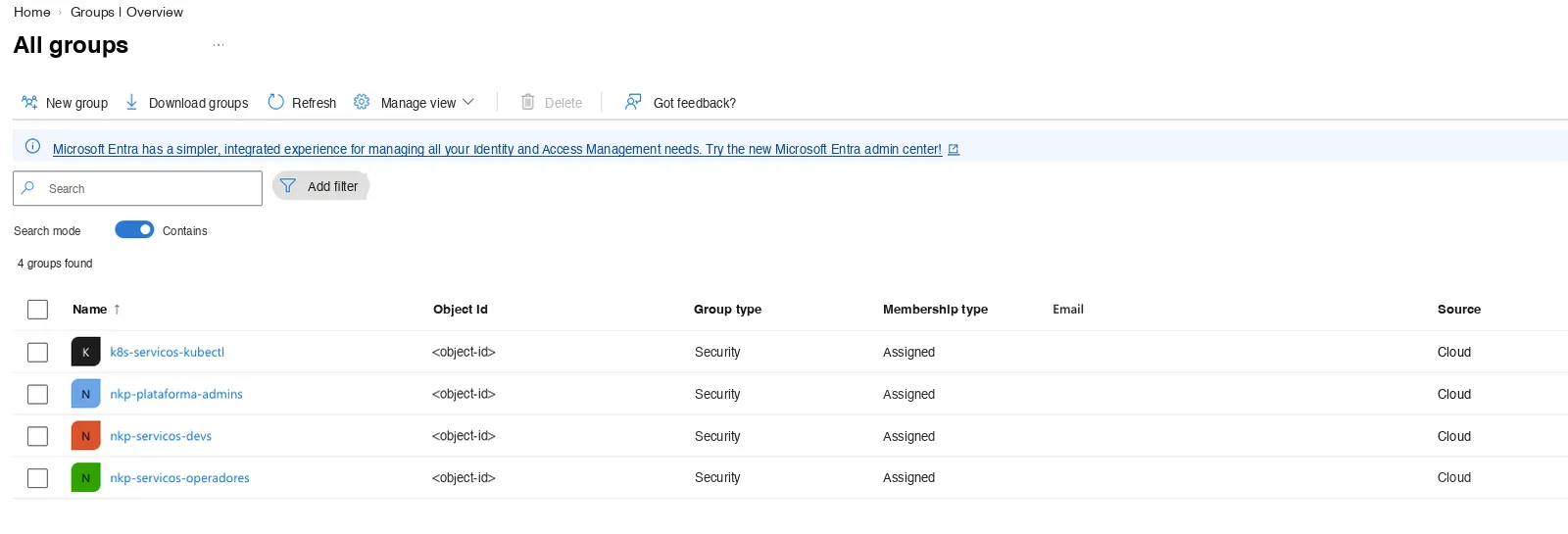
Write down three values for the next step: the Tenant ID, the app’s Client ID and the Object ID of each group. Entra sends the group’s ID in the token, not its name.
2. Entra ID as the Identity Provider in NKP
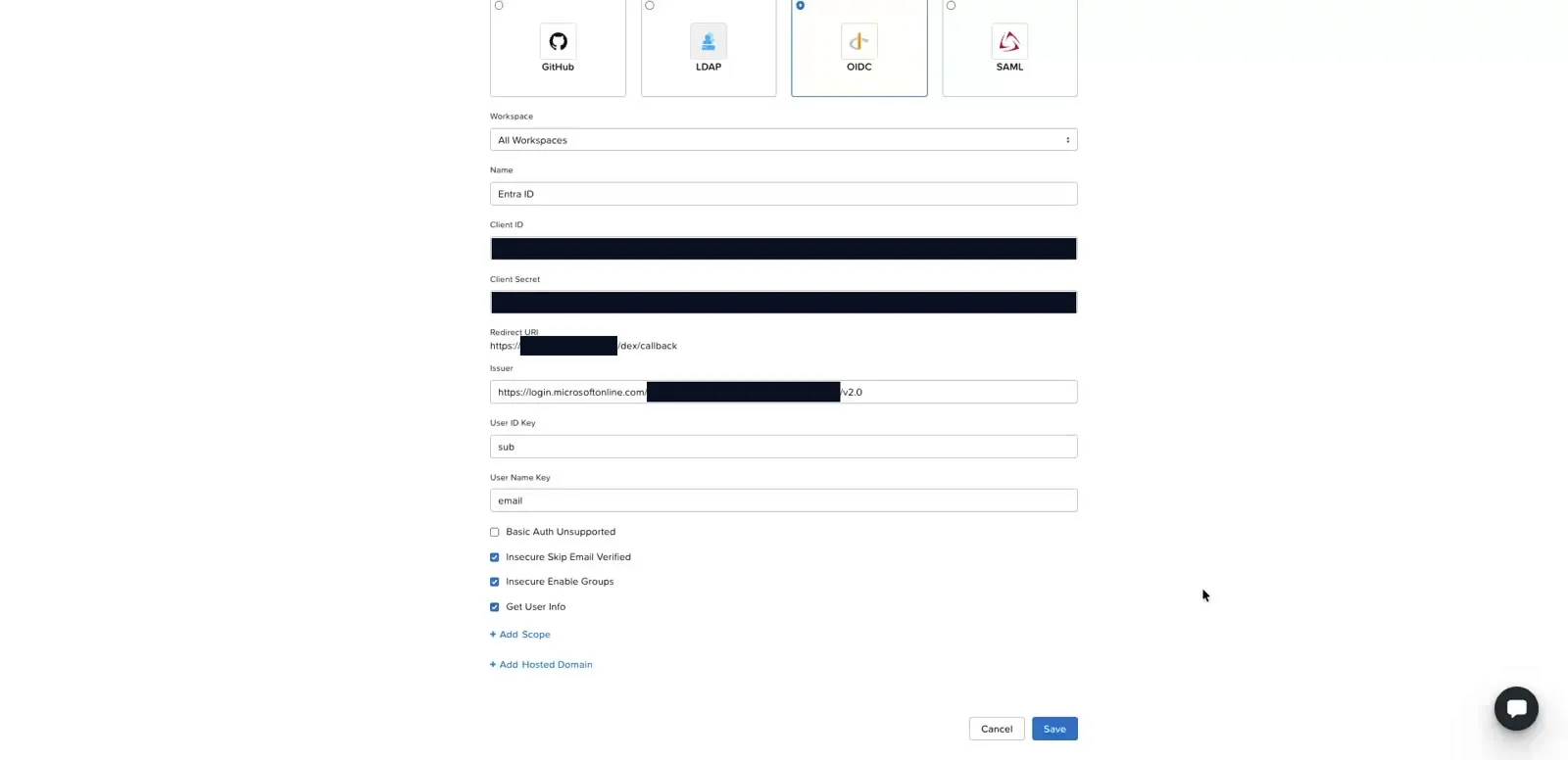
In Kommander, logged in as the local admin: Identity Providers → Add Identity Provider → OIDC.
| Field | Value | Detail |
|---|---|---|
| Name | Entra ID | Becomes the button text on the login screen |
| Issuer URL | https://login.microsoftonline.com/<tenant-id>/v2.0 | |
| Client ID | the app’s Client ID | |
| Client Secret | the secret’s Value | |
| Username Key | email | The user shows up in NKP by email |
| Get User Info | checked | |
| Insecure Enable Groups | checked | Without it, Dex drops the groups claim |
| Insecure Skip Email Verified | checked | Entra doesn’t send the email_verified claim |
| Workspaces | all |
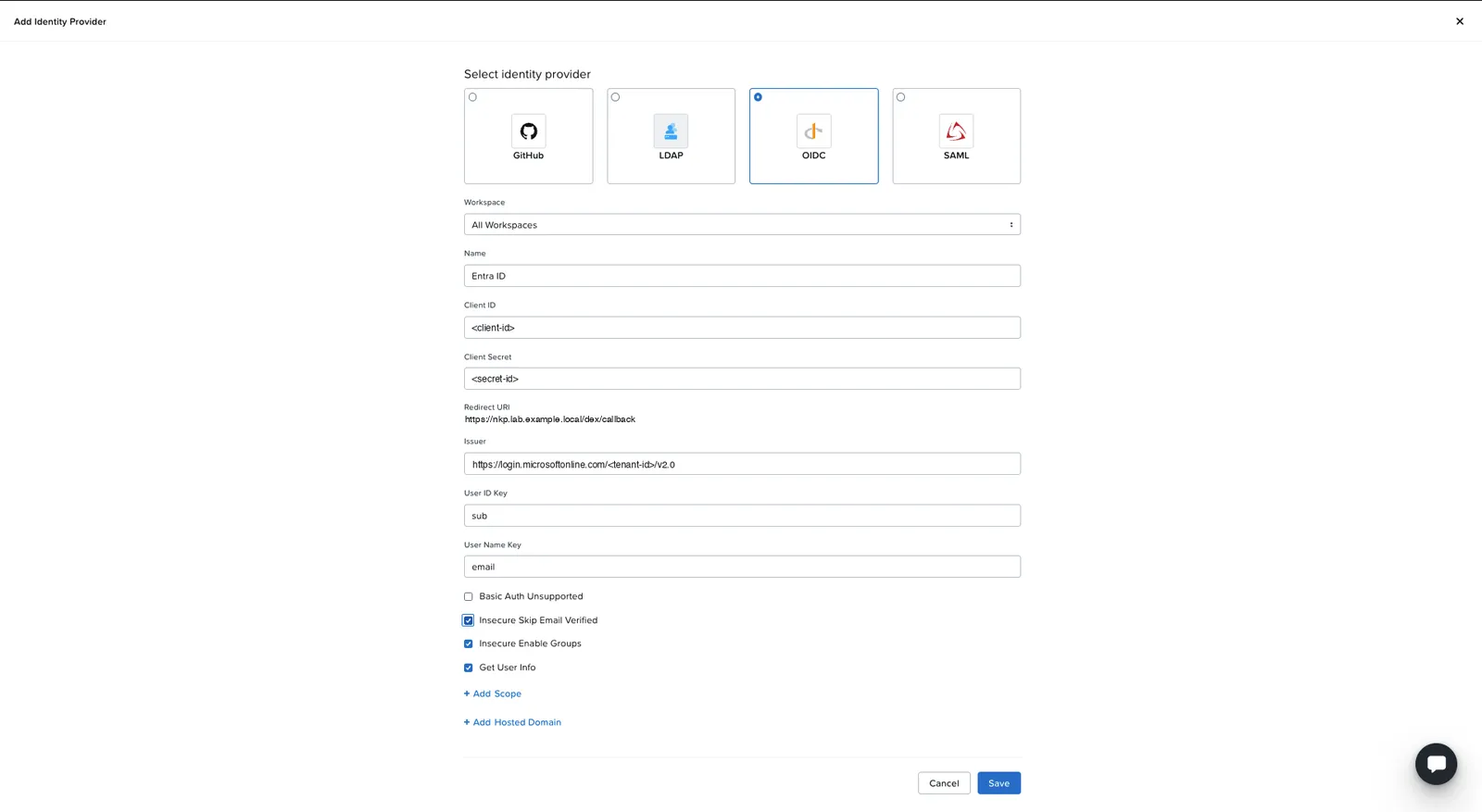
In this screenshot, the Client Secret field got the Entra Secret ID instead of the Value: that’s the detail from the tip in step 1. In the lab, the fix was the Identity Provider’s Edit, which leaves the Client ID and Client Secret fields empty to keep the previous values.
Before saving, check the Redirect URI the form shows: it must be exactly the one registered in the Entra app. If NKP shows an IP and Entra has the name, the login comes back with AADSTS50011.
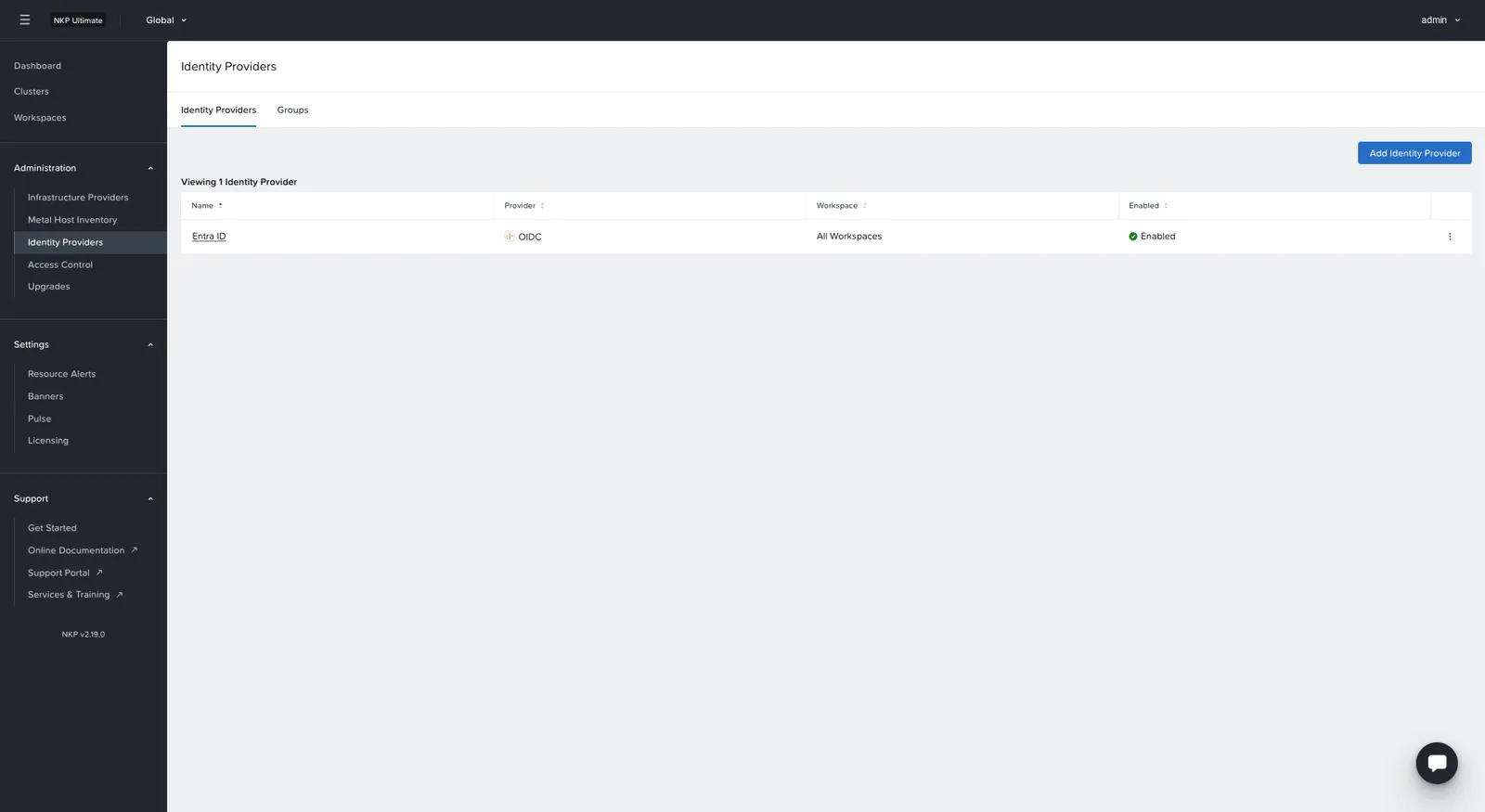
The full setup in Kommander, in 31 seconds (no audio, identifiers hidden):
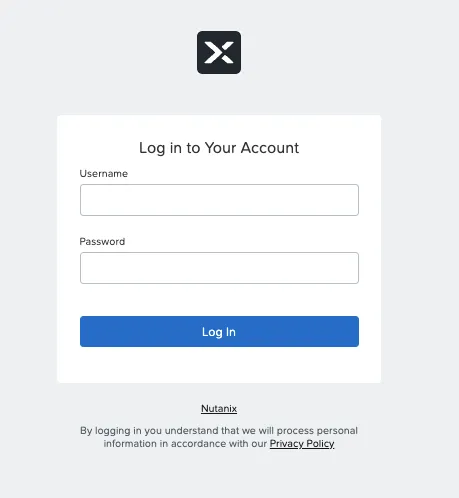
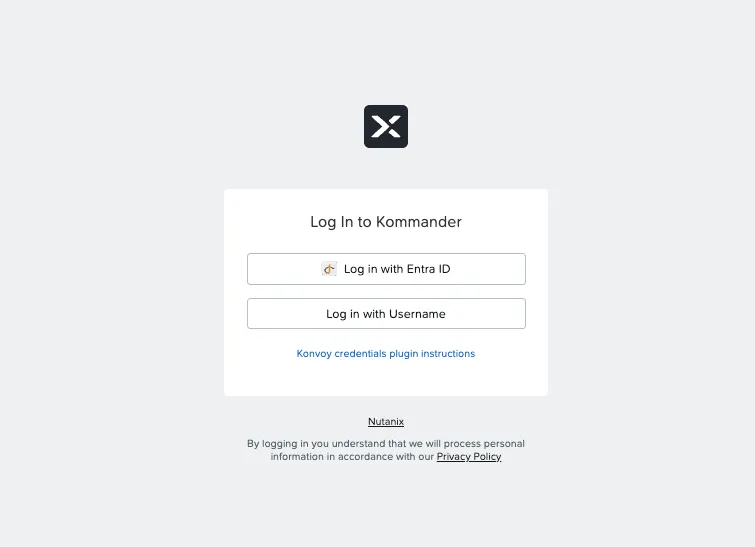
The NKP dashboard lives at /dkp/kommander/dashboard. There, the login screen gets the Log in with Entra ID button, next to the local login:
| Before | After |
|---|---|
 |  |
The first test is with Eva, who isn’t in any group. She signs in with email and password in Entra and lands back in NKP with “Not Authorized”. That’s the expected result, and it proves the separation: authenticated is not authorized. This test also validates the secret, the redirect and the issuer in one go.
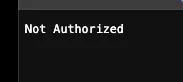
Best practice: one user per private window
The browser’s private session lasts as long as any private window is open. Before testing another user, close them all and open a new one. On Entra’s “Stay signed in?” screen, answer No. Otherwise, the next user’s test reuses the previous user’s session.
3. The NKP groups: oidc: + Object ID
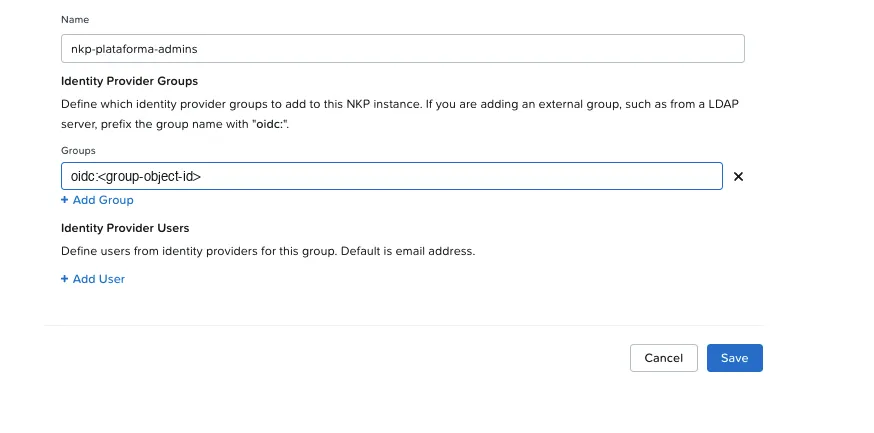
Identity Providers → Groups → Create Group. For each Entra group, one NKP group with the same name (it stays readable) and, under Identity Provider Groups, the value oidc:<group Object ID>. The oidc: prefix is what NKP adds to groups that arrive through the OIDC connector, and the screen itself points this out.
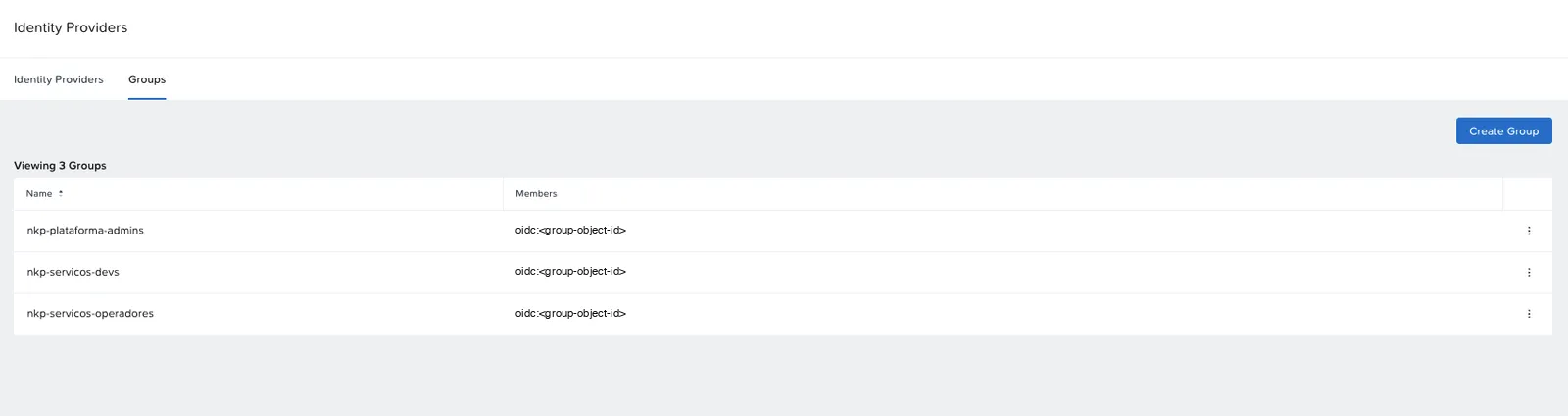
An NKP group on its own grants no permissions at all. Access comes from the binding, at one of three levels: global (all clusters), workspace (a team’s clusters) or project (a namespace distributed to the workspace’s clusters).
4. Platform admin: Ana
Global Access Control → Cluster Role Bindings → group nkp-plataforma-admins:
- Cluster Admin Role: admin on every managed cluster;
- dkp-kommander-admin: admin of the Kommander dashboard.
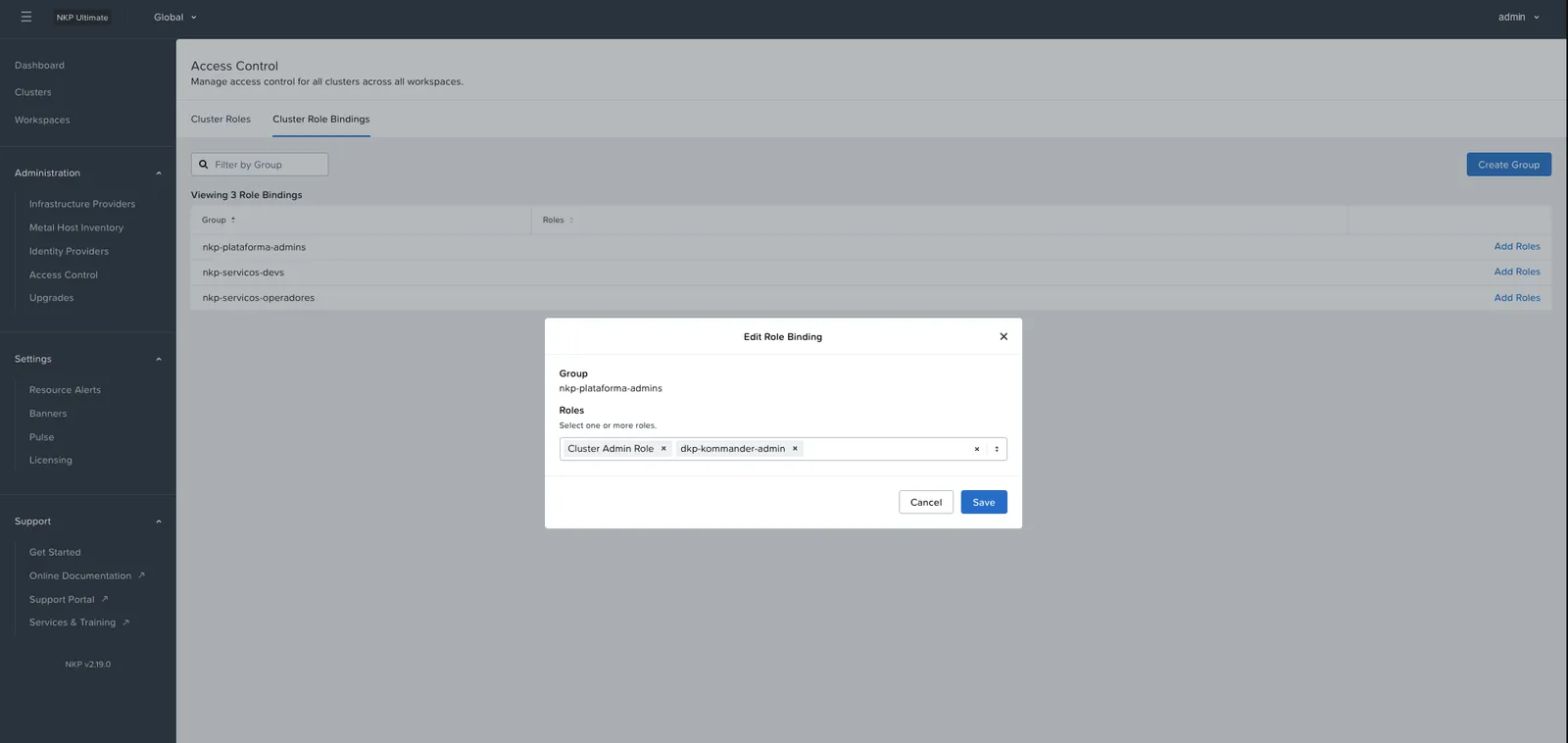
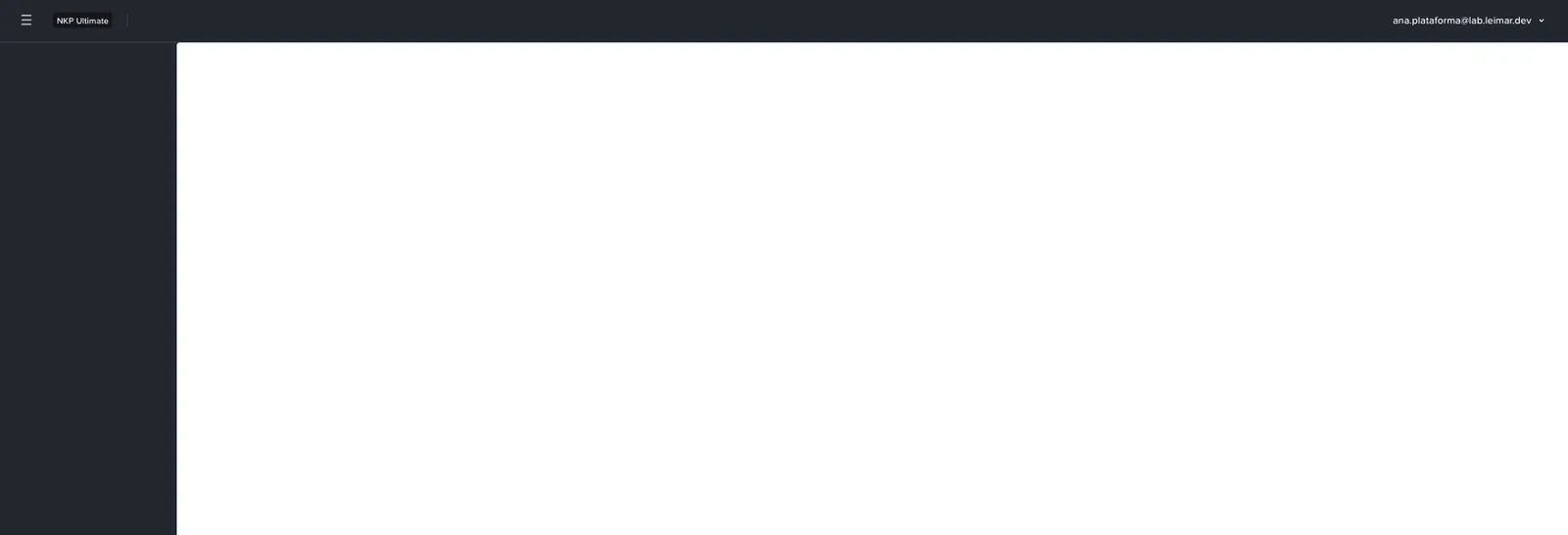
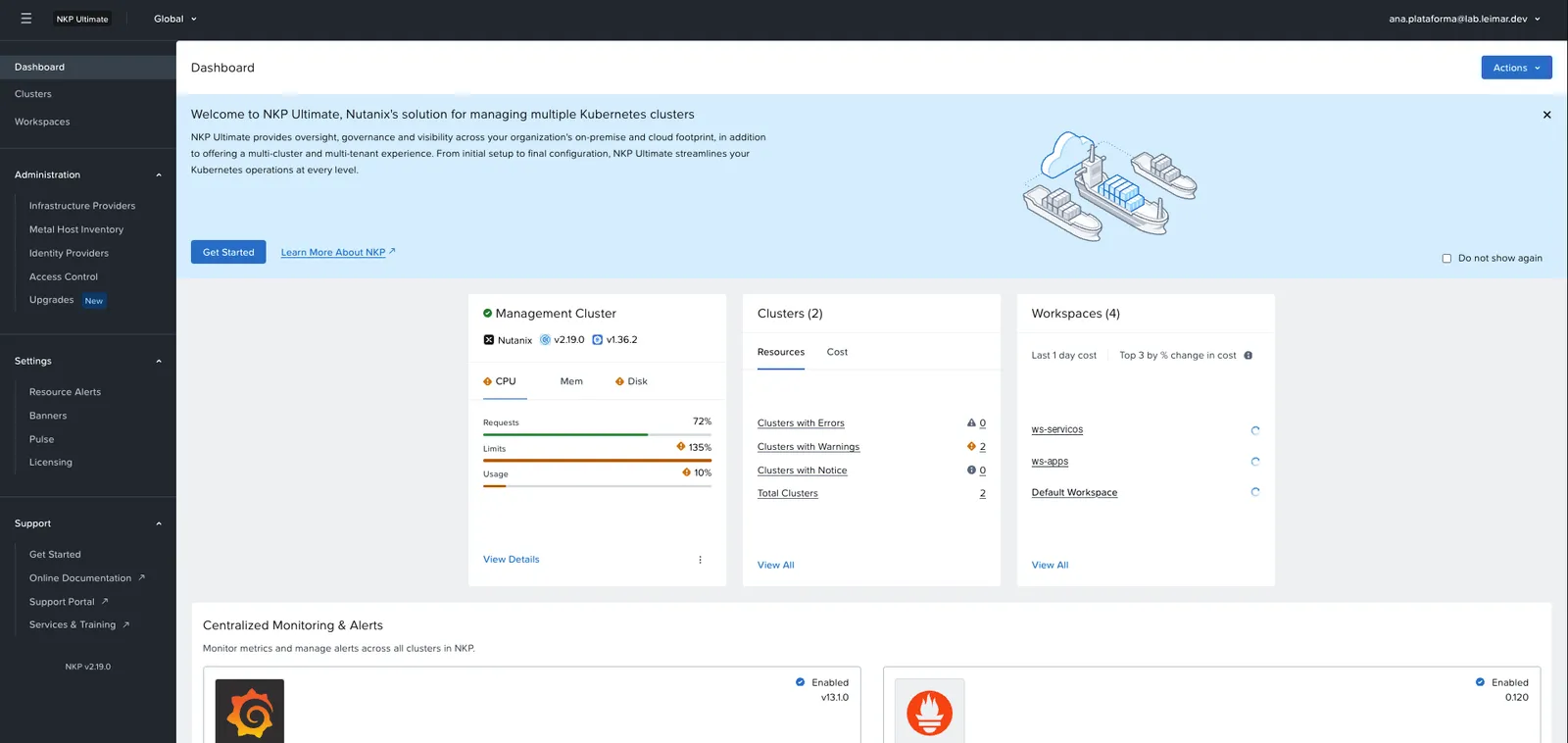
The two go together. With only dkp-kommander-admin, Ana got past the dashboard authorization, but the screen stayed blank: the dashboard queries the clusters with the permissions of whoever is logged in, and the role on the clusters was missing. With both, the full dashboard showed up in under 5 minutes, the time it takes NKP to federate the role to the clusters.
| Only dkp-kommander-admin | Cluster Admin Role + dkp-kommander-admin |
|---|---|
 |  |
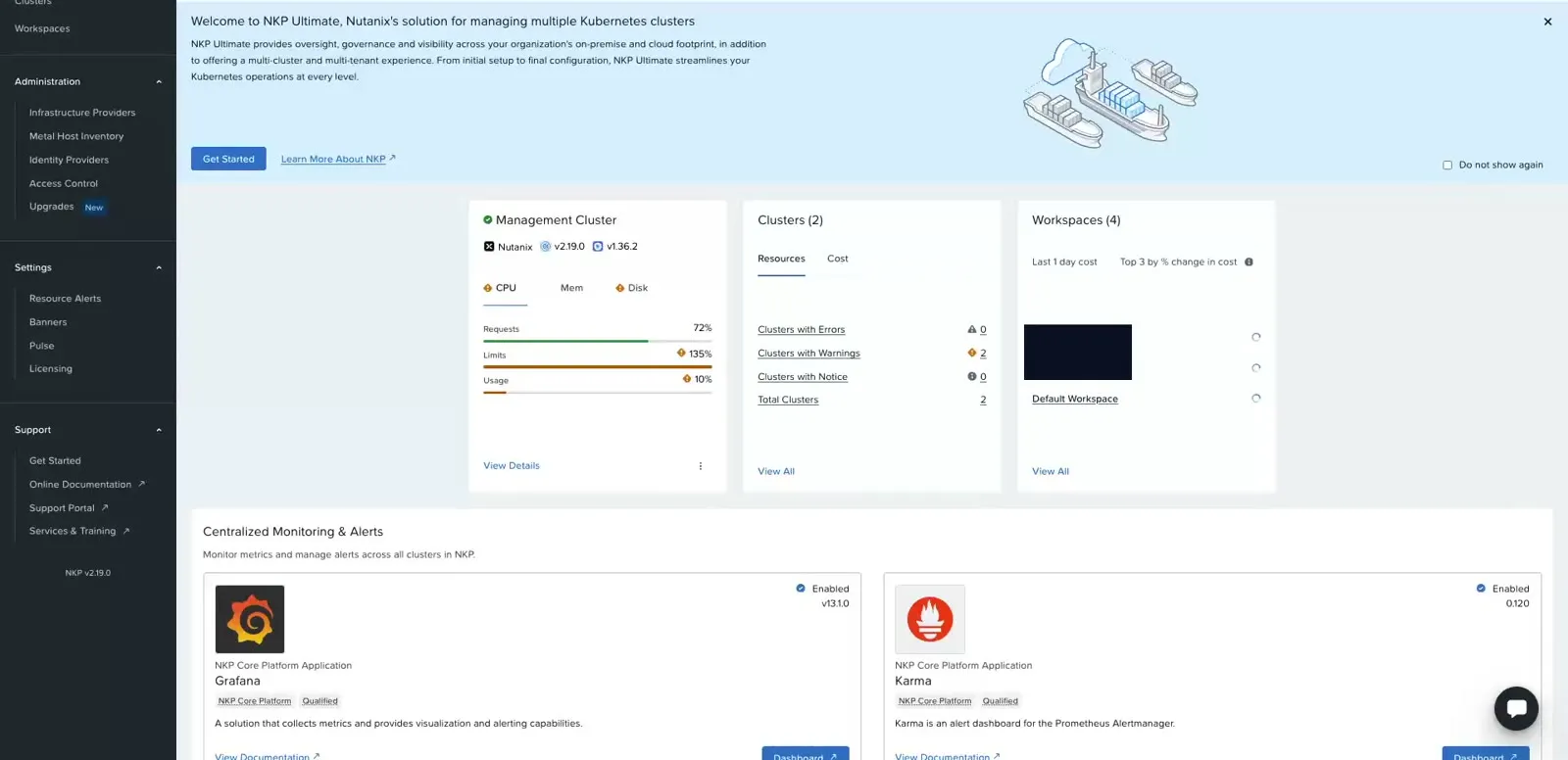
Ana’s sign-in through Entra ID, from the button to the full dashboard (no audio, internal names hidden):
5. Workspace operator: Bruno
Bruno operates the services workspace’s cluster and shouldn’t see the rest of the platform. The binding is on the workspace: workspace selector → Access Control → Cluster Role Bindings → group nkp-servicos-operadores. The first choice was the Workspace Cluster Admin Role + Kommander Workspace Admin Role:
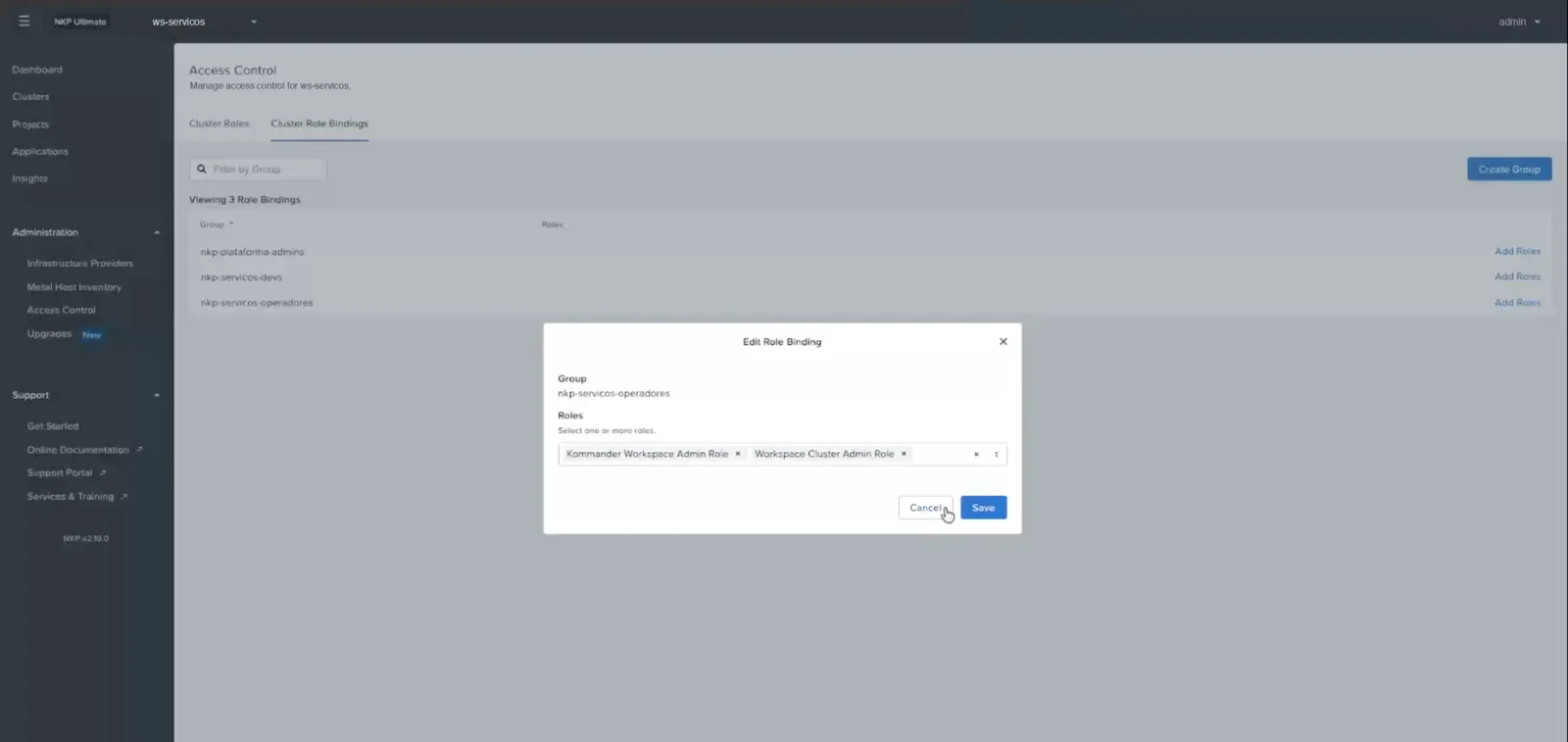
The binding in the dashboard, with that first choice of roles:
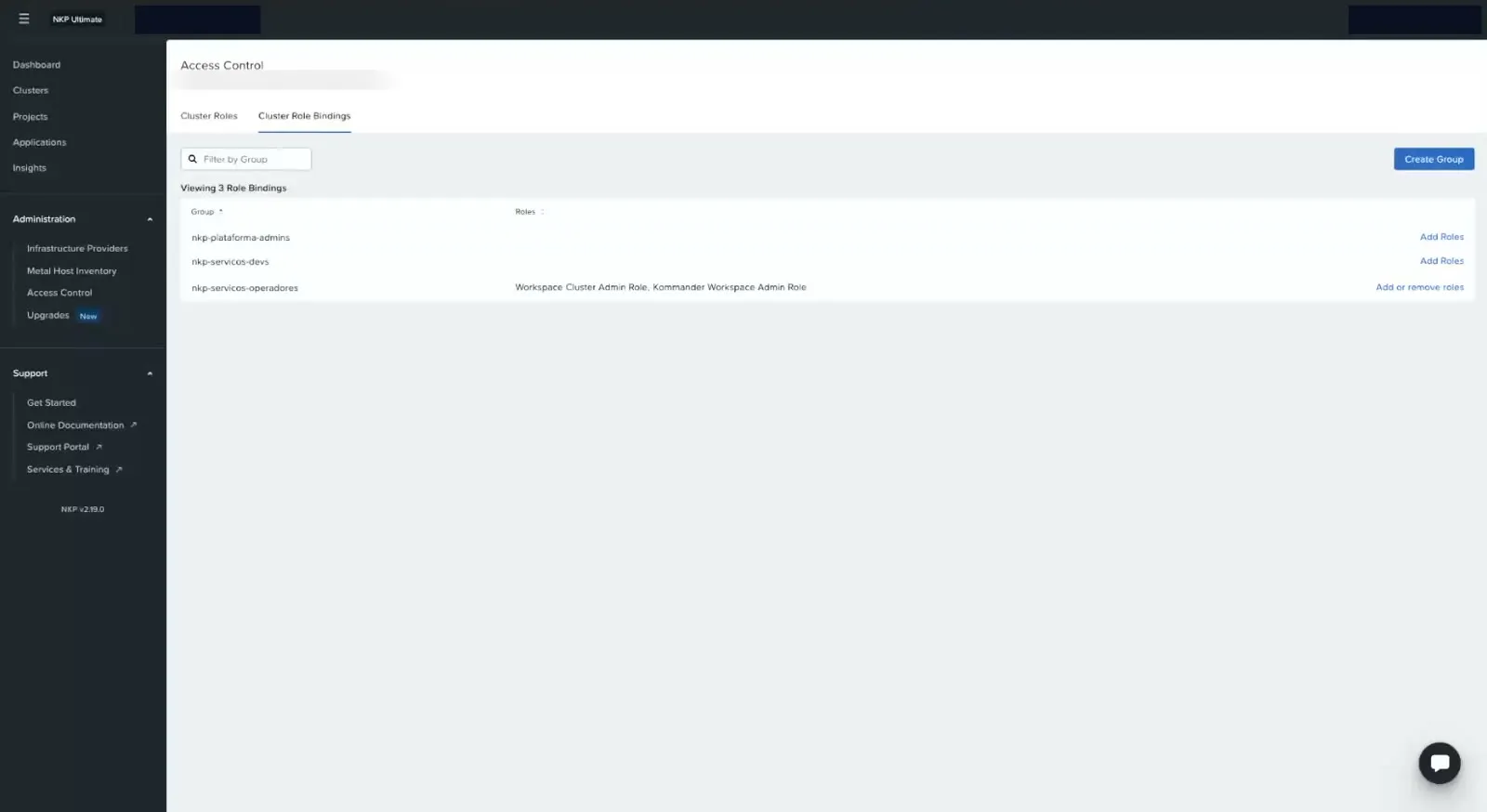
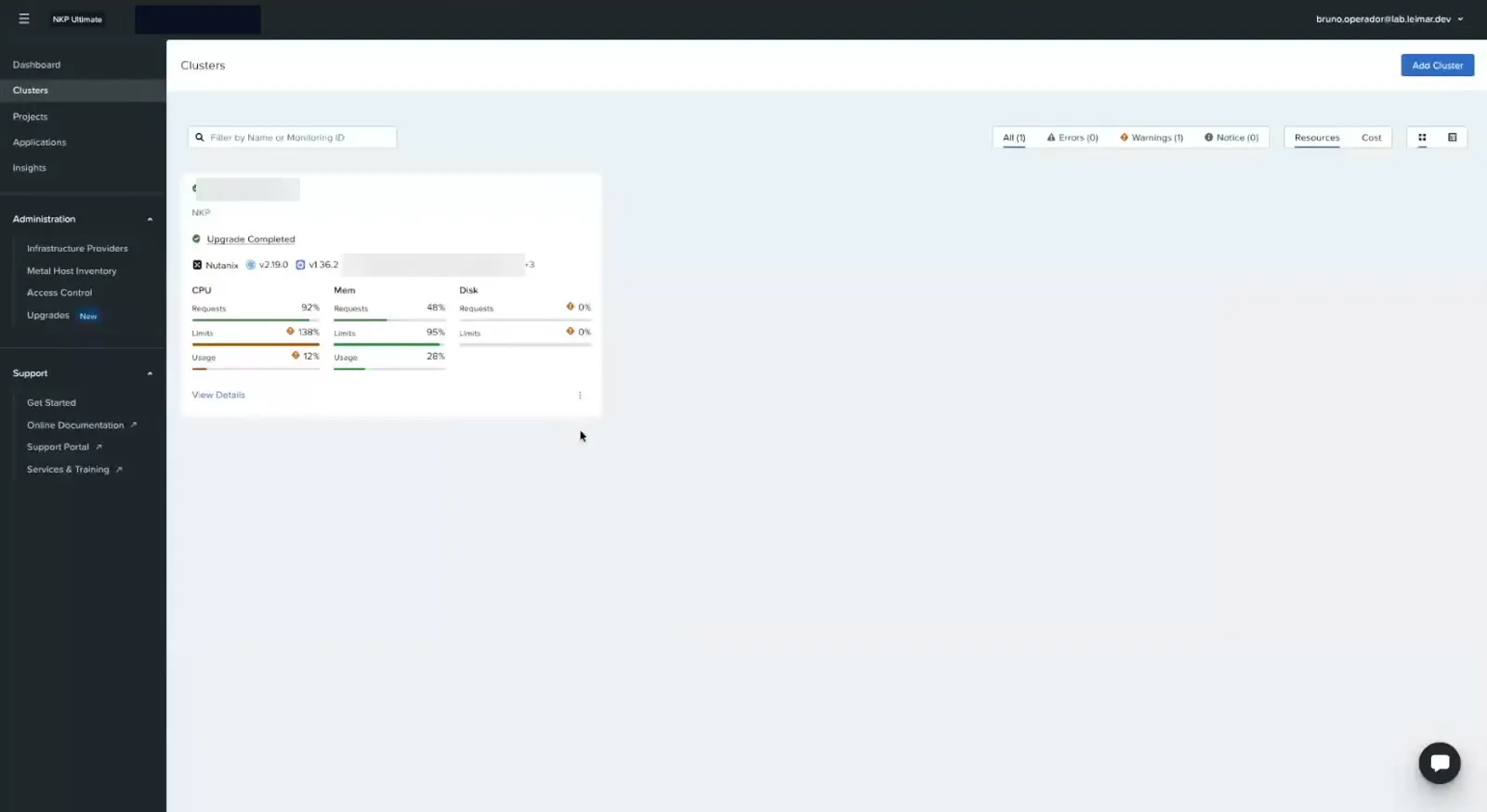
In the dashboard, the result was as expected from the very first configuration: Bruno’s workspace selector lists only the services workspace, without Global and without the others.
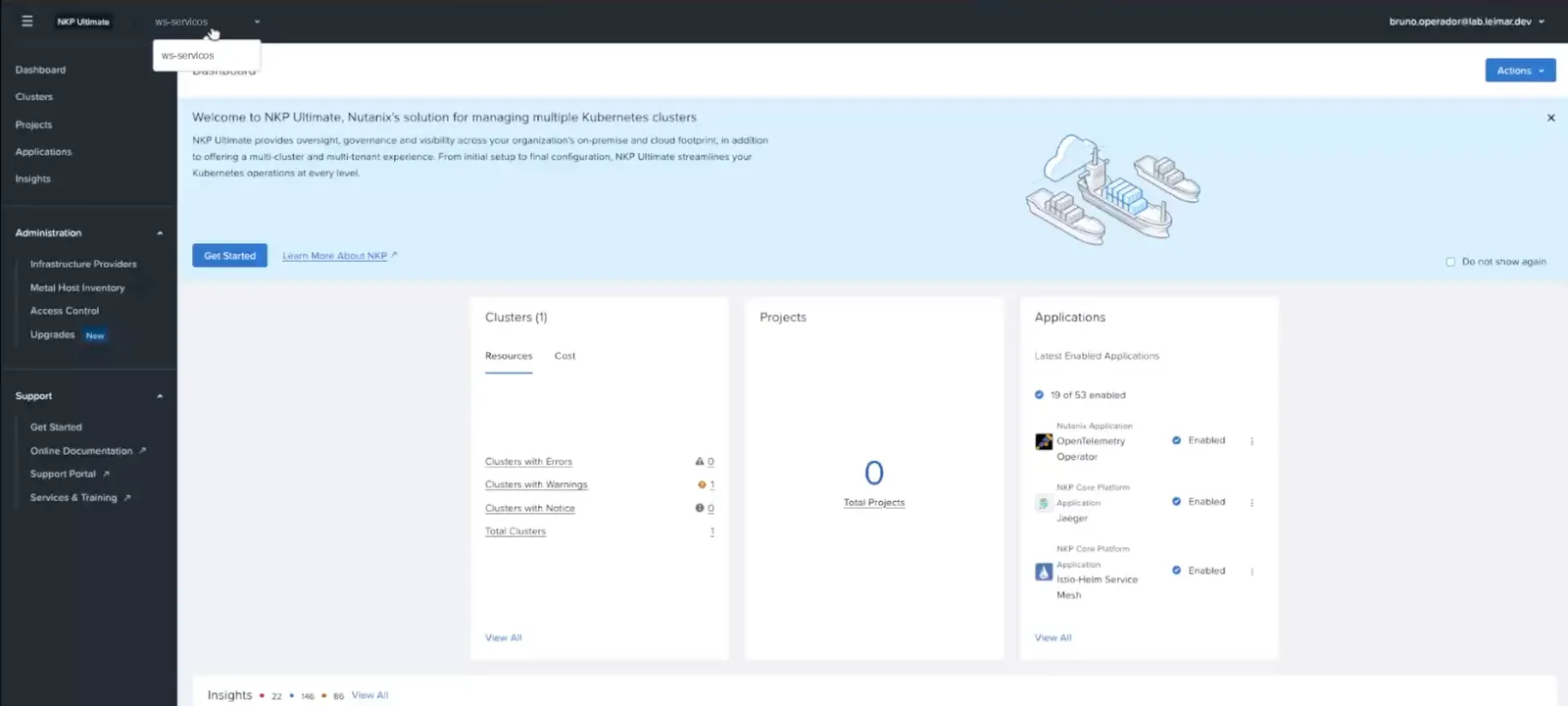
Bruno’s sign-in, landing straight in his workspace:
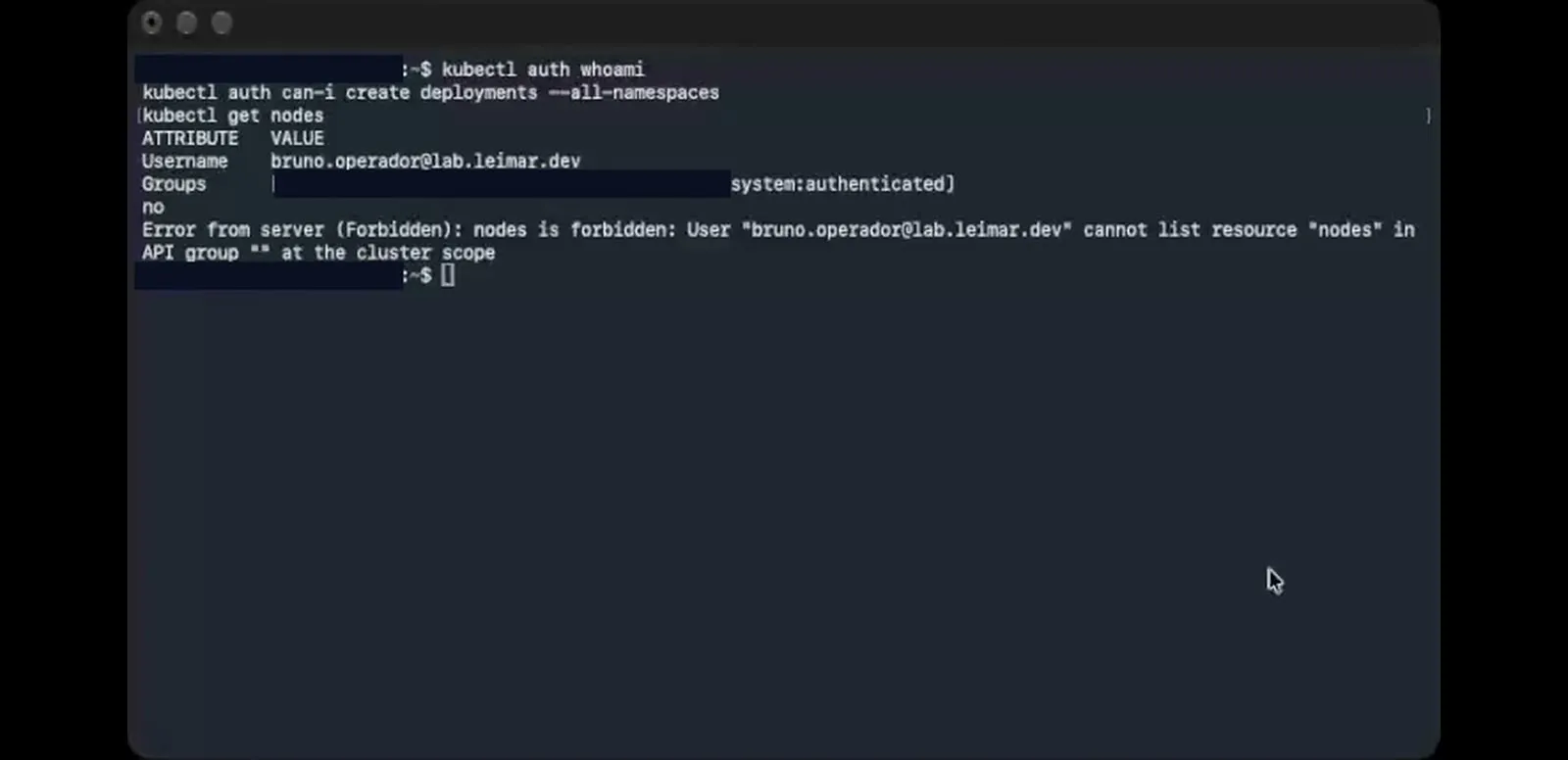
In kubectl, the choice of role matters. The workspace role list has about 30 similar names. In NKP 2.19, the default Workspace Cluster Admin Role is an aggregated role: it has no rules of its own and receives those of the roles labeled aggregate-to-cluster-admin. On the cluster, that meant access to the Cluster API resources and the dashboard URLs, but not to the core Kubernetes resources: can-i create deployments returned no and get nodes returned Forbidden. Ana’s global admin role, by contrast, has explicit * rules.
With that default role, Bruno signs in through Entra, but kubectl answers no and Forbidden (recorded before the fix; the kubeconfig commands, which contain the token, were cut):
The solution was a custom Workspace Role, created in the dashboard (Access Control → Roles → Create Role), of type Cluster Role, with two rules: all resources and verbs, and all nonResourceURLs. I named it “Cluster Operator (full)”.
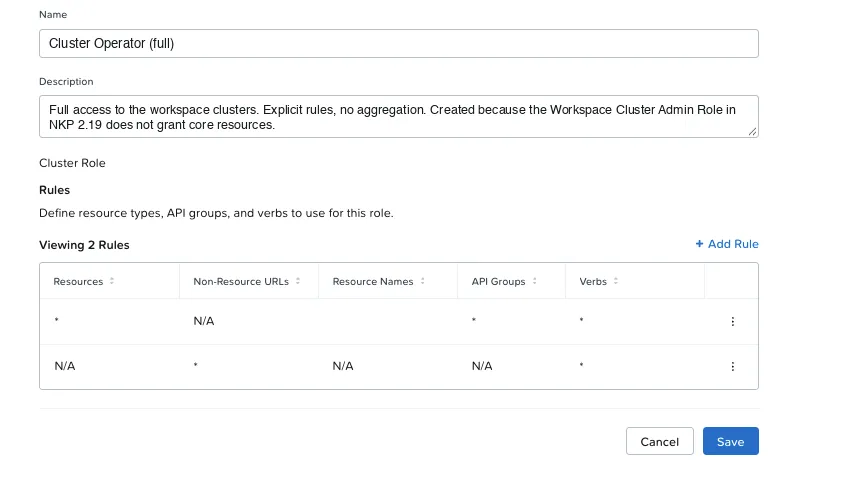
The group’s final binding swapped the Workspace Cluster Admin Role for that role and kept the Kommander Workspace Admin Role (the workspace dashboard). NKP federated the new role to the cluster in under 1 minute:
# node names and Object ID anonymized$ kubectl auth whoamiATTRIBUTE VALUEUsername [email protected]Groups [oidc:<object-id-do-grupo> system:authenticated]$ kubectl auth can-i create deployments --all-namespacesyes$ kubectl get nodesNAME STATUS ROLES AGE VERSIONcluster-servicos-control-plane-1 Ready control-plane 3d2h v1.36.2cluster-servicos-control-plane-2 Ready control-plane 3d2h v1.36.2cluster-servicos-control-plane-3 Ready control-plane 3d2h v1.36.2cluster-servicos-worker-1 Ready <none> 3d2h v1.36.2cluster-servicos-worker-2 Ready <none> 3d2h v1.36.2cluster-servicos-worker-3 Ready <none> 3d2h v1.36.2Best practice: test the role before handing over access
As an admin, ask the cluster while impersonating the group: kubectl auth can-i create deployments -A --as=teste --as-group='oidc:<object-id>'. That’s how the aggregated role showed up in seconds, without depending on the user’s login.
6. Project developer: Carla
Carla works only in one project’s namespace. In the services workspace: Projects → Create Project (app-demo, placed only on the services cluster). NKP creates the app-demo-mkgxc namespace on the cluster. In the project, the nkp-servicos-devs group gets App Deployer (creates and changes workloads) + Kommander Project Edit (the project in the dashboard).
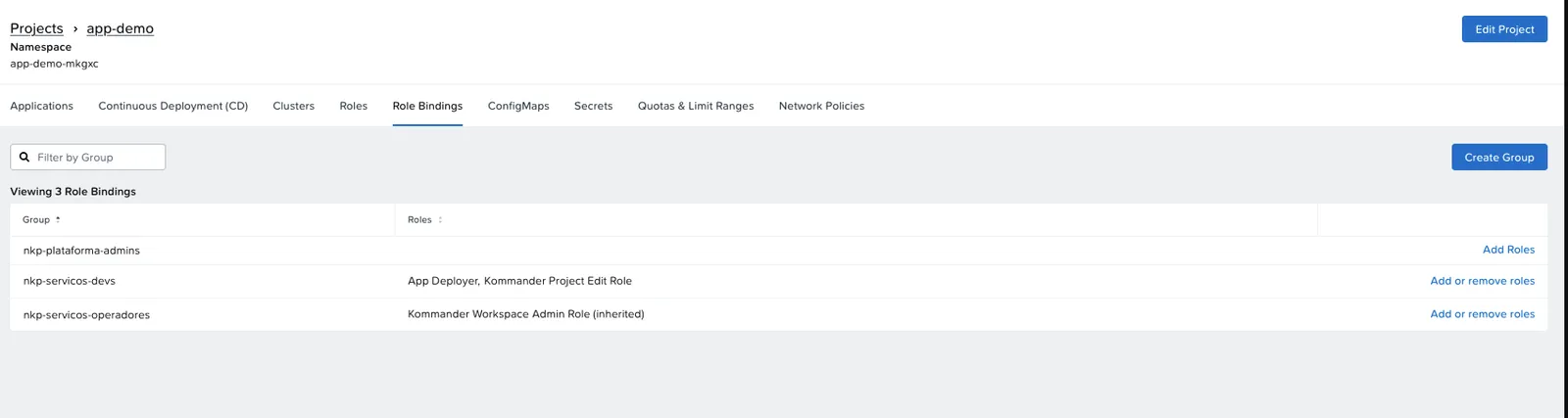
For a project-only developer to use the dashboard, it takes three bindings, one at each level:
| Level | Role | What it unlocks |
|---|---|---|
| Global | dkp-kommander-view | The front door: the dashboard URL (/dkp/kommander/dashboard) |
| Workspace | Kommander Workspace View | Reading the workspace and the project list |
| Project | App Deployer + Kommander Project Edit | Working in the project namespace |
Workspace roles already include the front door; project roles don’t. That’s why, with only the project binding, Carla got “Not Authorized”; with the door but without workspace read access, the screen stayed blank. With all three, she sees the services workspace and her project:
$ kubectl auth can-i create deployments -n app-demo-mkgxcyes$ kubectl auth can-i create deployments -n defaultno$ kubectl get nodesError from server (Forbidden): nodes is forbidden: User "[email protected]" cannot list resource "nodes" in API group "" at the cluster scope$ kubectl create deployment podinfo --image=ghcr.io/stefanprodan/podinfo:6.7.1 -n app-demo-mkgxcdeployment.apps/podinfo created$ kubectl get pods -n app-demo-mkgxcNAME READY STATUS RESTARTS AGEpodinfo-7f5848f5f6-7ztzk 1/1 Running 0 1sBest practice: least privilege at the front door
dkp-kommander-view grants read access to /dkp/*. For a more restricted developer profile, create an NKP Role with only /dkp/kommander/dashboard* and use it instead.
7. kubectl with the Entra login
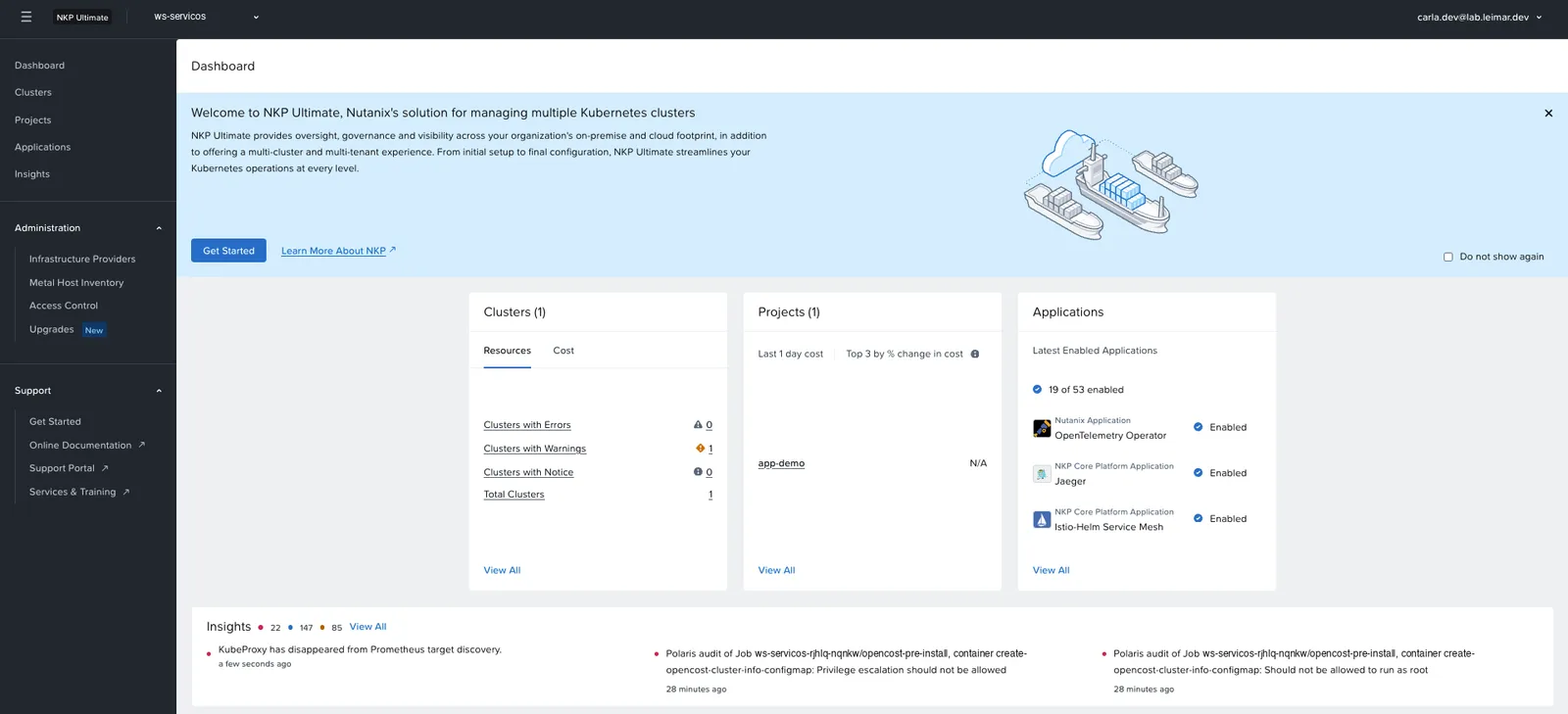
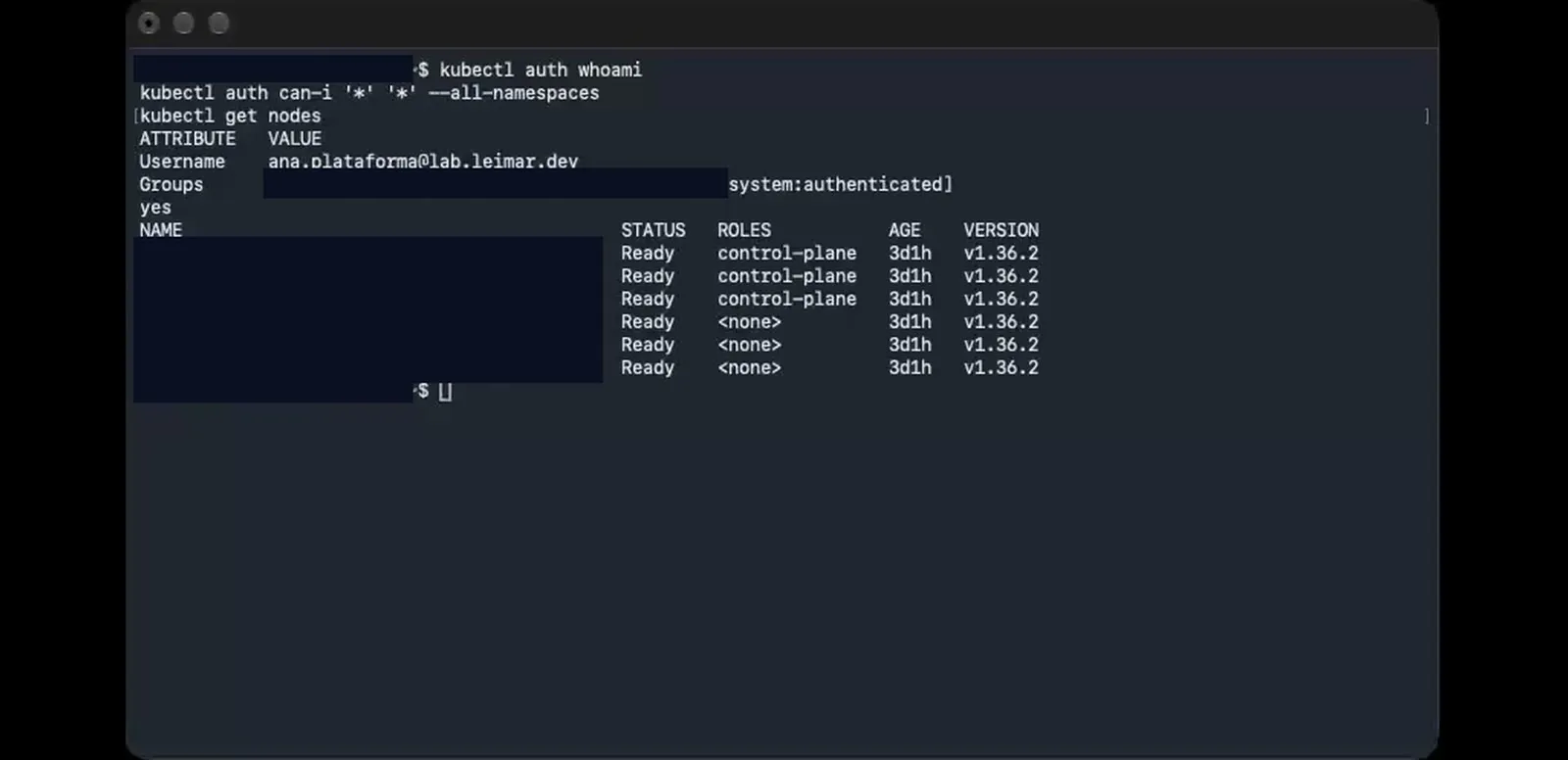
In the dashboard, the user menu has Generate Token: pick the cluster and copy the commands that build the kubeconfig. The token is issued by Dex with the Entra groups and is valid for 24 hours (in Ana’s token, exp − iat = 86,400 s). The kubeconfig points to the chosen cluster’s kube-oidc-proxy.
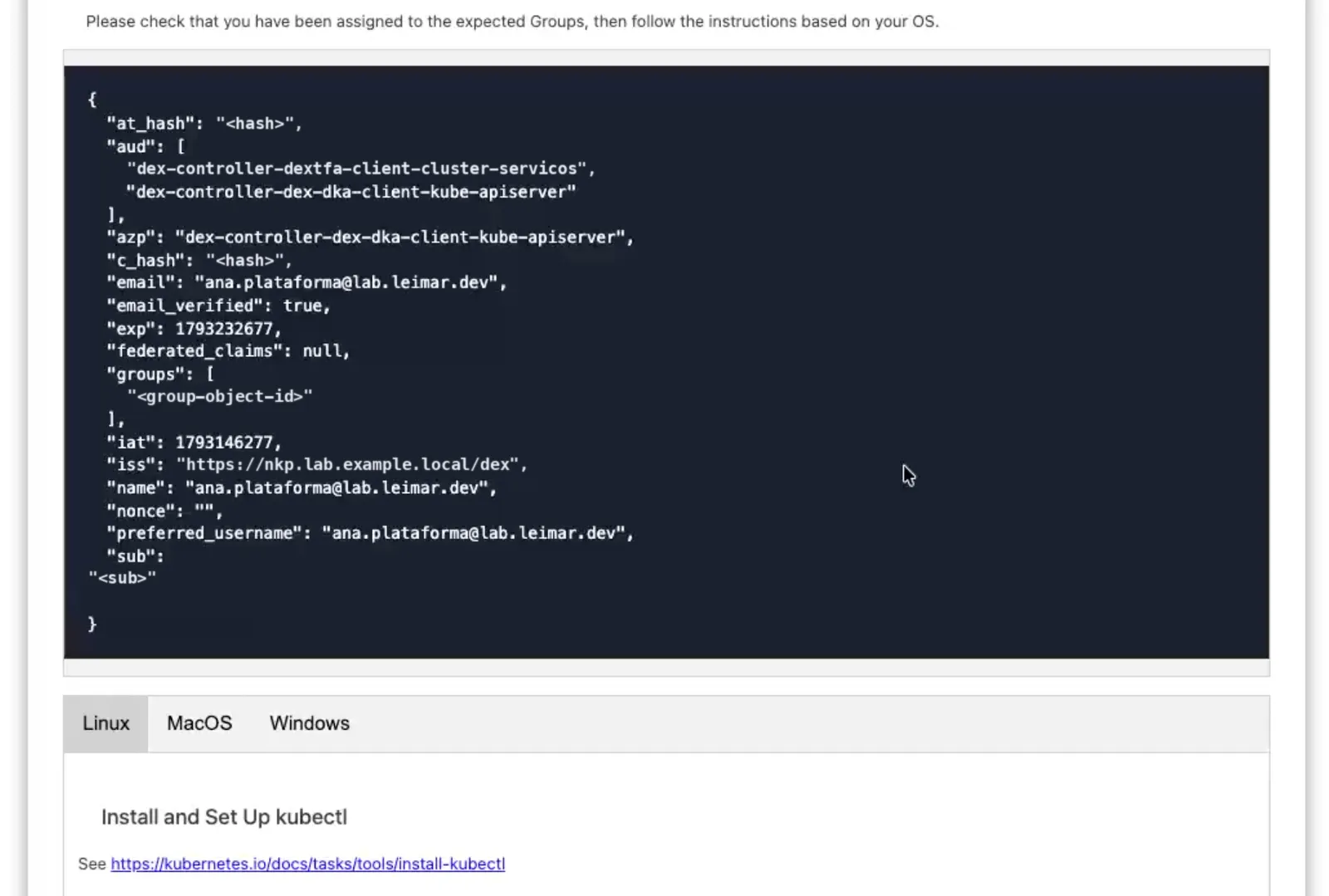
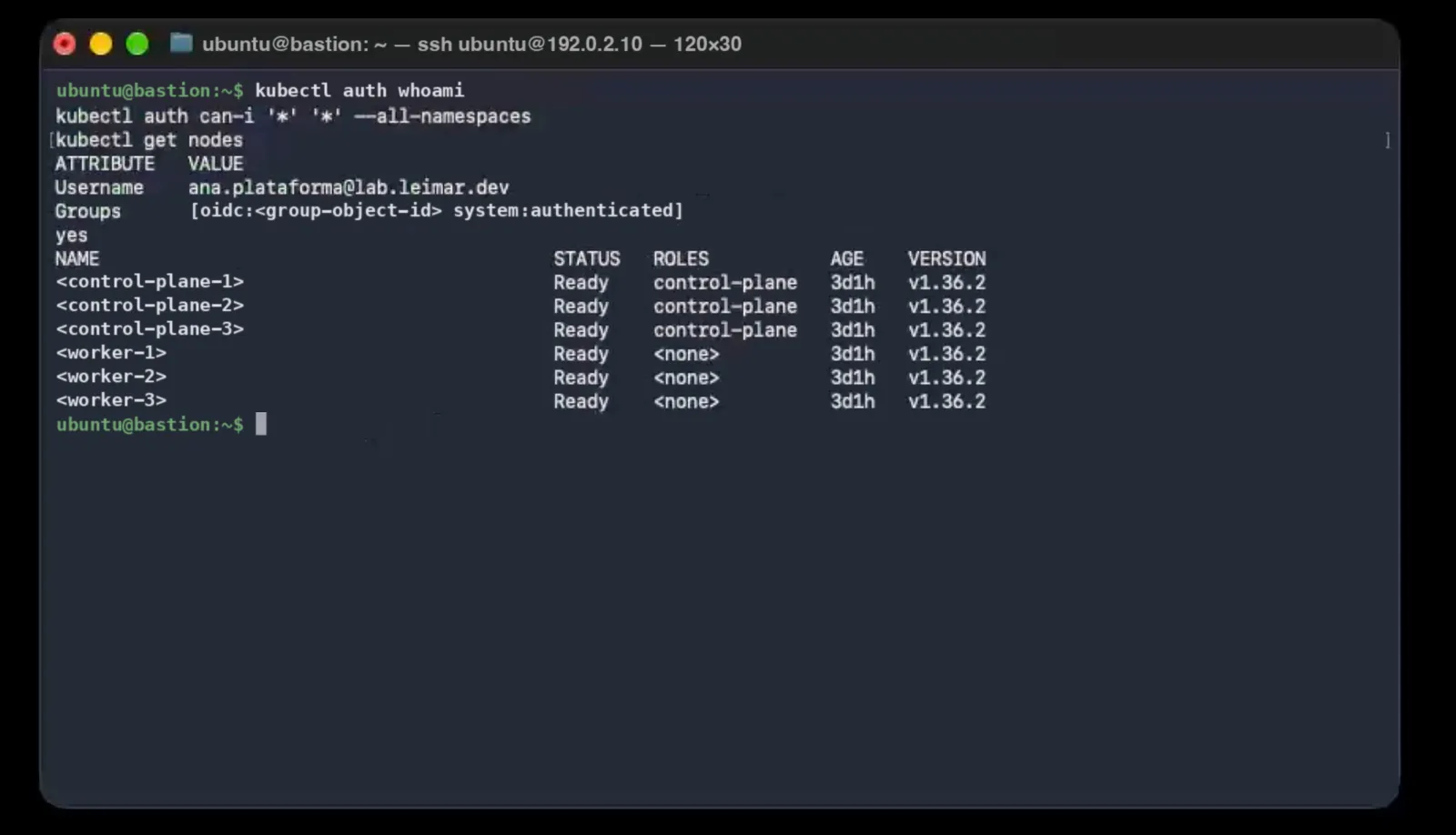
Ana’s whole flow, from Generate Token to kubectl get nodes (the kubeconfig commands, which contain the token, were cut):
Best practice: one kubeconfig file per user
The Generate Token commands write to the active kubeconfig. Before pasting them, run export KUBECONFIG=~/.kube/<usuario>.conf. That way your admin ~/.kube/config stays intact.
The numbers
| Measure | Value |
|---|---|
| From saving the Identity Provider to the first Entra login | 12 min |
| Entra ID license used | Free (MFA through Security Defaults) |
| Outbound access from management to Microsoft (test pod) | 20 out of 20 HTTP 200; DNS in 3–10 ms |
| Delegated Graph permissions on the app | 6, with admin consent |
| Workspace roles available in the dashboard | ~30 |
| Federation of a global role to the clusters | < 5 min |
| Federation of the custom Workspace Role | < 1 min |
| Generate Token token lifetime | 24 h |
| Bindings for a project-only developer to use the dashboard | 3 (global, workspace, project) |
What I learned
- Authentication and authorization live in different places. Entra says who the person is (with MFA); NKP says what their group can do. Eva proves it in the first test.
- Groups, always. The token carries the Object ID; NKP uses
oidc:<ID>. Joining or leaving a group in Entra changes access from the next token on, without touching NKP. - Dashboard roles and cluster roles go together. The dashboard queries the clusters with the permissions of whoever is logged in.
- Check what a role grants before using it. In NKP 2.19, the default Workspace Cluster Admin Role is aggregated; for an operator with full cluster access, use a custom Workspace Role.
- A project developer needs three levels. The global front door, workspace read access and work in the project.
- Keep emergency access. Local admin and certificate kubeconfig, stored in a vault, before touching the login.
Checklist: NKP login with Entra ID
- Certificate kubeconfig and local admin password stored in the vault (break-glass)
- Outbound access from management to
login.microsoftonline.comandgraph.microsoft.comtested from a pod - Entra users with the Email attribute filled in
- Security groups in Entra, one per profile, with the Object IDs written down
- App registration with a Redirect URI identical to the one in the NKP form
- Groups claim (Group ID) and optional claims
emailandupn - Delegated permissions with
GroupMember.Read.Alland admin consent - Client secret Value in the vault and a reminder 30 days before expiration
- OIDC Identity Provider with Username Key
email, Insecure Enable Groups and Insecure Skip Email Verified - Test with an account with no group: it authenticates and gets “Not Authorized”
- NKP groups with
oidc:<Object ID> - Bindings tested with
kubectl auth can-i --as-groupbefore granting access - One kubeconfig per user (
export KUBECONFIG) when using Generate Token
What I haven’t tested yet
kubectl-only access, without the dashboard, for an Entra user who shouldn’t get into Kommander (thek8s-servicos-kubectlgroup already exists in the lab’s Entra). For exceptions, access with a certificate issued by the cluster itself, bound to one namespace, is covered in NKP teams with native RBAC and quotas.- User offboarding: how long access remains after disabling the account in Entra, with the 24-hour token.
- MFA on every login with Conditional Access (Entra ID P1). With Security Defaults, Entra prompts for MFA based on risk evaluation, not on every login.
- The same profiles on a cluster with a Pro or Starter license. The recipe with native Kubernetes RBAC (namespace, RoleBinding for the group and quota), which does not depend on workspaces or projects, was tested in the lab and is covered in NKP teams with native RBAC and quotas.
- Rotating the client secret before it expires, without interrupting logins.
References
Nutanix
- Configure NKP single sign-on with Microsoft Entra ID (nutanix.dev)
- Integrating NKP with Microsoft Active Directory via LDAP (nutanix.dev)
- Nutanix Kubernetes Platform: datasheet and editions
- Nutanix Kubernetes Platform Guide 2.19, Identity Providers and Access Control sections (Nutanix portal)
Microsoft
Projects and community
Comments
Comments use GitHub Discussions; you need a GitHub account.