Nutanix Enterprise AI on NKPPart 3: from the catalog to the first token
Tested onNKP 2.19Nutanix Enterprise AI 2.8.1Kubernetes 1.36.2vLLM 0.26.0 (CPU)Lab date On a different version, check the compatibility matrix and the release notes before applying.
Summary: in this part Nutanix Enterprise AI (NAI) leaves the drawing board. I create a dedicated NKP cluster, enable the seven catalog dependencies, install NAI 2.8.1 with a certificate from the internal CA and apply the license on the same day, because the trial lasts only 2 days. Then I import two models from Hugging Face, one validated by Nutanix and one custom, and get the first endpoint answering on CPU, with an API key and an OpenAI-compatible API. I gathered here the four prerequisites and configuration details that make the install go smoothly, with the cause and the adjustment for each. The result: 0.5 s to first token and 4.5 tokens/s on a 2019 Xeon, and what explains that number on the lab hardware. This is part 3 of 4.
Where we are
The series follows the rollout of Nutanix Enterprise AI in a lab with NKP 2.19 and a Nutanix HCI cluster without GPUs.
| Part | Topic |
|---|---|
| 1 | NAI: architecture, licensing and sizing |
| 2 | Nutanix Files for Kubernetes: the RWX NAI requires |
| 3 | From the catalog to the first token (this post) |
| 4 | CPU, GPU and MCP: NAI in a hybrid architecture |
Part 1 settled the design (a dedicated cluster, as in the Nutanix Validated Designs) and Part 2 delivered the nai-nfs RWX storage class. Now comes the real installation, in a single session, end to end.
The roadmap in one table
| Step | What happens | Time in the lab |
|---|---|---|
| 1. Dedicated cluster | Its own workspace + NKP cluster with the Ubuntu image | ~4 min to nodes Ready |
| 2. New-cluster fixes | Internal DNS in CoreDNS + OpenCost ConfigMap | ~10 min (if you already know them) |
| 3. Dependencies | 7 catalog apps | ~7 min |
| 4. NAI prerequisites | Internal CA in cert-manager + NAI registry credential | ~15 min |
| 5. NAI Enable | Catalog app + configuration override | ~8 min to Deployed |
| 6. First login and license | EULA, Pulse, password, portal key | ~15 min |
| 7. Inference node pool | A worker just for endpoints | 1 min 40 s |
| 8. Models | Hugging Face token, one validated and one custom | ~1.5 min per import |
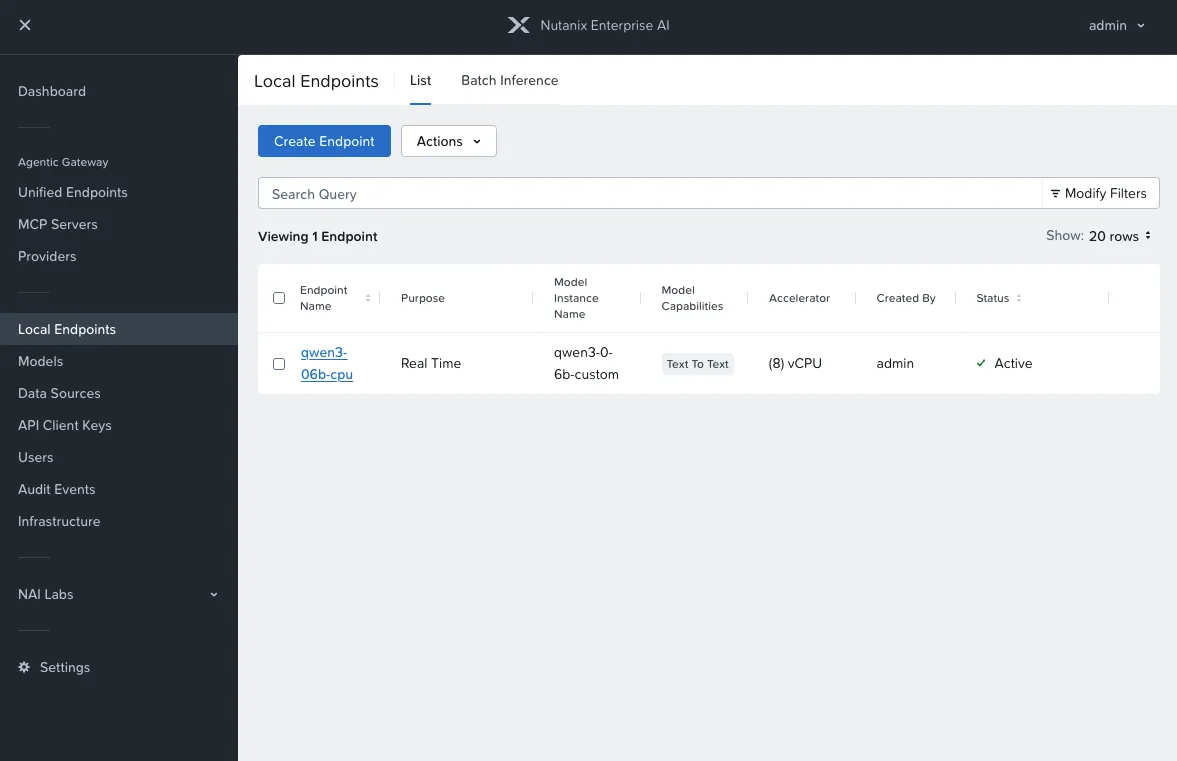
| 9. Endpoint | vLLM on CPU, API key, test | ~8.5 min to Active |
1. A cluster just for NAI
Both Nutanix NVDs for NAI place the platform on a dedicated cluster with its own workspace. I followed the same path: workspace ws-nai and a cluster with 1 control plane of 4 vCPU / 16 GiB and 3 workers of 12 vCPU / 40 GiB, all on the NKP 2.19 Ubuntu 24.04 image, which is the one in the guide.
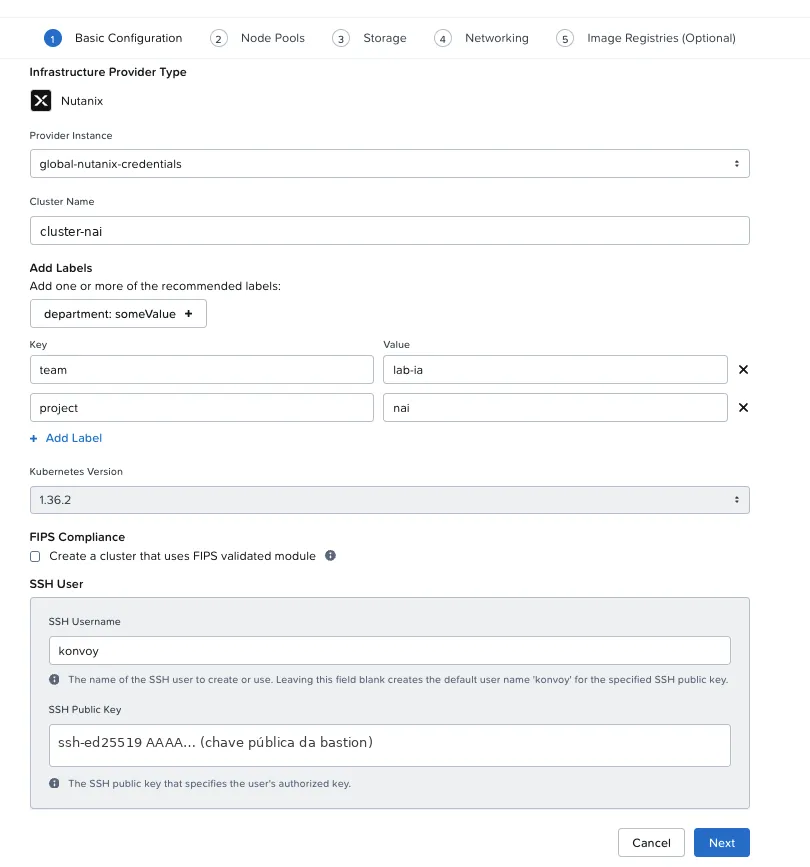
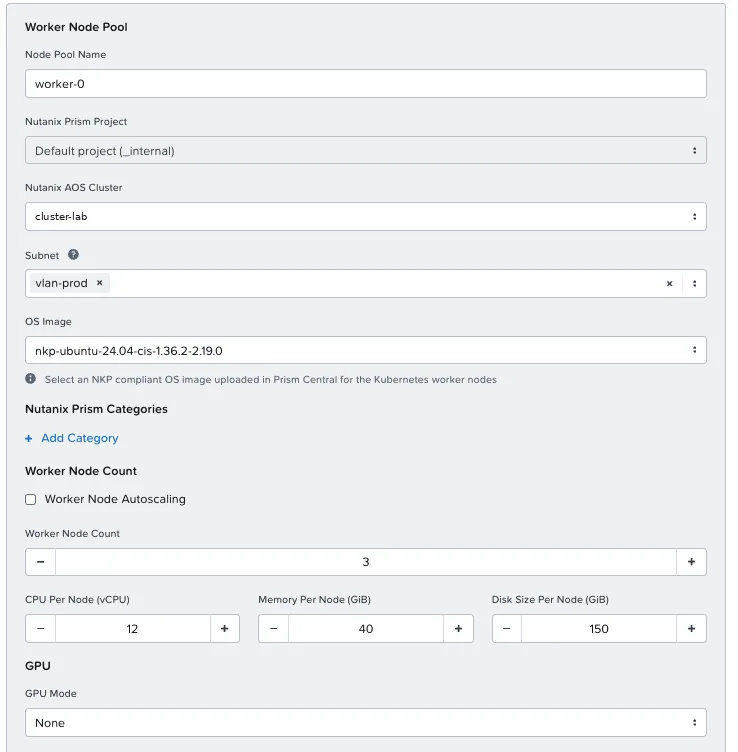
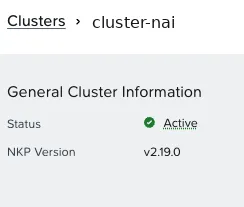
From Create to nodes Ready took 3 min 33 s. The cluster came up with Kubernetes 1.36.2.
Two fixes every new cluster needed
Both had already shown up in the lab’s first workload cluster, and they came back here:
| Symptom | Cause | Adjustment |
|---|---|---|
| Workspace apps waiting, Flux unable to clone the repository | The new cluster’s CoreDNS forwards to a public DNS, which doesn’t resolve the management cluster’s internal domain | A lab.example.local block in the CoreDNS ConfigMap with the Kommander and Prism names + rollout restart (reload only updated 1 of the 2 pods) |
Prometheus in CreateContainerConfigError and OpenCost not starting | The cluster-info-configmap ConfigMap is missing from the workspace namespace | Create it with CLUSTER_ID = UID of the cluster’s kube-system namespace |
Do this first: DNS for the new cluster
If your lab has no internal DNS handed out by IPAM, apply the CoreDNS block as soon as the cluster is active. On the first day I left it for later, and the apps waited 80 minutes for Flux.
2. The seven dependencies
The NAI catalog app lists its dependencies in the required-dependencies annotation, and the Enable screen shows them too. On NKP 2.19 they were:
| Dependency | Catalog version | Note |
|---|---|---|
| Prometheus Monitoring (kube-prometheus-stack) | already enabled in the workspace | — |
| CloudNativePG | 0.29.0 | NAI’s database |
| OpenTelemetry Operator | 0.114.1 | Metrics and audit collection |
| LeaderWorkerSet | 0.8.0 | Multi-node endpoints |
| KServe | 0.19.0 | RawDeployment mode |
| NAI – Envoy Gateway | 1.8.2 | NAI’s own gateway, with AI Gateway |
| NVIDIA GPU Operator | 26.3.3 | Required even without GPUs; only the operator and the DRA driver come up |
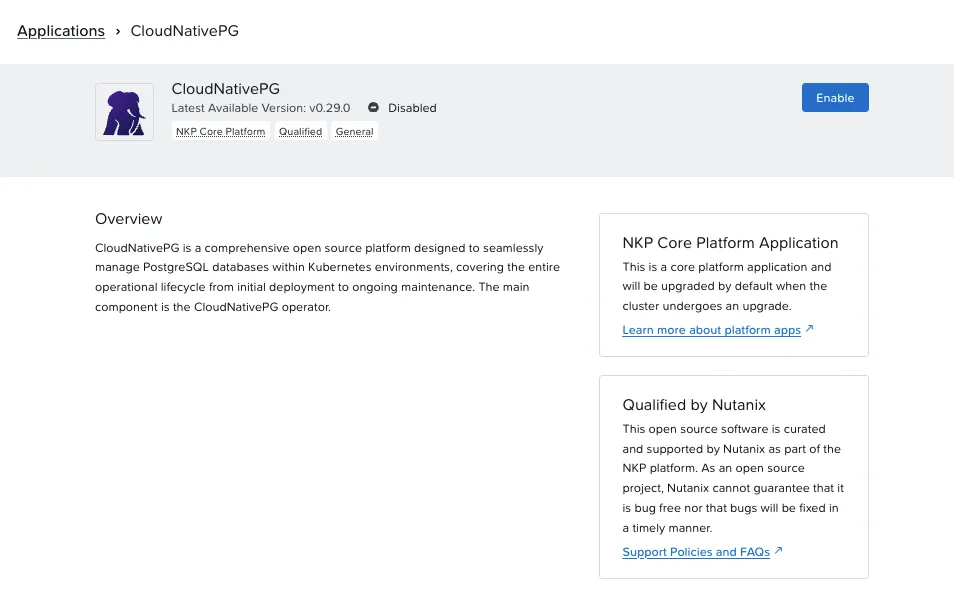
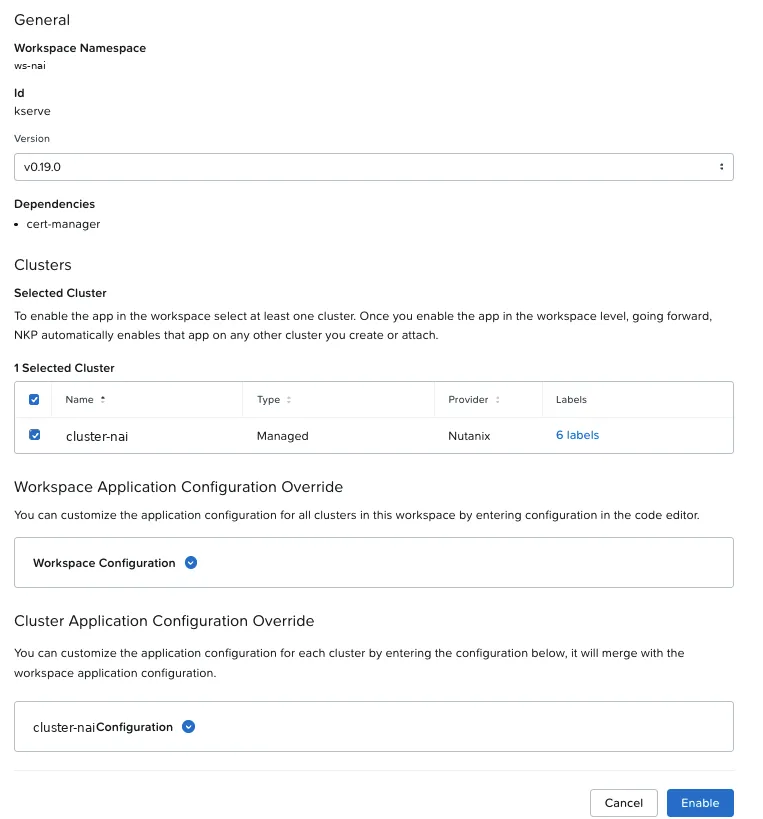
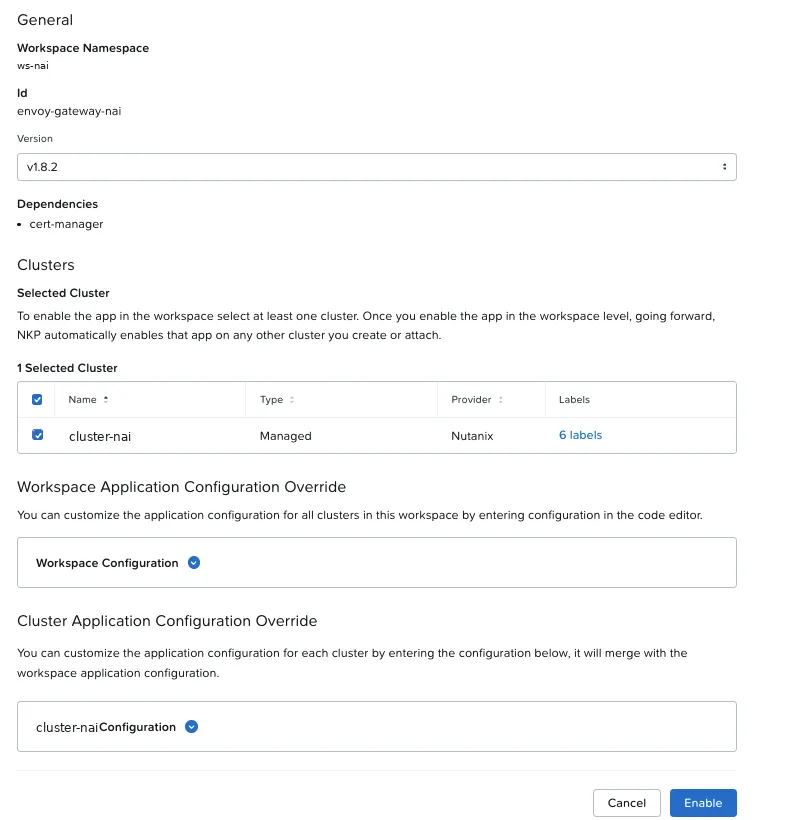
All seven were ready in about 7 minutes. NKP 2.19 compatibility is in the app’s own annotation: nkp-version-support: >=2.18 <2.20.
3. Before Enable: what I read in the chart (and what I missed)
Before clicking Enable, I pulled the catalog artifact (nutanix-ai:2.8.1) and the nai-core chart to see what the app does. It paid off:
| Finding | Consequence |
|---|---|
The catalog injects gateway.certManager.selfSigned: true | Out of the box, NAI comes up with a self-signed certificate |
global.storage.storageClassNameRWX defaults to nai-nfs-storage | If your storage class has another name, the model volumes stay Pending |
dnsNames defaults to nai.nutanixdev.local | Certificate with a generic name: set your own domain |
nai-core requests: ~20.7 vCPU / 33 GiB | The three 12-vCPU workers are left with little room for inference (more on that in step 7) |
Images in docker.io/nutanix/nai-* | Private repositories (I missed this one; see the token prerequisite in section 4) |
Certificate from the internal CA
For the browser to trust NAI without warnings, I issued the certificate from the lab’s internal CA. The chart accepts a cert-manager ClusterIssuer. I created the secret with the CA certificate and key, and the issuer:
apiVersion: cert-manager.io/v1kind: ClusterIssuermetadata: name: lab-caspec: ca: secretName: lab-ca # tls secret in the cert-manager namespaceA test certificate for nai.lab.example.local came out signed by the CA and passed openssl verify.
Protect the CA: use an intermediate
The lab CA key was passphrase-protected, and cert-manager expects a key without a passphrase. I removed the passphrase on the admin machine itself, interactively, and deleted the copy right after creating the secret. At a customer, use an intermediate CA just for the cluster, never the root.
4. The Enable
In the workspace, Applications → Nutanix Enterprise AI → Enable. The form has two configuration fields: one for the whole workspace and one per cluster.
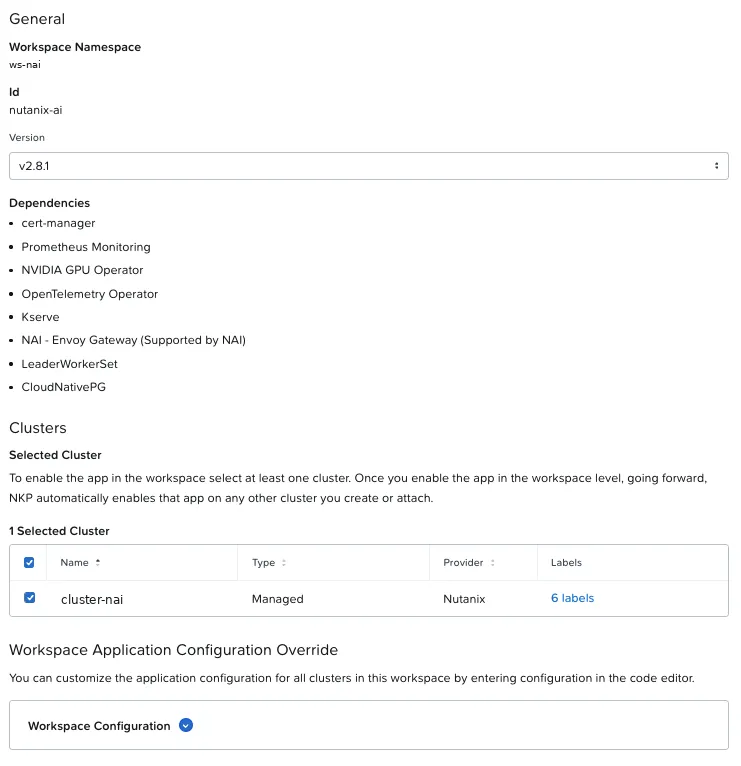
I used only the cluster field. Hostname and certificate belong to this cluster; in the workspace field they would apply to any new cluster in the workspace, and NKP enables the app automatically on clusters that join later.
The final override (with the imagePullSecrets from the prerequisite below):
global: storage: storageClassName: nutanix-volume # RWO storageClassNameRWX: nai-nfs # the default is nai-nfs-storage imagePullSecrets: - name: nai-dockerhub # private nutanix/nai-* repositoriesgateway: tlsSecretName: ingress-certificate certManager: selfSigned: false issuerRef: name: lab-ca kind: ClusterIssuer group: cert-manager.io dnsNames: - nai.lab.example.local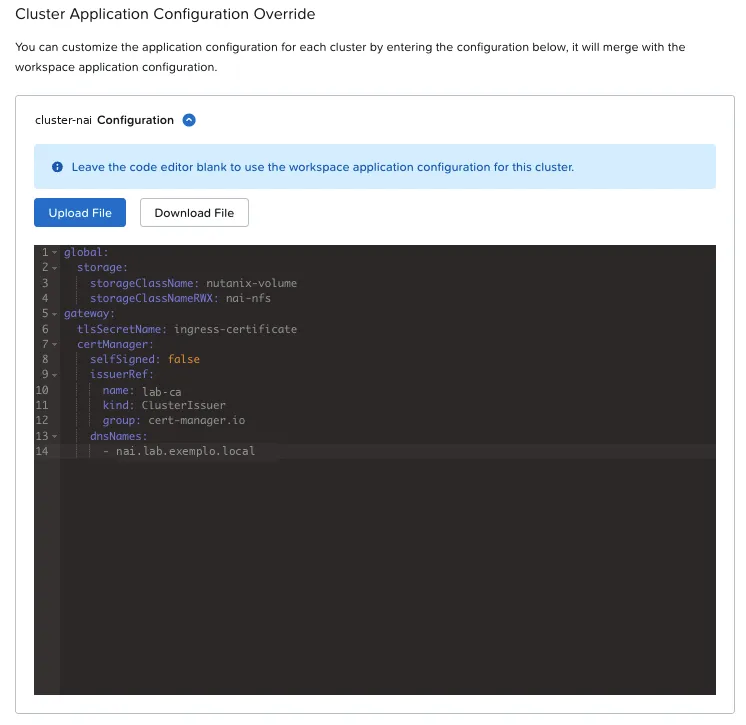
Prerequisite: the NAI Docker Hub token
On my first try I hadn’t created this credential, and a minute after Enable the pods in nai-system were in ImagePullBackOff: pull access denied … insufficient_scope. If you see that message, there are two points to check:
- The timing of NKP’s credential injection. NKP injects the registry credential through a Gatekeeper mutation, which only acts when the pod is created in a namespace with the
inject-registry-credslabel. Thenai-systemnamespace was born at 21:51:22, the pods at 21:51:25, and the label and secret only arrived at 21:52:21. The first pods were created before the credential. - NAI has its own credential. Even after recreating the pods, the pull was still denied: the NKP registry user pulls NKP images, and the
nutanix/nai-*repositories are private to NAI. NAI uses the NAI Docker Hub access token, generated in the portal under Downloads → Nutanix Enterprise AI → Generate Access Token (a registry user of its own).
The adjustment: create a docker-registry secret with the NAI token in two namespaces, nai-system and envoy-gateway-system (NAI’s Envoy uses a private image), and point global.imagePullSecrets at it in the override.
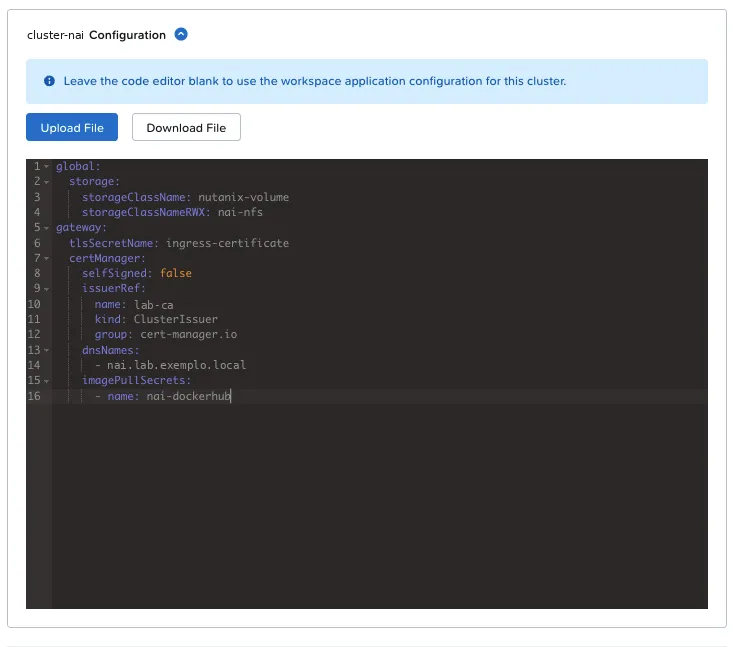
Check the override indentation before saving
On the first try, I put imagePullSecrets inside gateway.certManager. Kommander accepts the YAML, Helm ignores the misplaced key and nothing changes. Check the indentation before saving.
Prerequisite: do this before Enable
Create the nai-system namespace and the secret with the NAI token before Enable, and put imagePullSecrets in the override from the start. That way the first Enable comes up with the right credential.
When the first Enable doesn’t complete: Disable + Enable
With the configuration adjusted, NAI didn’t reinstall on its own. Since the first install of the operators hadn’t completed (because of the ImagePull), Flux went into uninstall to try again. The chart has a pre-delete hook that waits for the nutanix-ai HelmRelease to go away, and that one depends on the operators. The hook waits up to 30 minutes; the uninstall times out at 15.
The fastest path was Disable → cleanup → Enable. After Disable, a Valkey PVC, a ConfigMap created outside Helm and a webhook secret were left behind, all without data. I deleted the three and kept the namespace, the registry secrets and the issuer.
If the first Enable doesn’t complete: Disable + Enable
When the first install doesn’t complete, the pre-delete hook and the dependency between HelmReleases wait on each other. Instead of waiting for Flux: Disable, clean up the leftovers and enable again. The second Enable, with the namespace and credentials already in place, was clean and took 8 minutes.
The second Enable: 8 minutes
| Time | Event |
|---|---|
| 21:18:09 | Enable confirmed |
| 21:20 | nutanix-ai-operators installed (Valkey, database, ClickHouse operator, AI Gateway) |
| 21:23 | nutanix-ai installing; transient bootstrap errors (IAM certificates, nai-api waiting for the database) |
| 21:26 | nutanix-ai installed: 27 pods (23 Running, 4 Completed), Deployed in Kommander |
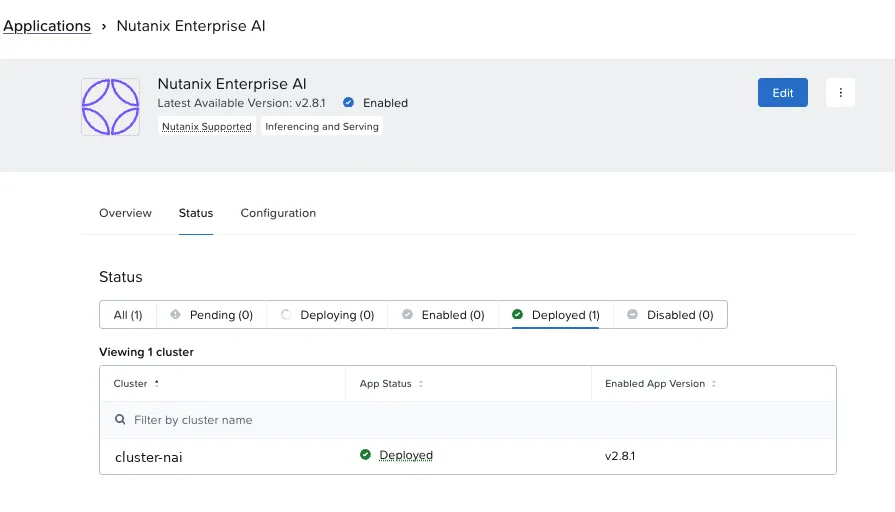
NAI’s Envoy took the next free IP from the MetalLB pool (198.51.100.131) and the certificate was ready, issued by the lab CA. From the bastion, a curl --resolve with the lab CA validated the chain and got the redirect to the login page.
5. First login: EULA, Pulse and password
With the name in DNS (in the lab, for now, in /etc/hosts), the login page opens at https://nai.lab.example.local with a valid certificate.
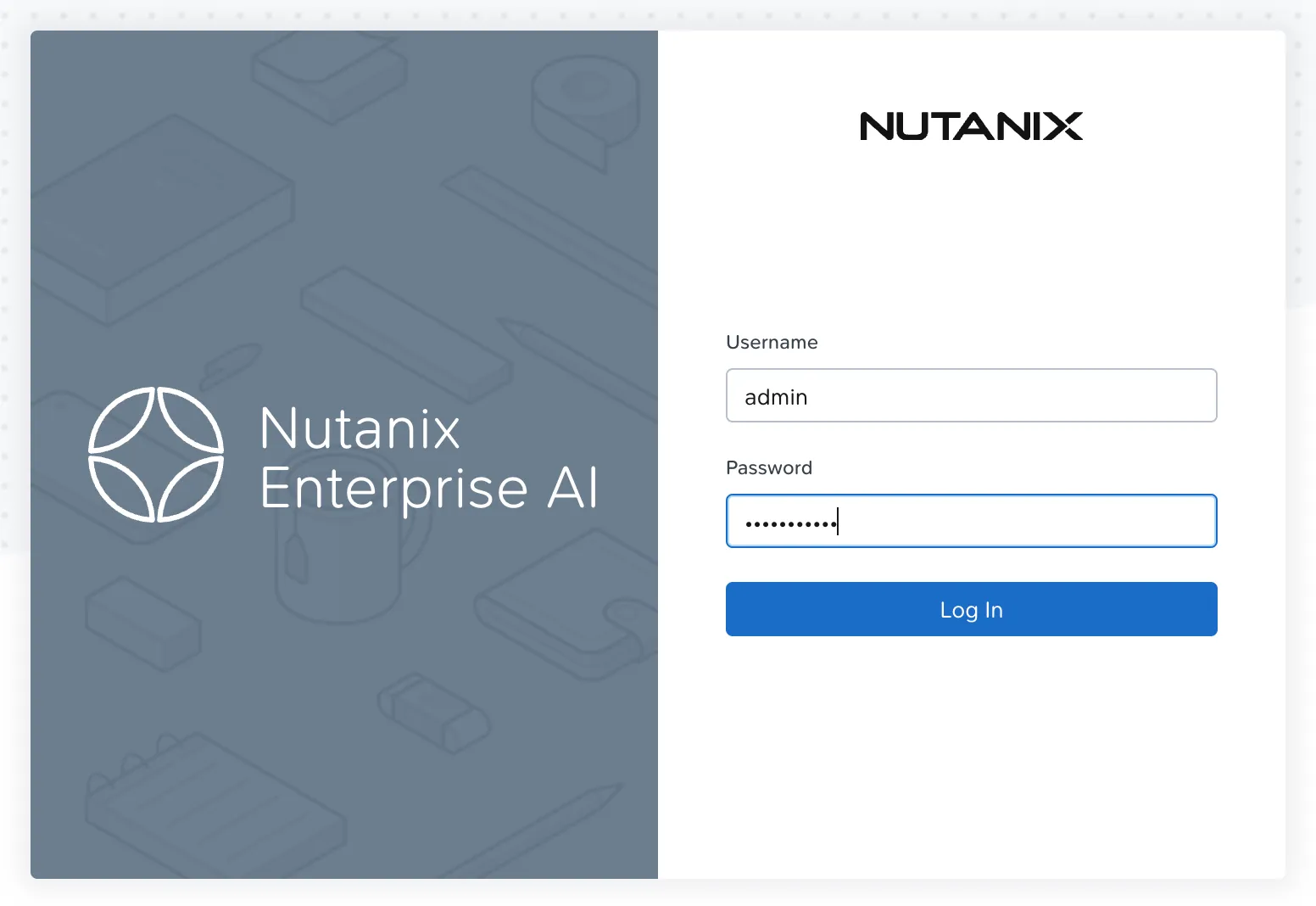
User admin with the default password from the guide. In 2.8.1, the screen order is: EULA (name and company), then Pulse, then the password change (the guide shows a different order).
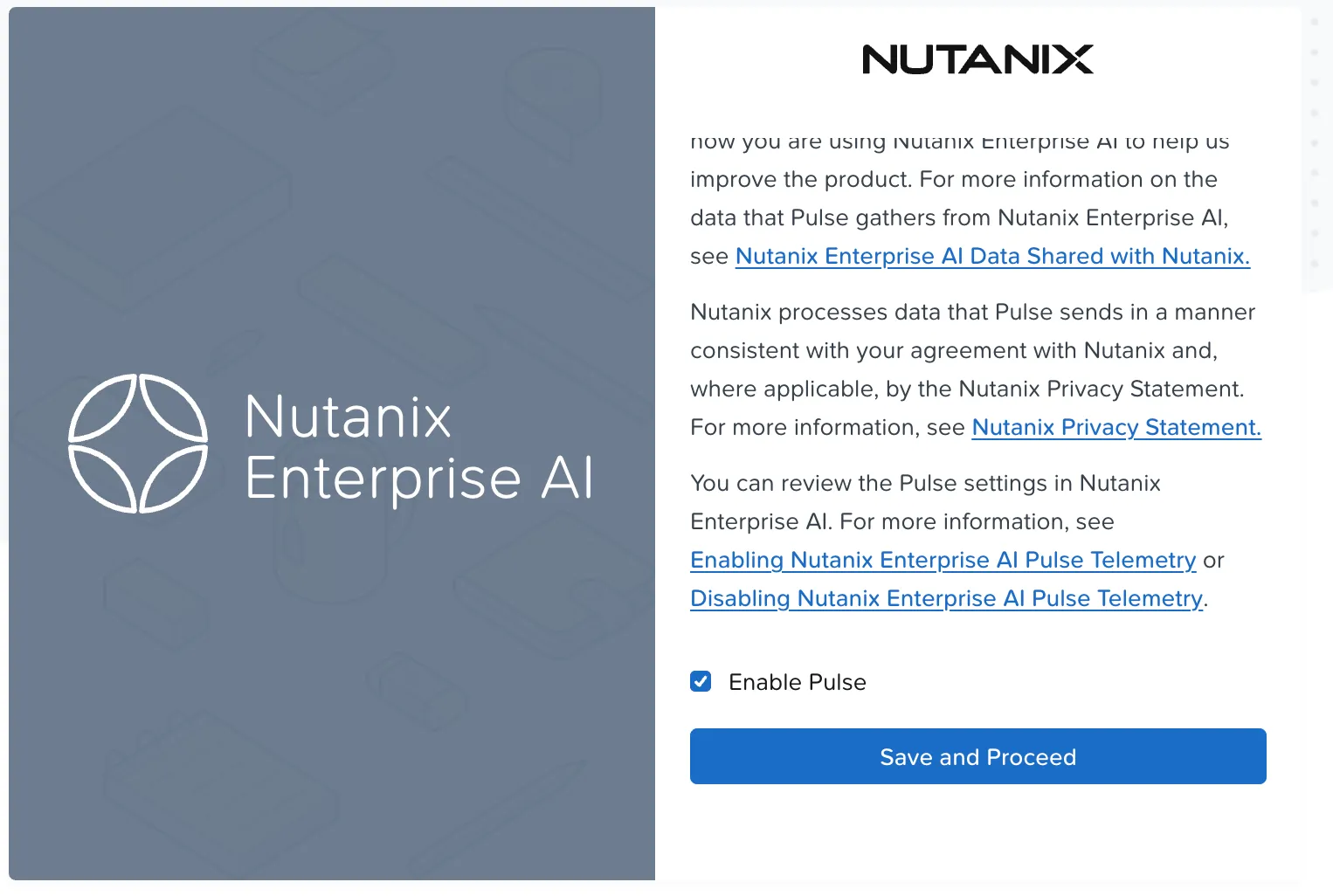
After Pulse: sign in again
After Save and Proceed on Pulse, my session showed 403 Access Denied. In the logs, the EULA and Pulse writes returned 200 and Envoy logged no 403: the session opened before the EULA just didn’t have the updated authorization attributes.
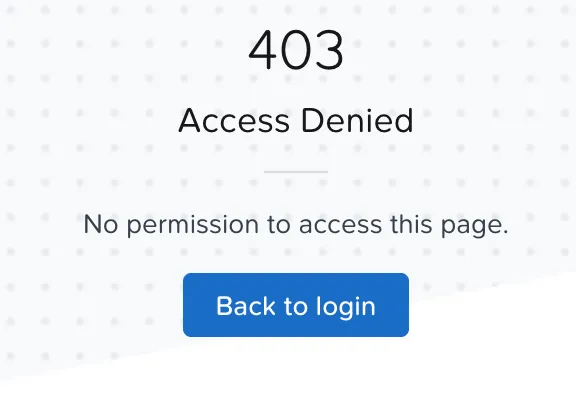
What to do: Back to login and sign in again. Then came the password change and the dashboard.
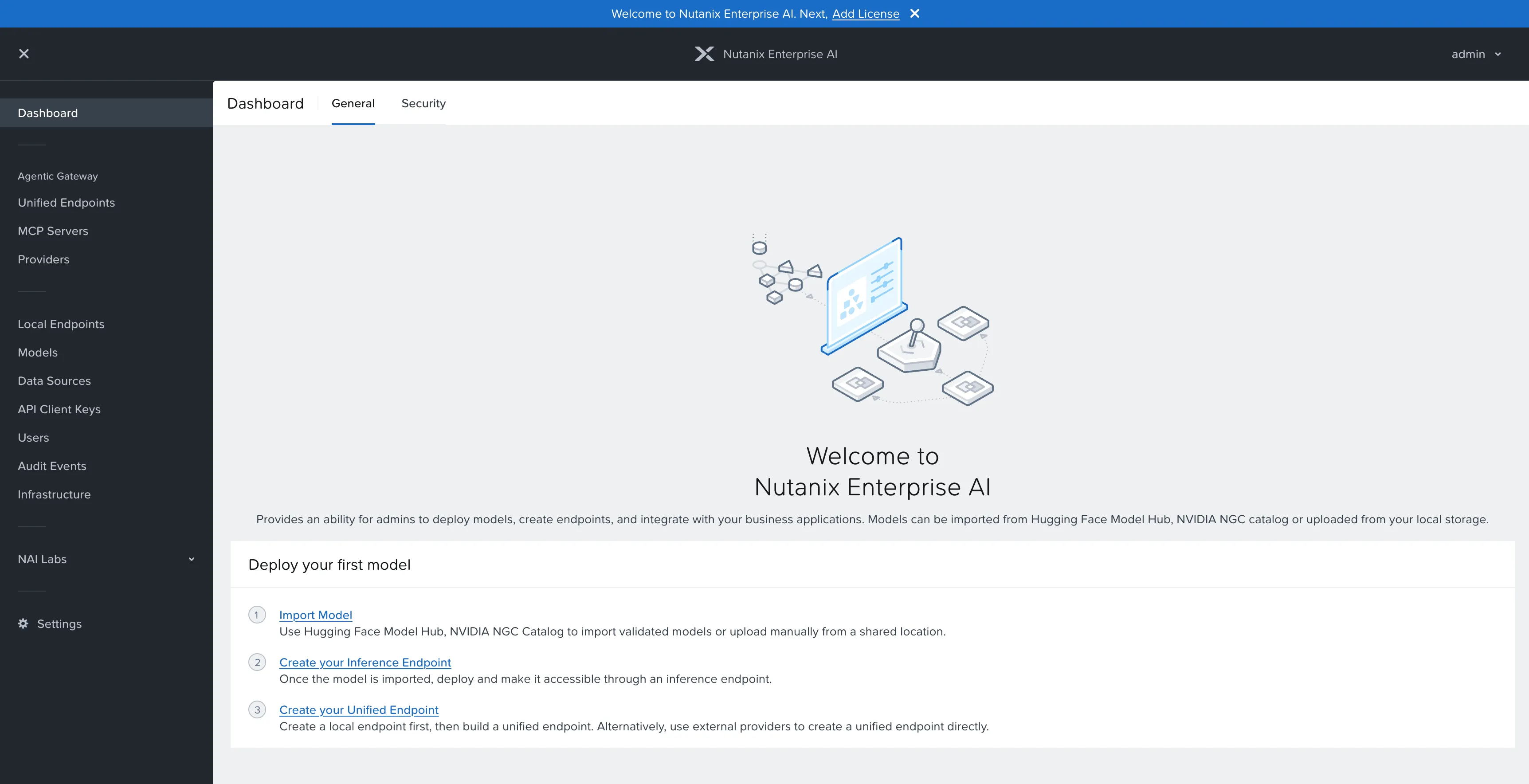
Pulse
I left telemetry on in the lab, as on NKP. At a customer, especially in the public sector, it’s a data-policy decision.
6. The license: on day one
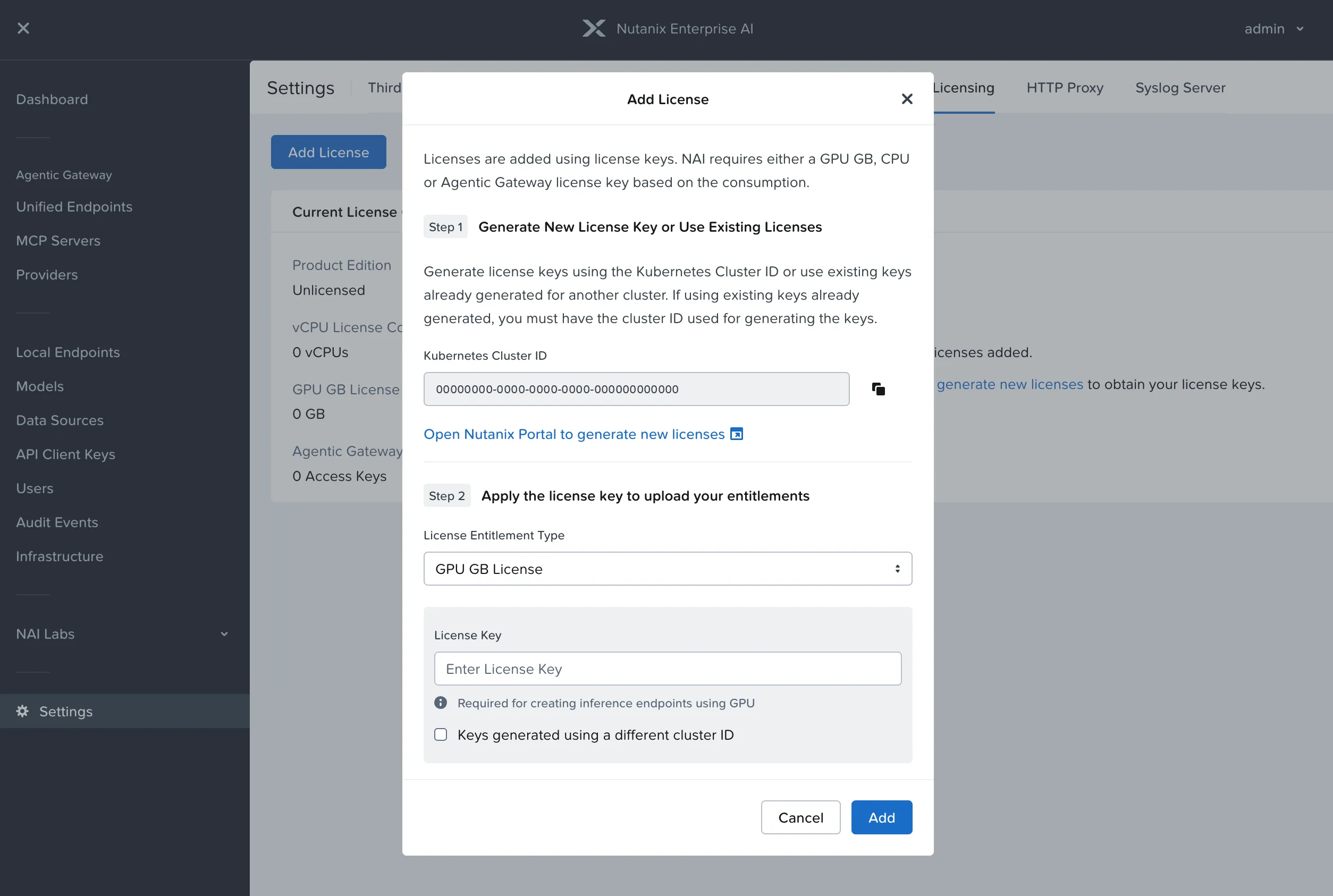
NAI has a trial of only 2 days after installation, and the CPU or GPU license can only be added on the first install. So it comes right after the first login.
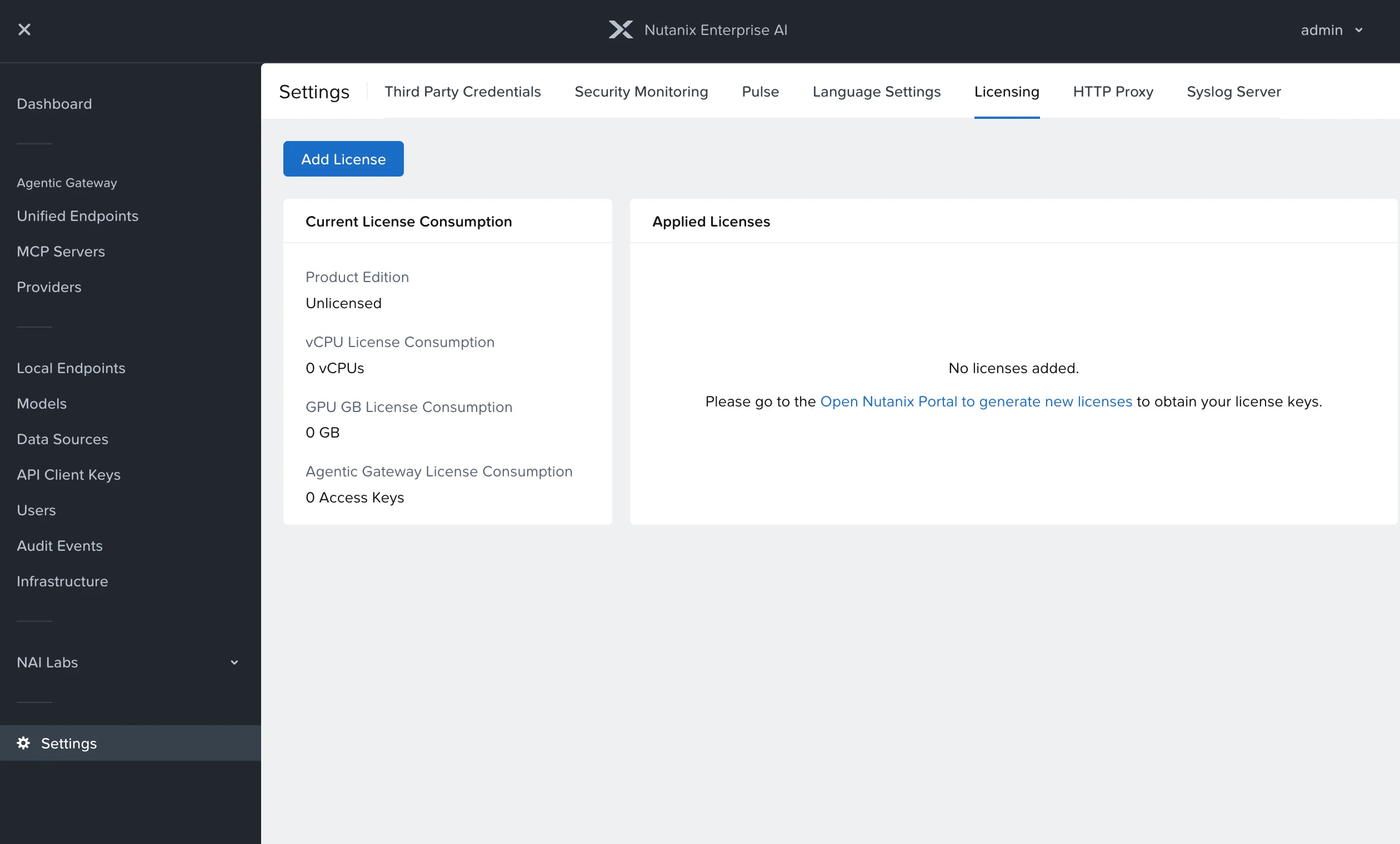
The path:
- In NAI, Settings → Licensing → Add License shows the Kubernetes Cluster ID. It’s the UID of the cluster’s
kube-systemnamespace (I checked from the bastion). - In the Nutanix portal, Licenses → Manage Licenses → Manage NAI/NKP License → NAI: enter the cluster name and UUID, pick NAI Pro (VCPU) and the quantity.
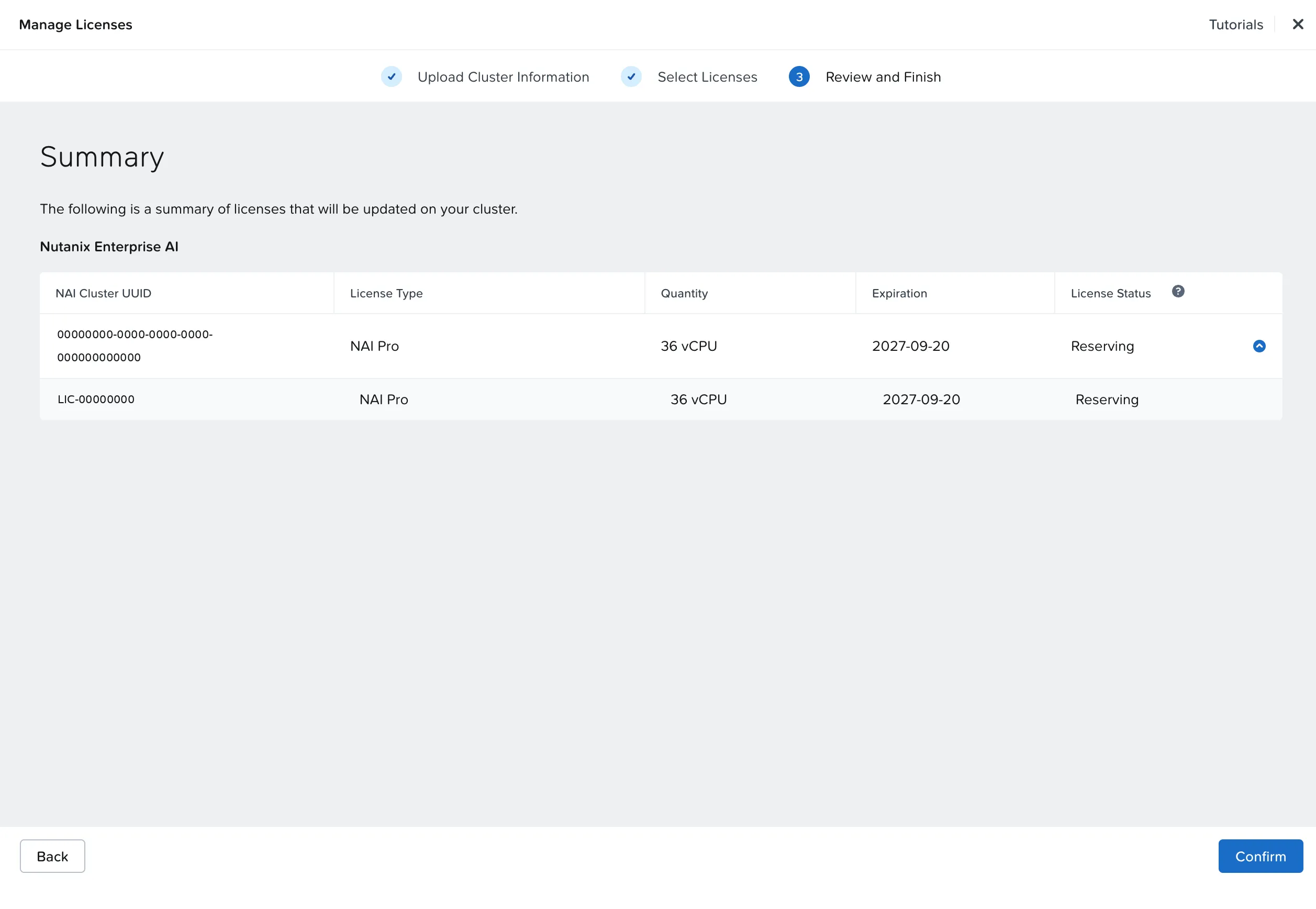
- Generate the key and go back to NAI.
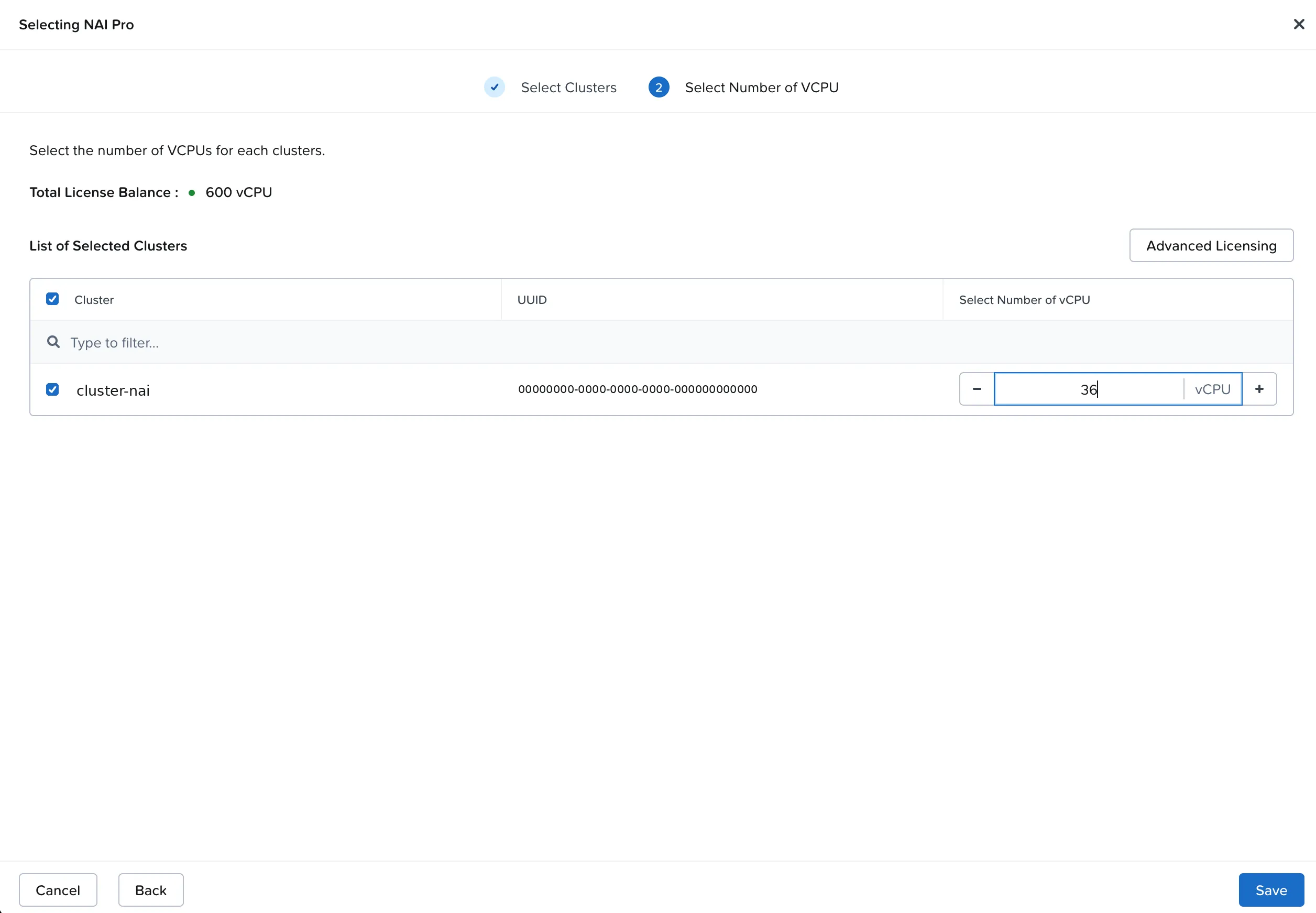
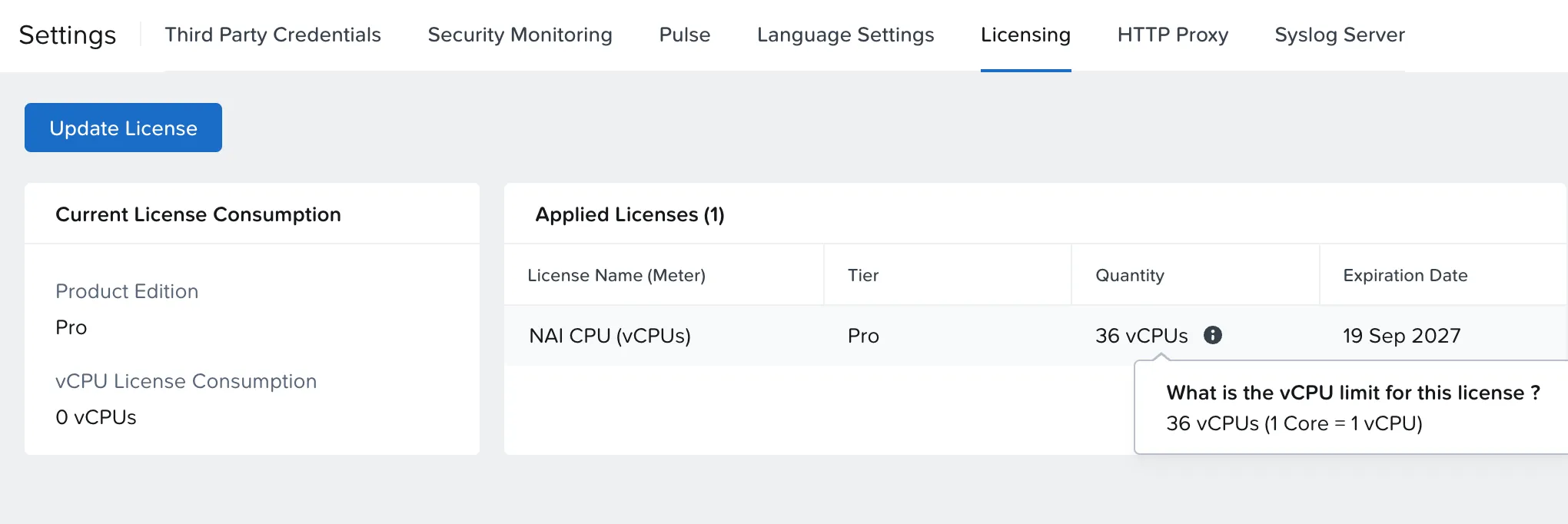
I chose 36 vCPU, the 3 workers × 12, the ceiling an endpoint can use in this cluster.
For a vCPU key, select CPU License
NAI’s Add License dialog opens with GPU GB License selected. For a vCPU key, switch to CPU License before pasting.
What about the Agent Gateway?
The license screen has a third type, Agentic Gateway License: “Required for accessing Unified Endpoints and MCP Connectors”. It’s a separate entitlement, metered in access keys. A vCPU key pasted into that field gives “Meter type mismatch”.
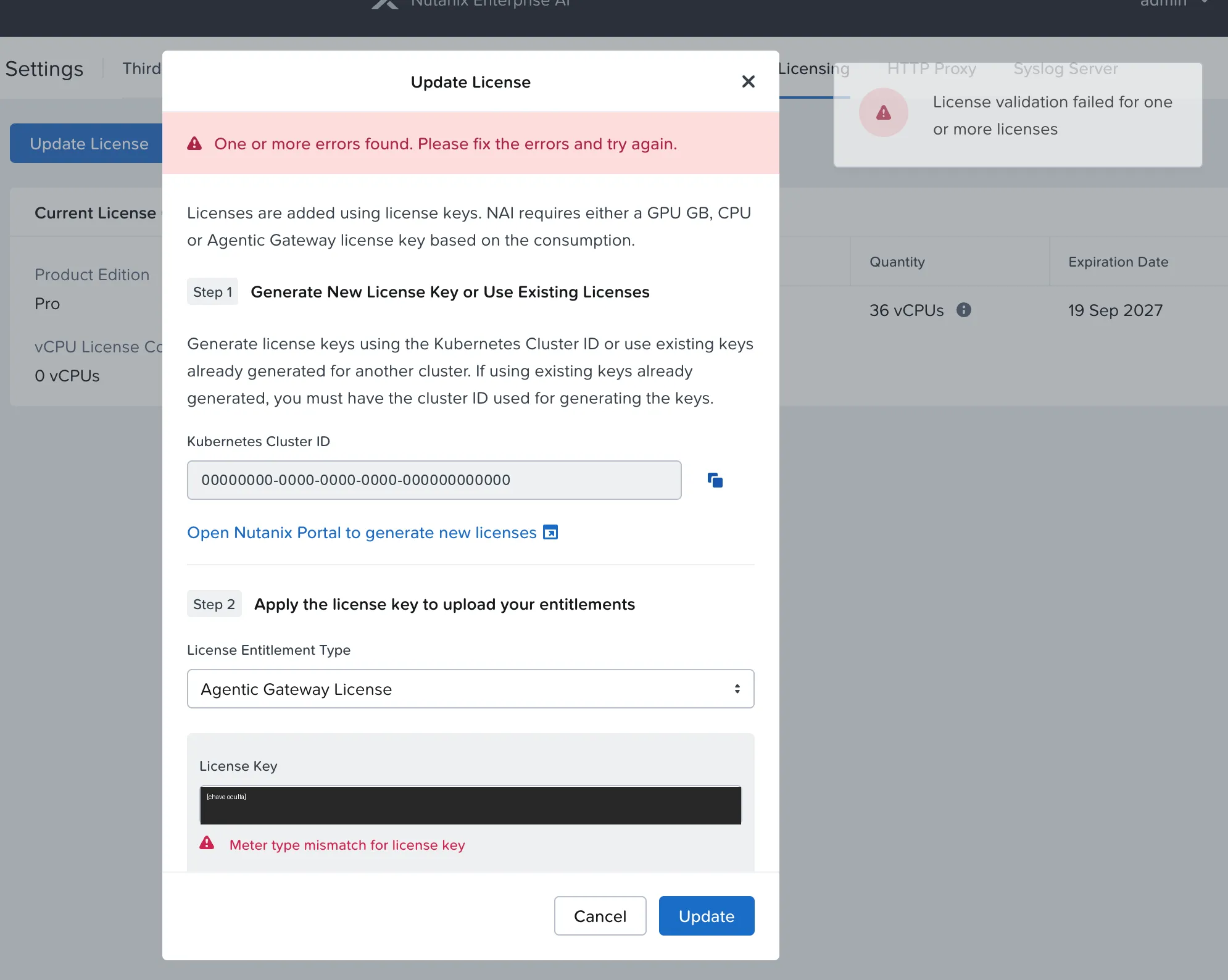
| License | Unlocks | Metric |
|---|---|---|
| CPU | CPU endpoints | vCPU |
| GPU | GPU endpoints | GB of GPU memory |
| Agent Gateway | Unified Endpoints, Providers, MCP | access keys |
The lab doesn’t have the Agent Gateway entitlement yet. It’s left for Part 4.
7. A node pool just for inference
After Enable, CPU requests on the three workers were at 77%, 96% and 83%, with real usage around 5%. Only ~2.7 schedulable vCPU were left on the best node. The guide confirms why: the 3 workers of 10 vCPU in the requirements table are only for NAI’s control plane, and inference resources come on top.
The solution was an nai-cpu node pool: 1 worker of 12 vCPU / 48 GiB, no taint (in NAI 2.8.1, CPU endpoints use default scheduling, with no toleration or nodeSelector).
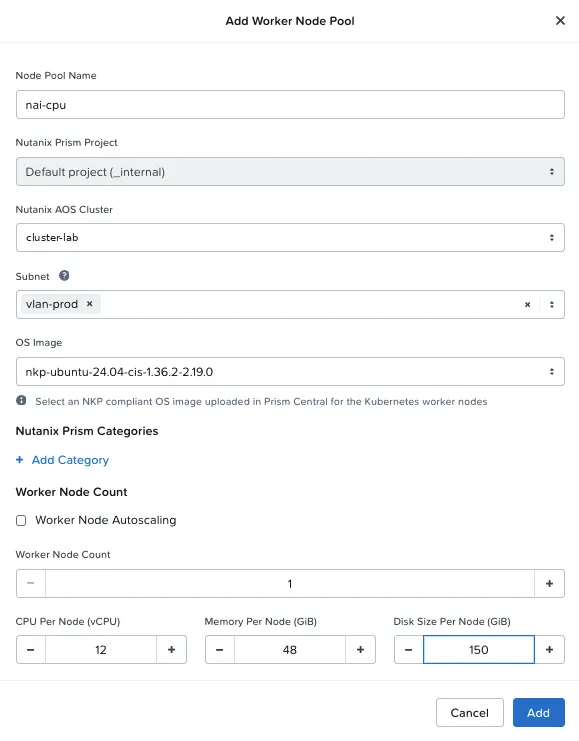
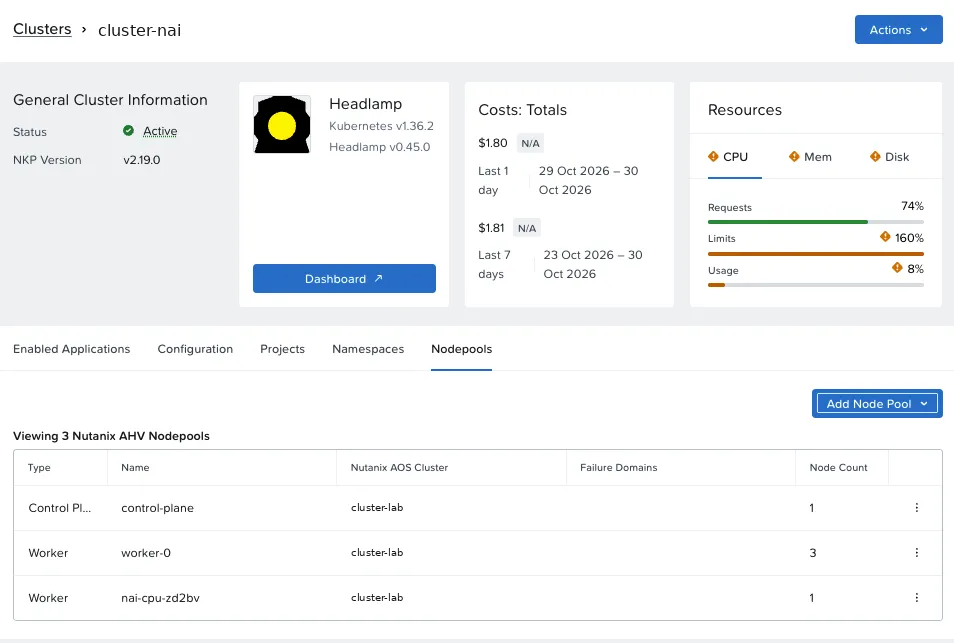
From Add to node Ready: 1 min 40 s, with ~11.6 vCPU free.
Node pool labels that reach the node
The custom label I set in the form (lab.example.local/pool=nai-cpu) stayed on the Machine object: Cluster API copies to the node only the labels with the node.cluster.x-k8s.io/ prefix. If you need to select the node by label, use that prefix.
8. Models: Hugging Face, validated and custom
A service account on Hugging Face
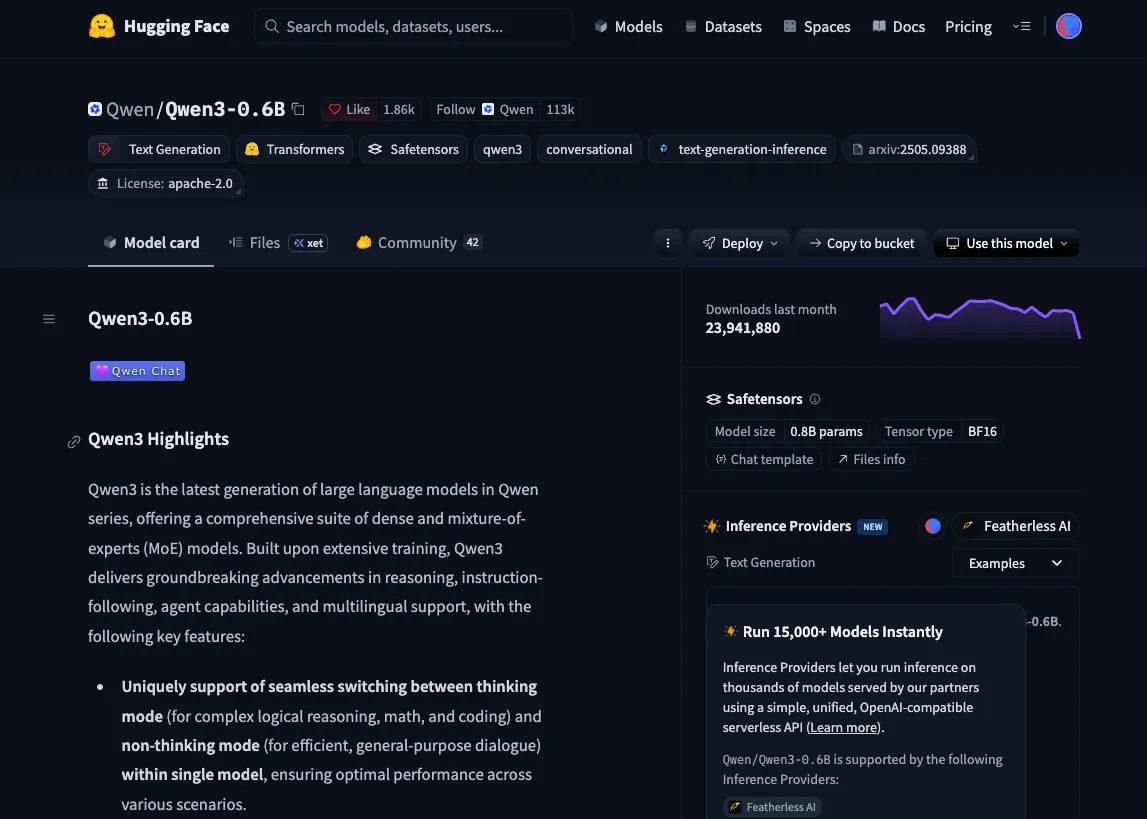
I created a lab account on Hugging Face instead of using my personal one: the token doesn’t depend on a person and the separation is clean. Two models to compare:
| Role | Model | Gated |
|---|---|---|
| Validated | google/gemma-3-270m-it | Yes: Google’s license (acceptance goes through Kaggle) |
| Custom | Qwen/Qwen3-0.6B | No (Apache-2.0) |
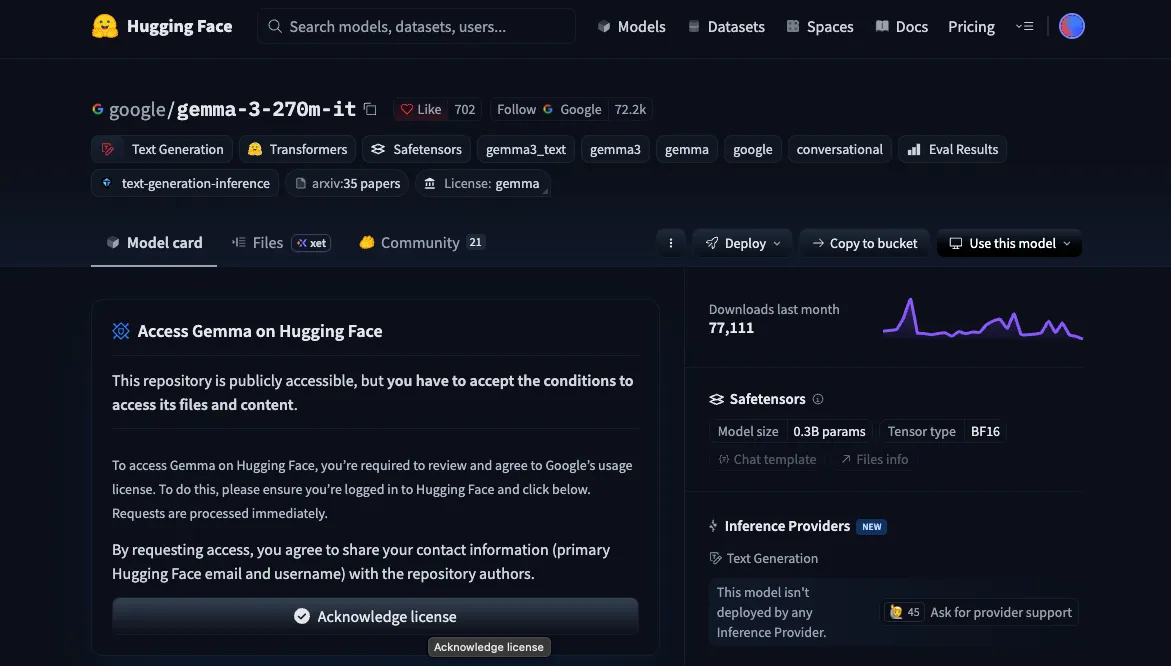
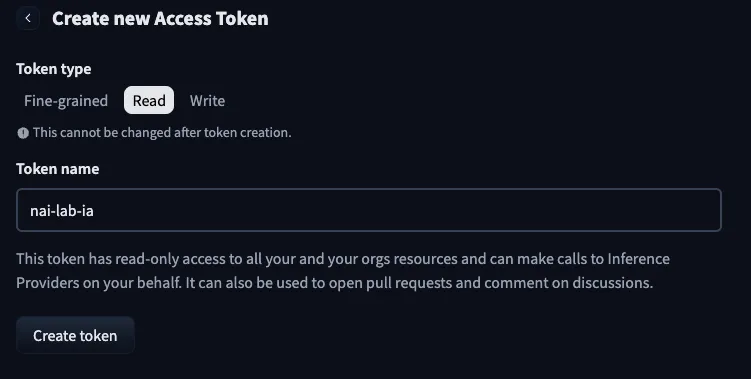
The token is of type Read. At a customer, prefer a fine-grained token with read access only to the repositories in use.
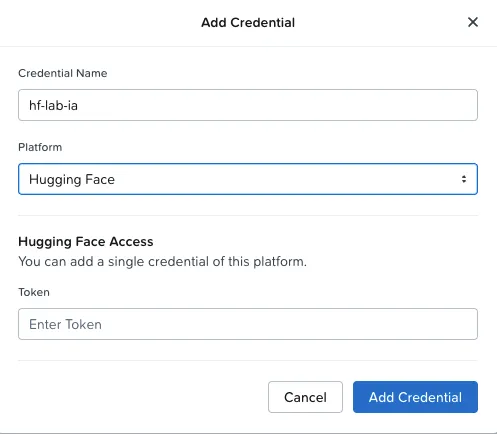
In NAI, Settings → Third Party Credentials → Add Credential, platform Hugging Face. The screen warns that there’s room for only one Hugging Face token per NAI.
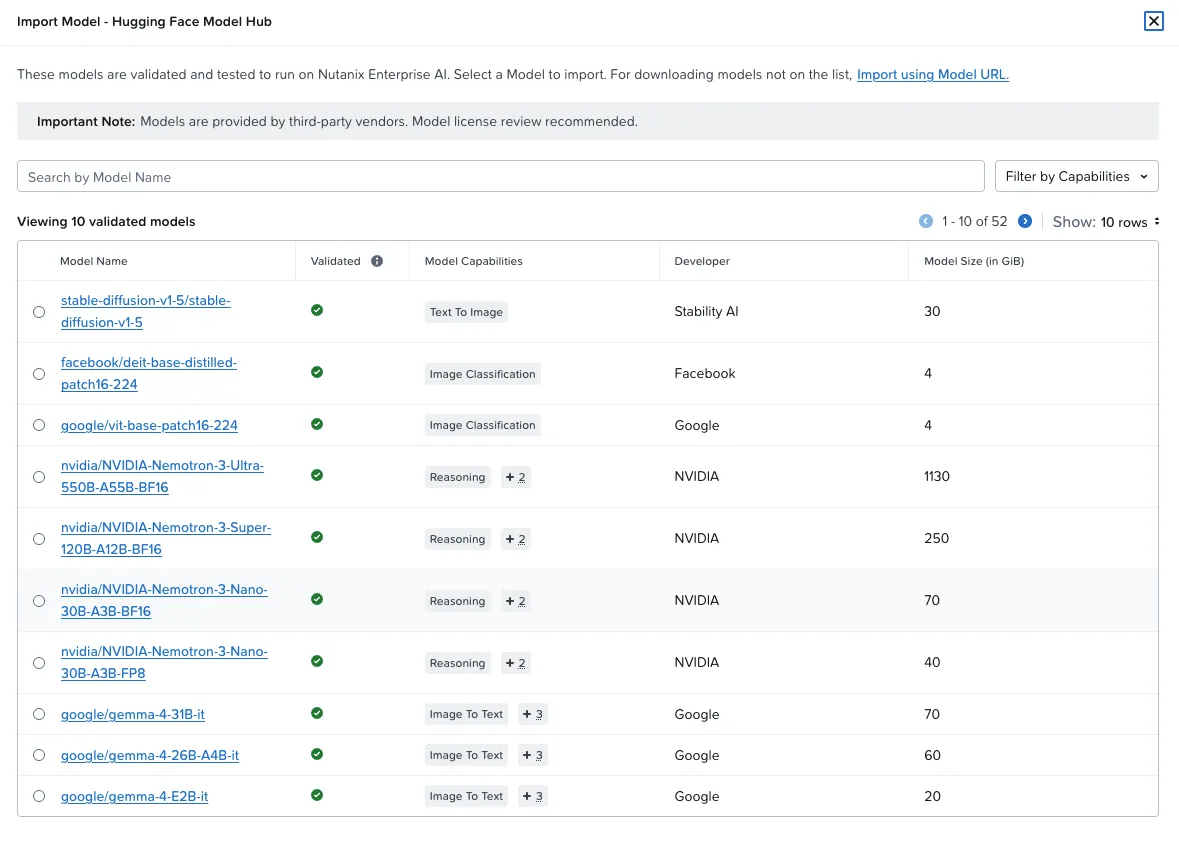
The validated model
Models → Import Models → From Hugging Face Model Hub lists 52 validated models.
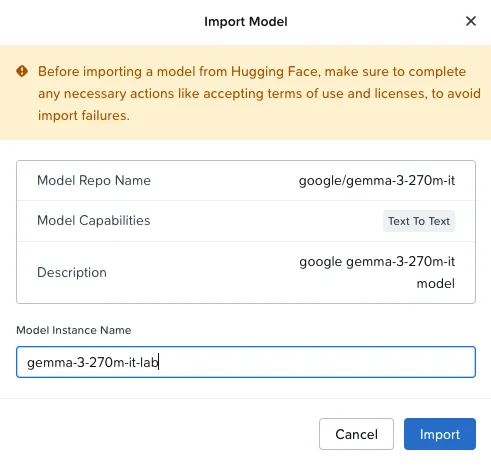
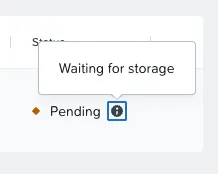
The status goes through Pending → Waiting for storage. Behind the scenes, NAI creates a Model object and an RWX PVC on nai-nfs, Files creates the share and a job downloads the model. Total time: ~1.5 min.
| Step | Since the click |
|---|---|
10 GiB RWX PVC Bound (share on Files) | 28 s |
Download job started on the nai-cpu node | 56 s |
Model Active | 88 s |
Governance: NAI starts closed (deny by default)
With Gemma ready, NAI showed the notice “The usage of this model has been restricted by the administrator”. That’s governance at work: on a fresh install, Model Access Control starts with no models allowed (0 of 52 from Hugging Face and 0 of 32 from NGC), with import by URL and manual upload off, and the administrator allows what will be used.
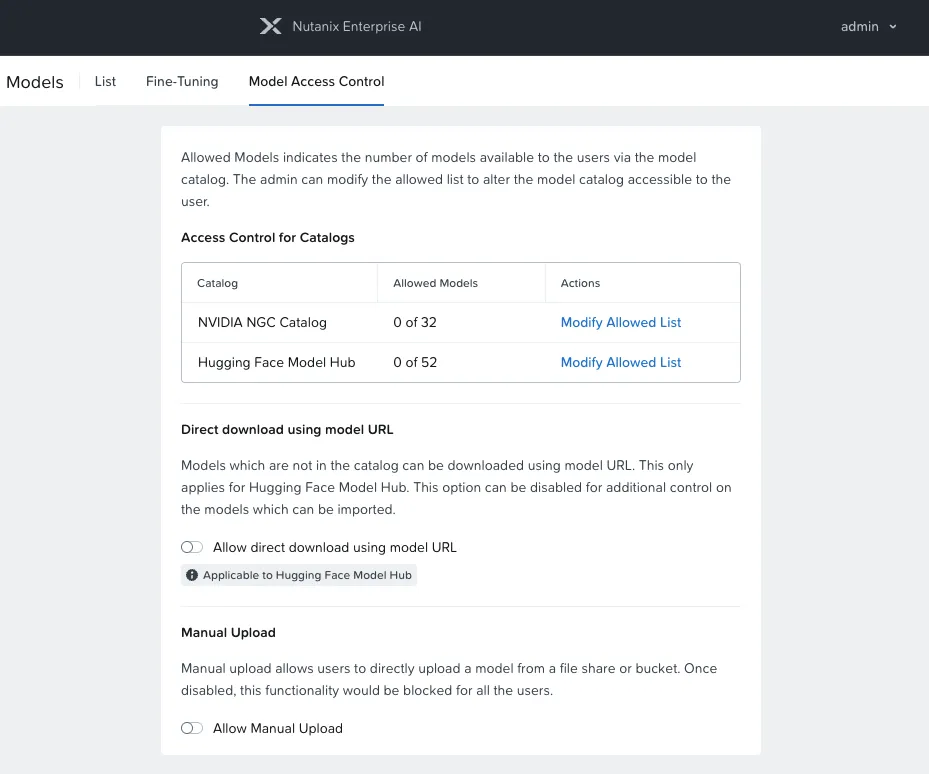
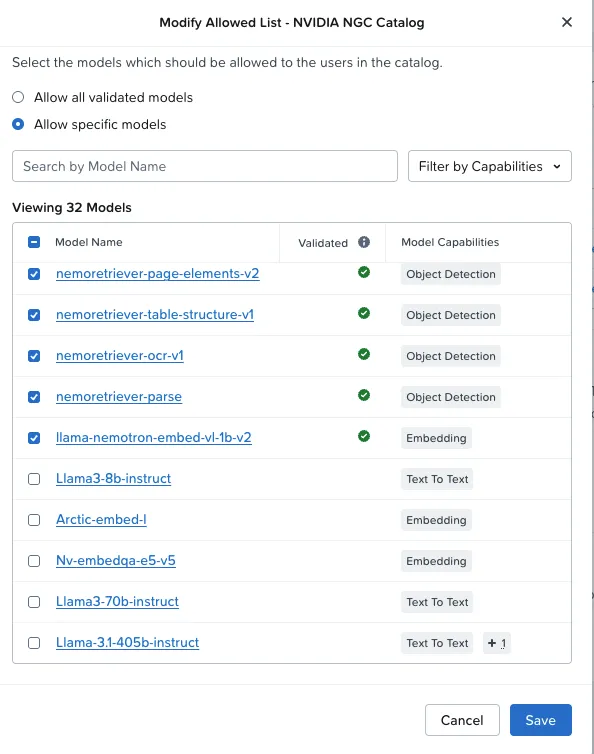
In the lab I opened up the catalogs and both toggles. One detail: on NGC, Allow all validated allows 27 of 32. The other 5 are in the catalog without the validated badge, and only get in through Allow specific models.
Real governance
Deny by default for models is a good argument for customers. In production, allow models by list and keep URL import and manual upload off unless there’s a need.
The custom model, by URL
On the same Hub screen, the Import using Model URL link accepts any Hugging Face repository. NAI asks for explicit confirmation:
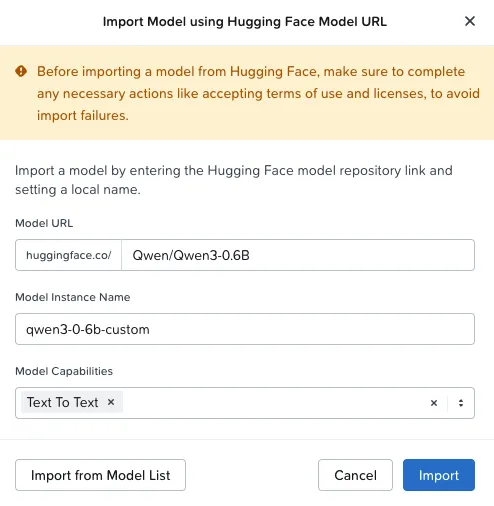
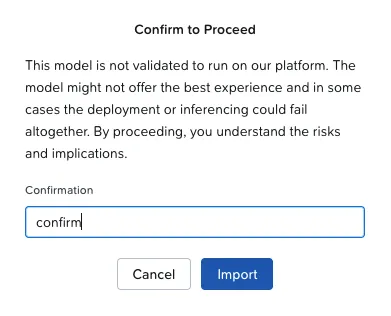
Import in 59 s (the share was ready in 3 s and the processor image was already cached).
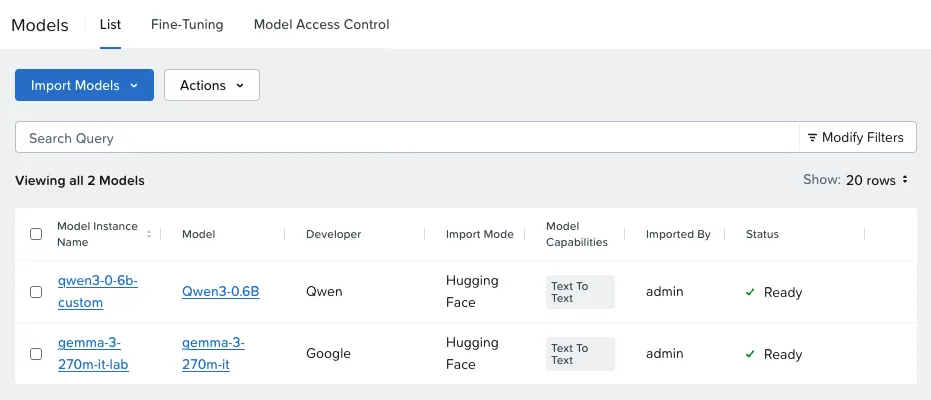
The Model object showed a difference worth knowing:
| Gemma (validated, Hub) | Qwen3 (custom, URL) | |
|---|---|---|
| Repository revision | pinned to a commit | empty: downloads whatever is on main |
| Volume size | 10 GiB (catalog) | 12 GiB (estimated) |
| Risk confirmation | No | Yes |
| Endpoint CPU and memory | Suggested by NAI | You decide |
9. The first endpoint
Pick a model with a CPU profile
Local Endpoints → Create Endpoint with Gemma, and the screen showed: “No supported accelerator types available”.
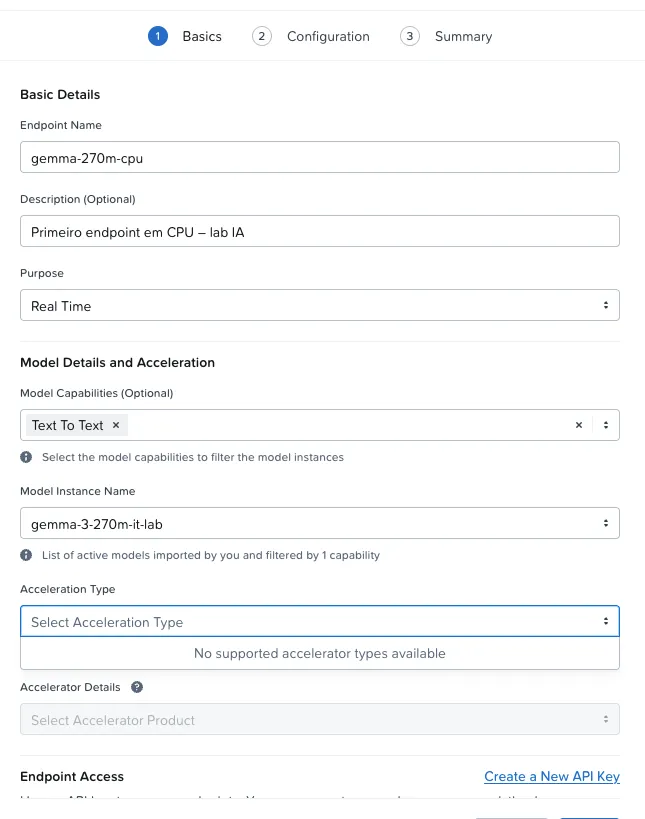
The cluster was ready: NFD detected AVX-512 on every node and NAI’s inventory saw 11.6 free vCPU on nai-cpu. What defines the option is the model profile: in the 2.8.1 catalog, Gemma 3 270M is validated for GPU. With the custom Qwen3, the CPU option appears (and Intel AMX is greyed out, because the lab’s Xeon is 2nd generation).
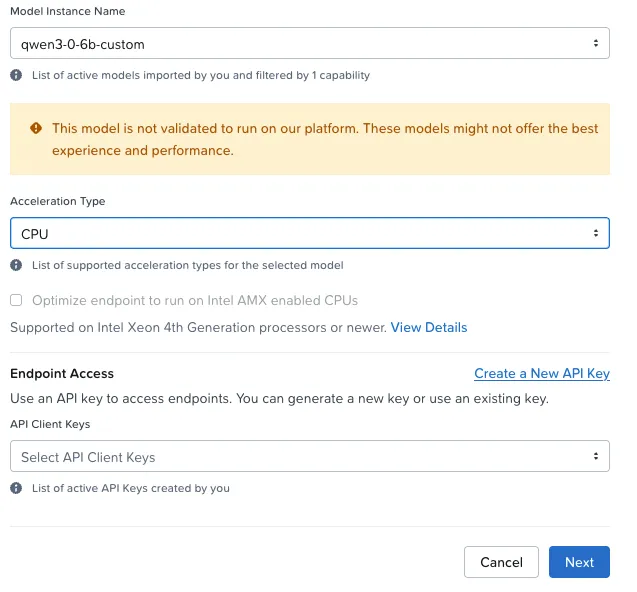
The configuration
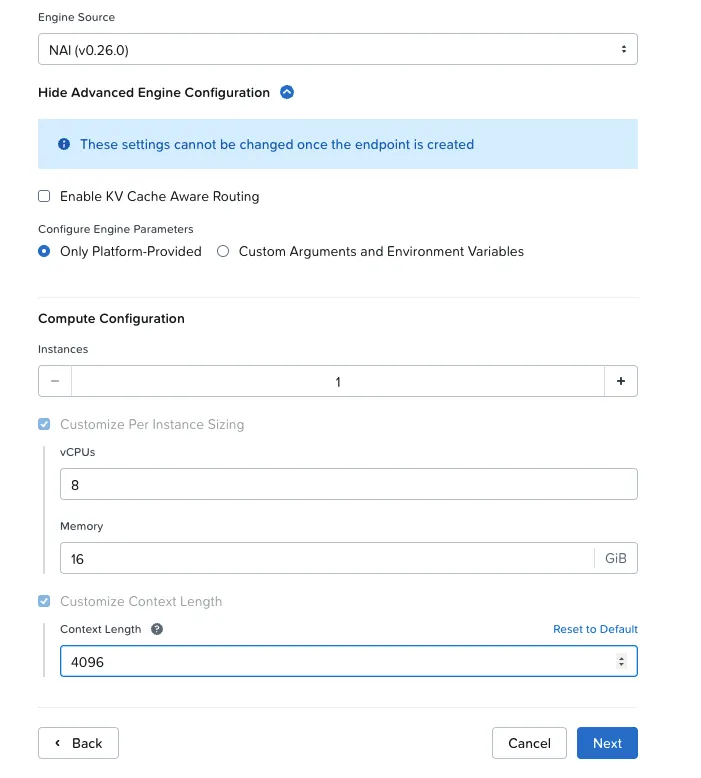
vLLM engine, Nutanix image v0.26.0. The screen warns that vLLM is community-supported and shows other image sources.
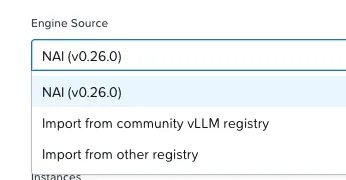
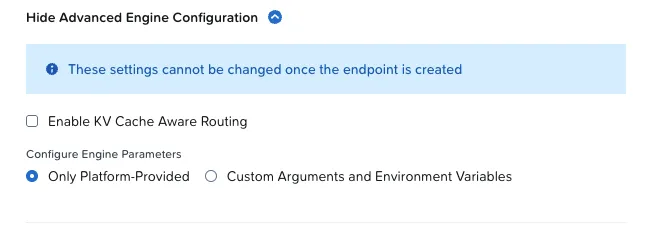
For a custom model, you set the size. I used:
| Field | Value | Why |
|---|---|---|
| vCPU | 8 | vLLM on CPU scales with cores; fits in nai-cpu and uses 8 of the license’s 36 |
| Memory | 16 GiB | ~1.5 GB model plus context cache and runtime |
| Context | 4096 tokens | On CPU, the cache grows with context |
From Pending to Active: 8.5 minutes
Behind the scenes, NAI creates a KServe InferenceService with the vLLM pod on the nai-cpu node, with requests equal to limits (8 CPU / 16 GiB).
| Step | Duration |
|---|---|
Pull of the nai-vllm image (first time on the node) | 3 min 28 s |
| Reading the weights over NFS (1.40 GiB) | 2.4 s |
| vLLM warmup and compilation on CPU | 2 min 20 s |
| Readiness probe (every 60 s) | ~1 min |
| Total | ~8.5 min |
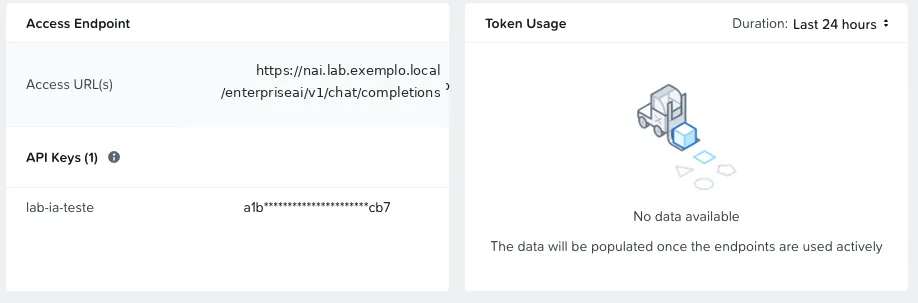
The endpoint page shows the OpenAI-compatible URL. The model field takes the endpoint name.
10. The first token
From the UI
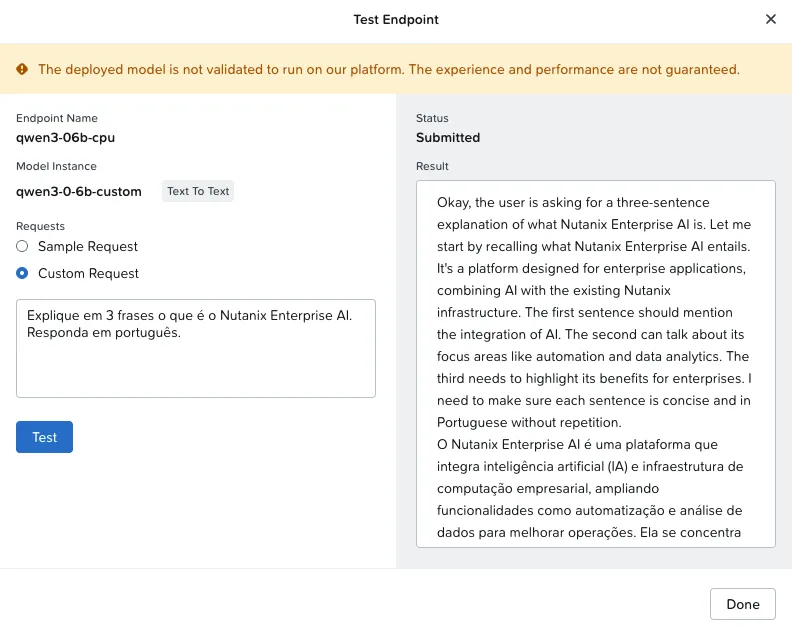
The Test button answers with Qwen3’s thinking mode on (the model’s default): the answer starts with the reasoning in English and then comes the reply in Portuguese. Through the API, you can turn it off with enable_thinking: false.
From the API
From the bastion, with the API key read from a prompt without echo:
curl https://nai.lab.example.local/enterpriseai/v1/chat/completions \ -H "Authorization: Bearer $NAI_API_KEY" \ -H "Content-Type: application/json" \ -d '{ "model": "qwen3-06b-cpu", "messages": [ {"role": "system", "content": "Always answer in Brazilian Portuguese."}, {"role": "user", "content": "Explain in 3 sentences what Nutanix Enterprise AI is."} ], "max_tokens": 200, "chat_template_kwargs": {"enable_thinking": false} }'| Test | Result |
|---|---|
| Without API key | HTTP 401 |
GET /enterpriseai/v1/models | qwen3-06b-cpu |
| Chat (non-streaming) | HTTP 200, 78 tokens in 17 s, answer in Portuguese |
| Streaming, 3 runs of ~200 tokens | TTFT 0.48–0.60 s and 4.3–4.6 tokens/s |
The answer came in the requested format and generic in content, as you’d expect from a 0.6B model.
Why 4.5 tokens/s
I measured instead of guessing:
| Factor | What I saw | Effect |
|---|---|---|
| CPU throttling | Pod limited to 8 vCPU, but vLLM sees the node’s 12 cores and opens 11 OpenMP threads: 20.5% of periods throttled | The process stalls waiting for CPU quota |
| No BF16 | The CPU (Cascade Lake) has AVX-512 and VNNI, but not AVX512_BF16 or AMX | vLLM runs in FP32: twice the memory and slower |
The first one can be improved with VLLM_CPU_OMP_THREADS_BIND matching the pod’s cores. In NAI 2.8.1, the endpoint’s advanced configuration offers Engine Arguments and KV Cache Aware Routing; an environment variable like this one goes on the KServe InferenceService. Part 4 shows the step by step and the gain: +40% tokens/s. The second comes from the lab hardware. For comparison, the lab’s GPU appliance serves a 30B model with NIM at ~66 tokens/s.
What CPU is good for
On a cluster without GPUs, NAI on CPU demonstrates the whole platform: catalog, model governance, licensing, endpoints with API keys, OpenAI-compatible API, auditing and metrics. For performance, it’s GPU (or CPU with AMX).
The numbers
| Measure | Value |
|---|---|
| Dedicated cluster: Create → nodes Ready | 3 min 33 s |
| Catalog dependencies | ~7 min |
| Enable (2nd) → Deployed | ~8 min, 27 pods |
| NAI requests (default) | ~20.7 vCPU / 33 GiB |
nai-cpu node pool: Add → Ready | 1 min 40 s |
| Validated model import (10 GiB) | 88 s |
| Custom model import (12 GiB) | 59 s |
| CPU endpoint: Create → Active | ~8.5 min |
| Time to first token | 0.5 s |
| Speed | 4.5 tokens/s (8 vCPU, FP32) |
| License applied | NAI Pro, 36 vCPU, on install day |
What I learned
- Read the chart before Enable. The defaults come with a self-signed certificate and a generic storage class and hostname: set them for your environment.
- NAI has its own registry credential. Create the
nai-systemnamespace and the secret with the NAI Docker Hub token before Enable, including inenvoy-gateway-system. - If the first Enable doesn’t complete, Disable + cleanup + Enable. It’s the fastest path, without waiting for Flux.
- License on day one, CPU type. The trial is 2 days, and the dialog opens on GPU.
- Size the workers for NAI’s control plane. The default requests ask for ~21 vCPU; reserve a node pool for inference.
- Governance from day one. Model Access Control comes as deny by default; allow models by list.
- Check the model’s accelerator type before picking the demo model: validated for GPU doesn’t imply a CPU profile.
- In my lab, CPU without BF16/AMX is for demos; for performance, GPU or CPU with AMX. And match vLLM’s threads to the pod limit.
Checklist: NAI 2.8.1 on NKP
- Dedicated cluster with the Ubuntu image; CoreDNS and
cluster-info-configmapfixed - RWX storage class ready (
Immediate) - The 7 catalog dependencies enabled
-
ClusterIssuerfor the internal CA (or accept the self-signed one) - NAI Docker Hub token and secret in
nai-systemandenvoy-gateway-system - Override in the cluster field: storage classes,
imagePullSecrets, issuer anddnsNames - DNS for the NAI name pointing to the Envoy IP
- First login (EULA → Pulse → password); if a 403 shows up after Pulse, sign in again
- CPU license applied the same day
- Node pool for inference
- Hugging Face token (Read or fine-grained) and gated licenses accepted
- Model Access Control opened by list
- Endpoint with API key; test without key (401) and with key (200)
What I haven’t tested yet
- GPU endpoints in NAI. The lab cluster has no GPU, and the license applied was the CPU one. The GPU inside NKP itself is the lab’s next step.
- CPU inference with BF16 or AMX. The lab hosts are Cascade Lake, with neither AVX512_BF16 nor AMX, and vLLM runs in FP32.
- vLLM thread tuning (
VLLM_CPU_OMP_THREADS_BIND): it went to Part 4, which shows the step by step and the +40% gain. - The Agent Gateway (unified endpoints and MCP): the lab did not have that entitlement yet at this stage, and it went to Part 4.
Next part
In Part 4, NAI stops being an island: the same OpenAI client calling the NAI CPU endpoint and the model on the lab’s GPU, the Agent Gateway with MCP, and token observability.
References
Nutanix
- Nutanix Enterprise AI Guide 2.8.1 (Nutanix portal): requirements (pp. 13–17), NKP deployment, Docker Hub access token (p. 28), login (p. 132), licensing (pp. 173–178), Model Access Control (p. 194), model import (pp. 197–202), endpoints (pp. 225–246)
- Nutanix Validated Design: Nutanix Enterprise AI (NVD-2057)
Projects and community
Comments
Comments use GitHub Discussions; you need a GitHub account.